Reports
Reports - Sended Alerts Guide
1. Navigating the Alerts Table
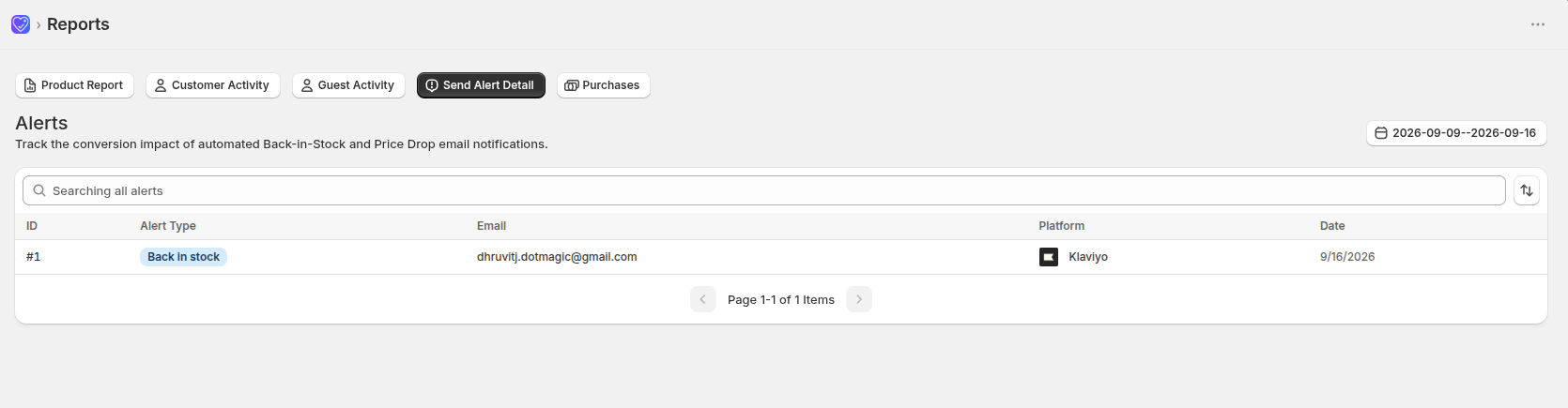
This tab helps you track the conversion impact of automated Back-in-Stock and Price Drop email notifications sent through your connected integrations.
- ID: Displays a sequential identifier for each alert sent, useful for internal reference and support conversations.
- Alert Type: Shows the category of notification that was triggered — for example, Back in stock or Price Drop — displayed as a colored badge for quick scanning.
- Email: Displays the recipient's email address, letting you confirm exactly who received the alert.
- Platform: Indicates which connected integration (e.g., Klaviyo, Mailchimp, Omnisend) actually delivered the email, shown with the platform's icon and name.
- Date: Shows the exact date the alert was sent, helping you correlate alert-timing with resulting purchases or engagement.
2. Global Table Controls
- Active Tab Selection: Ensure that the Send Alert Detail tab is highlighted at the top to access these specific alert rows.
- Search Bar: Use the "Searching all alerts" input field to look up a specific alert or recipient instantly.
- Date Range Picker: Filter alert activity across precise marketing cycles using the calendar toggle widget on the right.
- Pagination: Use the bottom navigation arrows to flip through your alert records cleanly.