Shopify Flow integration
Send wishlist emails to your customers through Shopify Flow and Shopify Messaging — no third-party email service needed
Before you start
Shopify Flow emails are sent through Shopify Messaging, so both apps must be installed on your store before you set this up:
- Install the Shopify Flow app from the Shopify App Store.
- Install the Shopify Messaging app from the Shopify App Store.
Important: these emails are marketing emails, so they are only delivered to customers who are subscribed to email marketing. Customers who haven't subscribed will be skipped automatically — you'll see the run marked as skipped in Flow's run history. To test, open Customers in your Shopify admin, select a customer, and make sure their email subscription status is Subscribed.

1. Connect Shopify Flow in the app
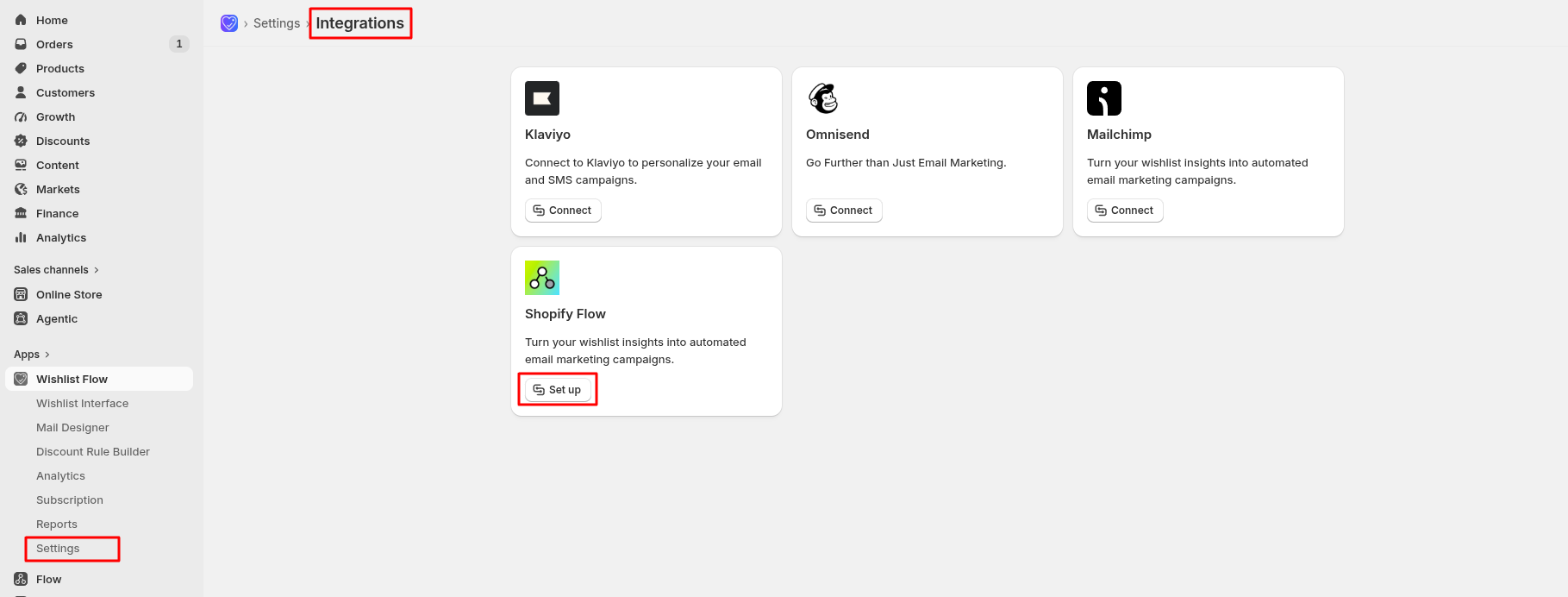
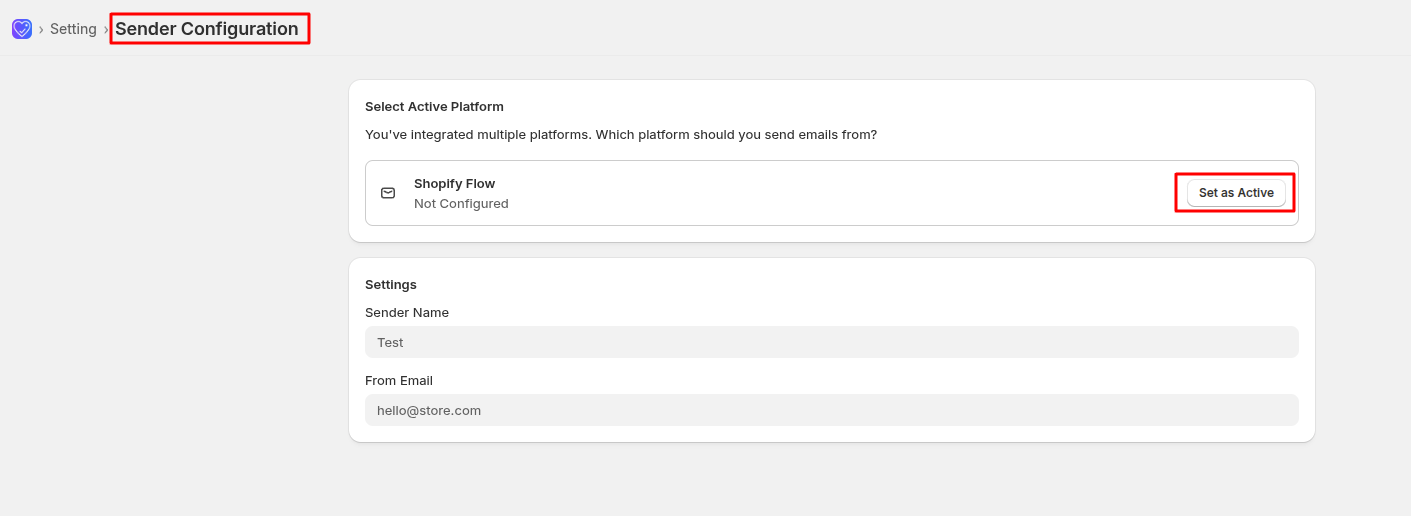
- In the Wishlist Flow app, go to Settings → Integrations.
- On the Shopify Flow card, click Set up.
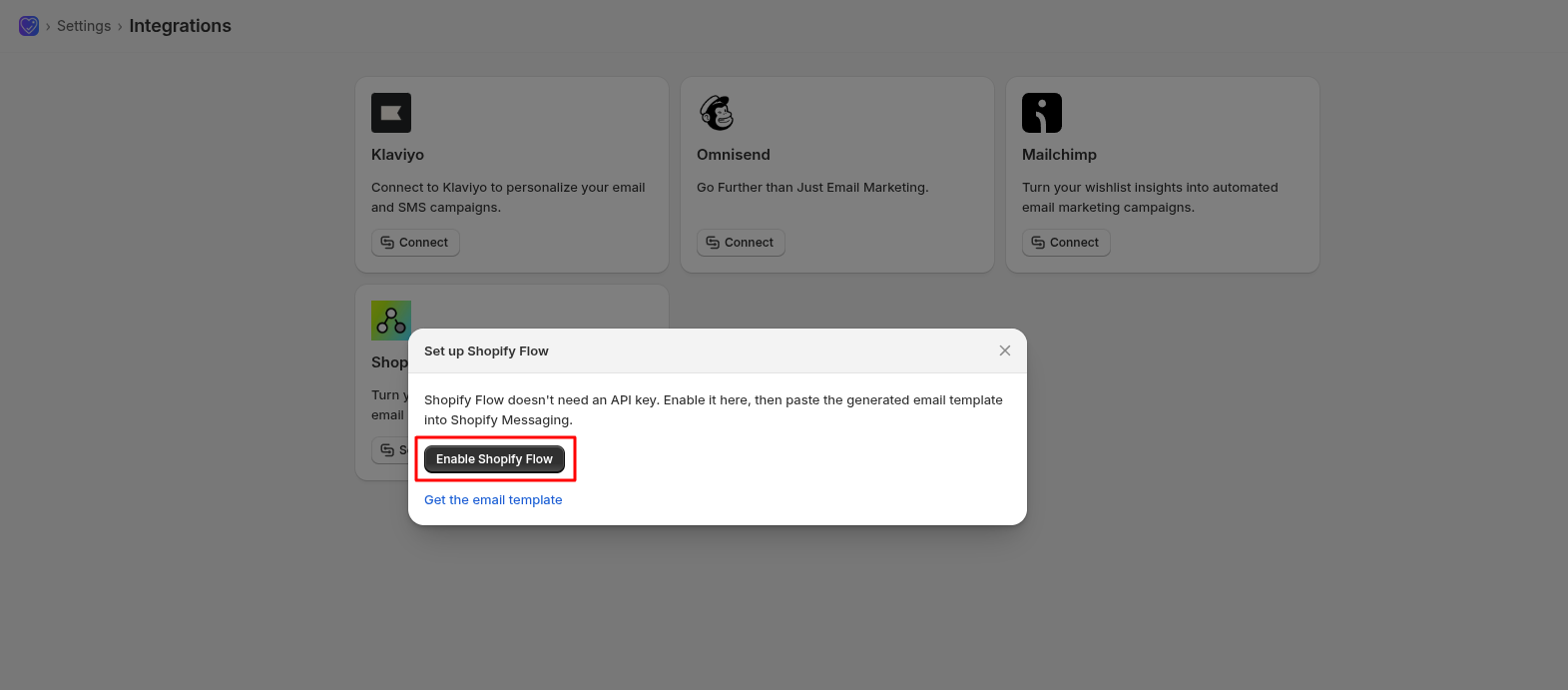
- Click Enable Shopify Flow. No API key is needed.
2. Copy your email template
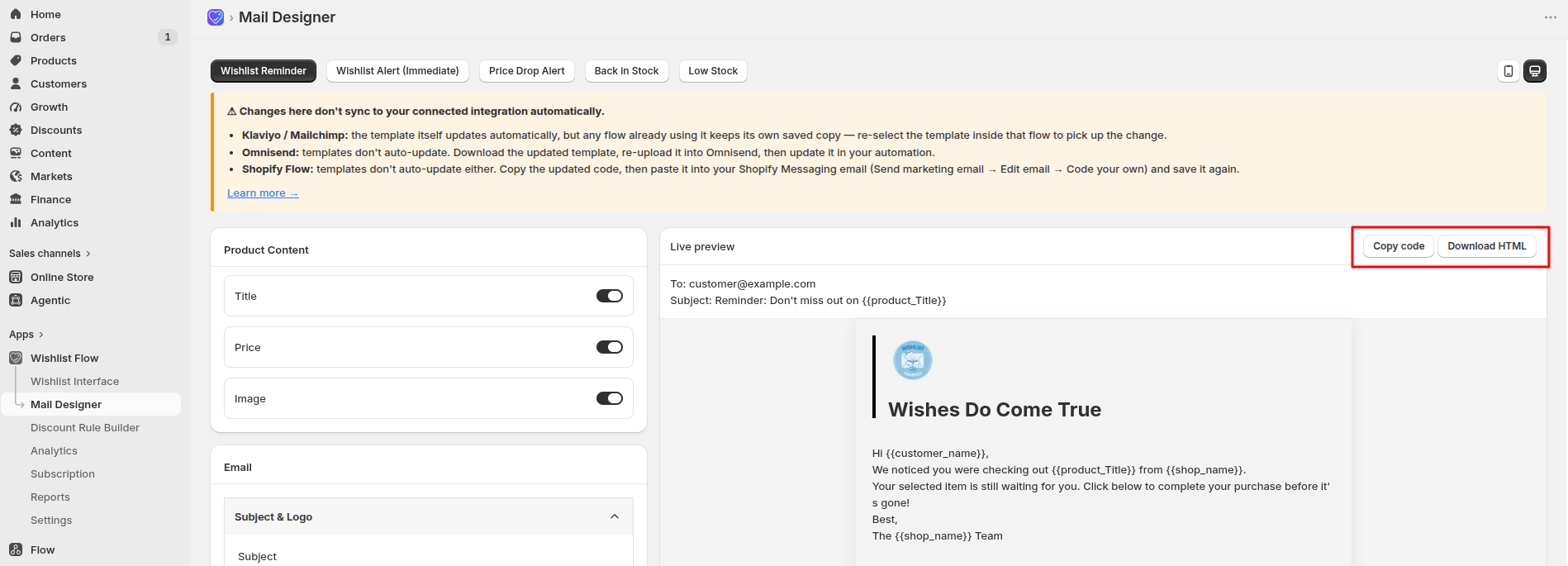
- Go to Mail Designer.
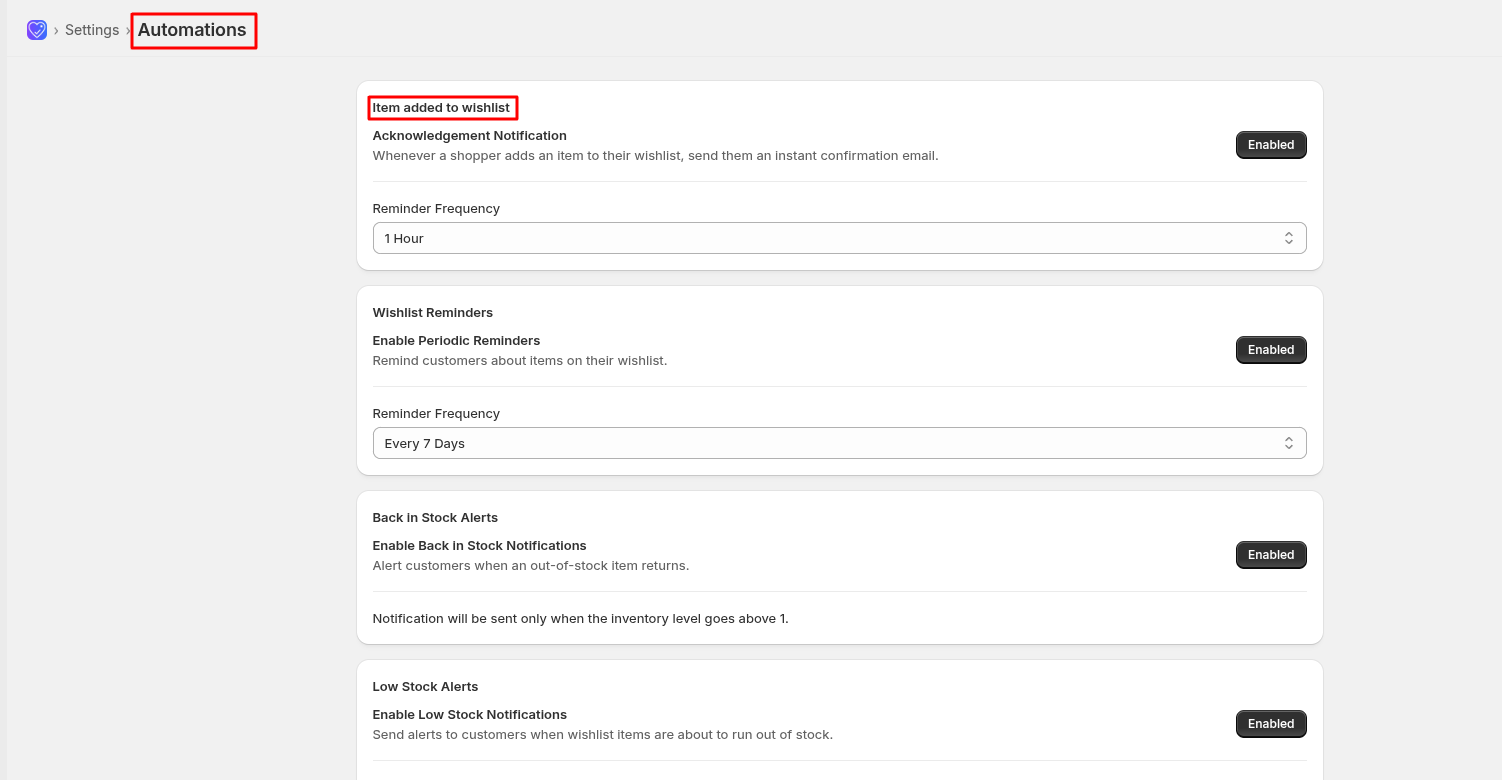
- Select the email you want to set up: Wishlist Reminder, Wishlist Alert (Immediate), Price Drop Alert, Back in Stock, or Low Stock.
- Customize the subject, logo, title, body message, product fields, and footer, then click Save.
- Click Copy code above the live preview. (Use Download HTML if you'd rather save the file.)
Repeat this for each email you want to send. Each one needs its own workflow in Flow.
3. Create the workflow
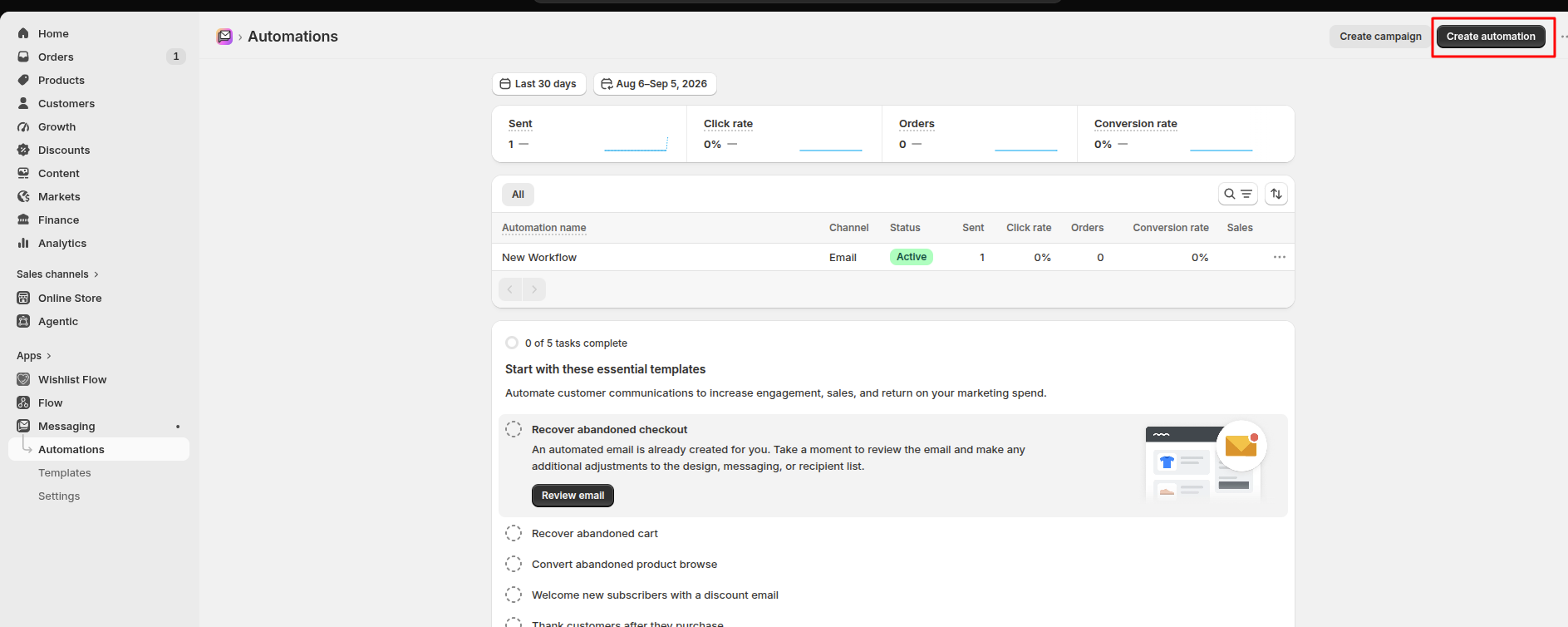
- In your Shopify admin, open Messaging → Automations.
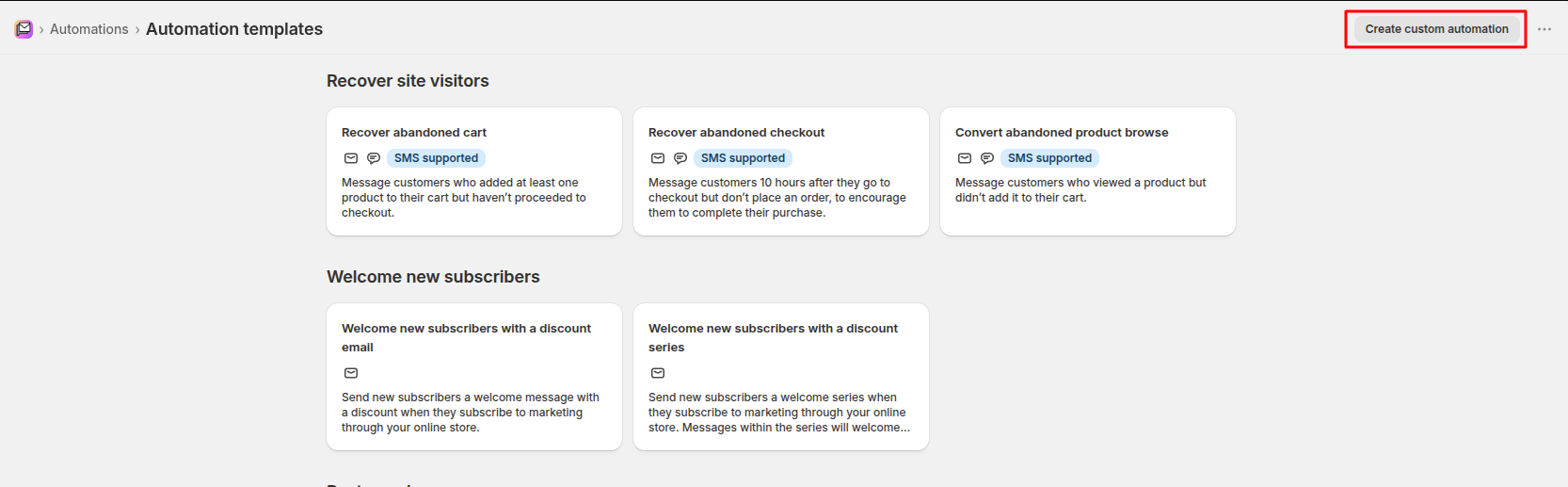
- Click Create custom automation.
- Click Select a trigger, choose the Wishlist Flow app, and pick the trigger that matches your email:
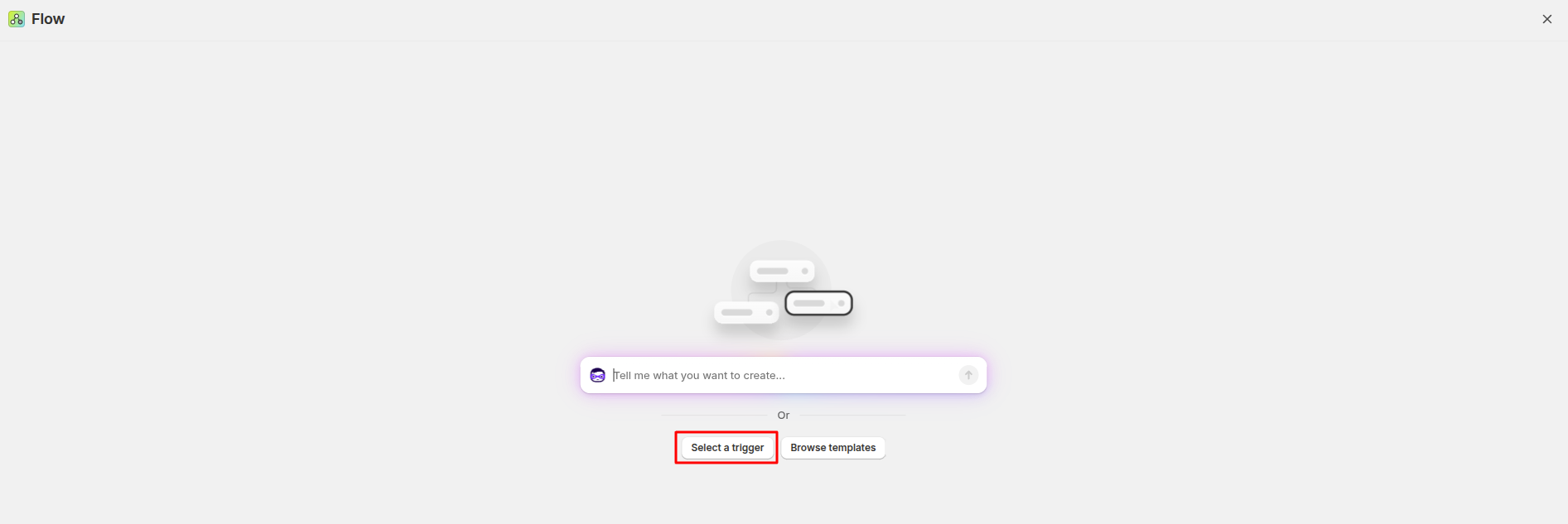
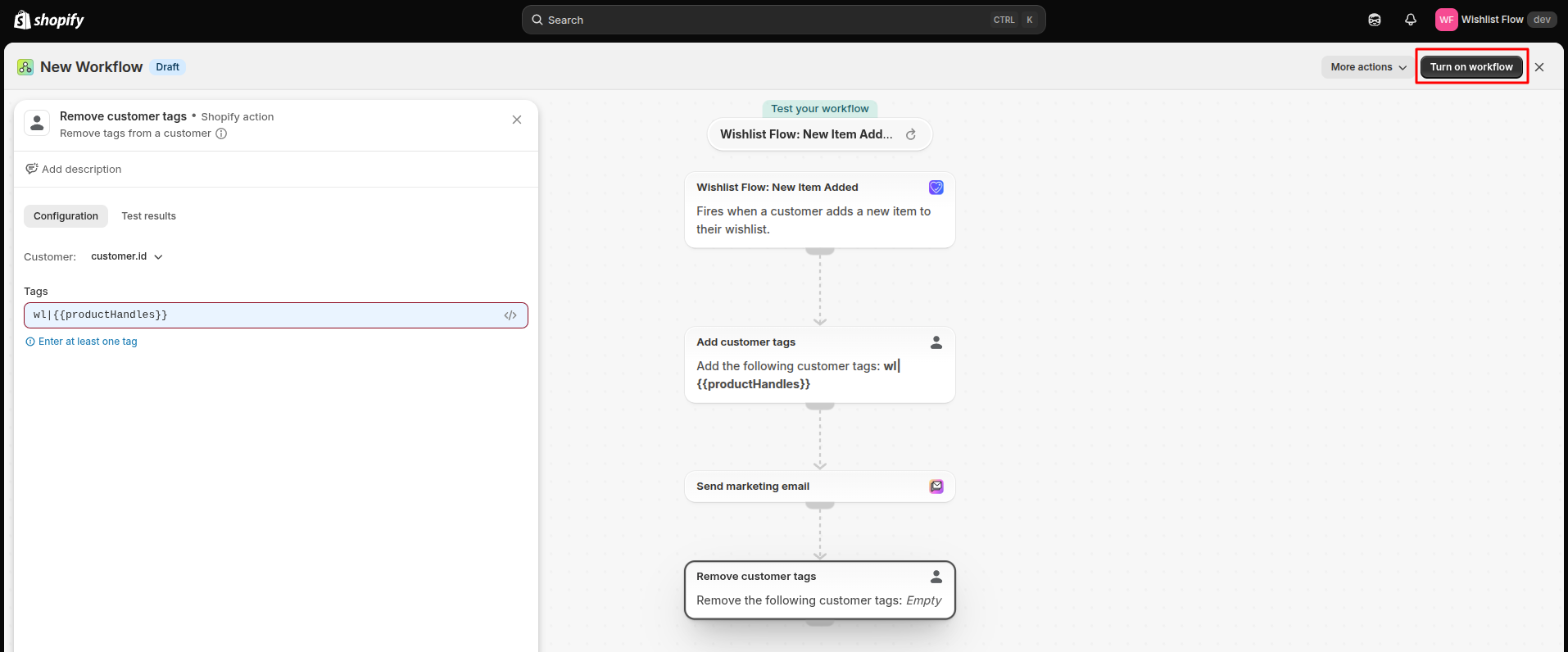
then select the Wishlist flow app after select it there will 5 triggers select based on your requirement.
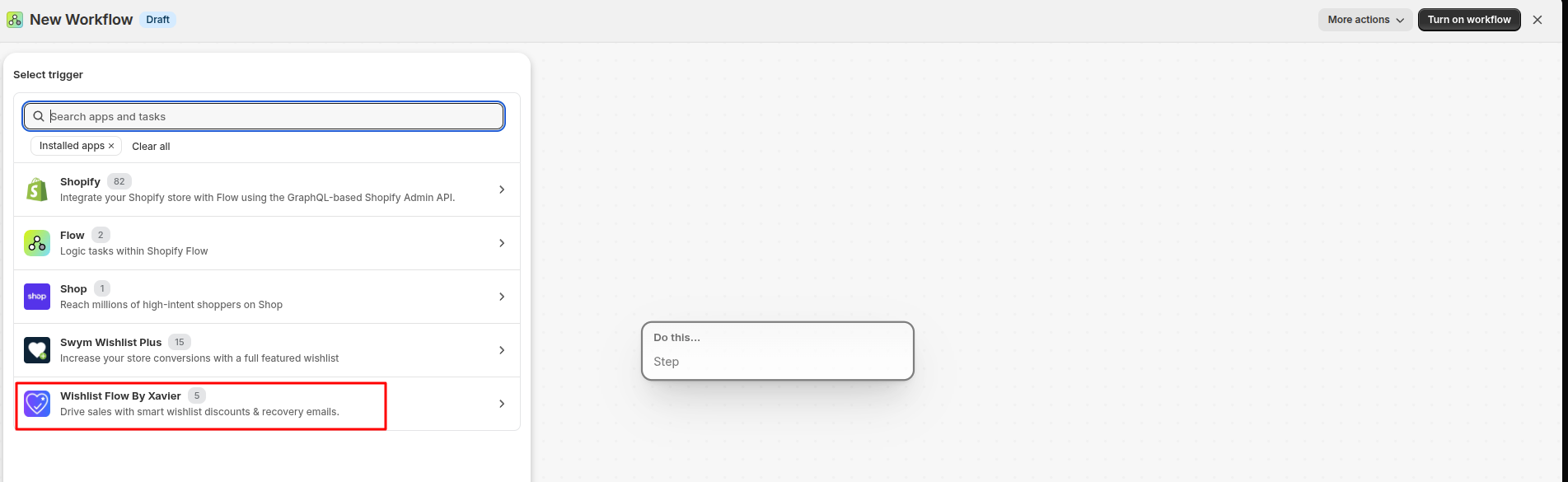
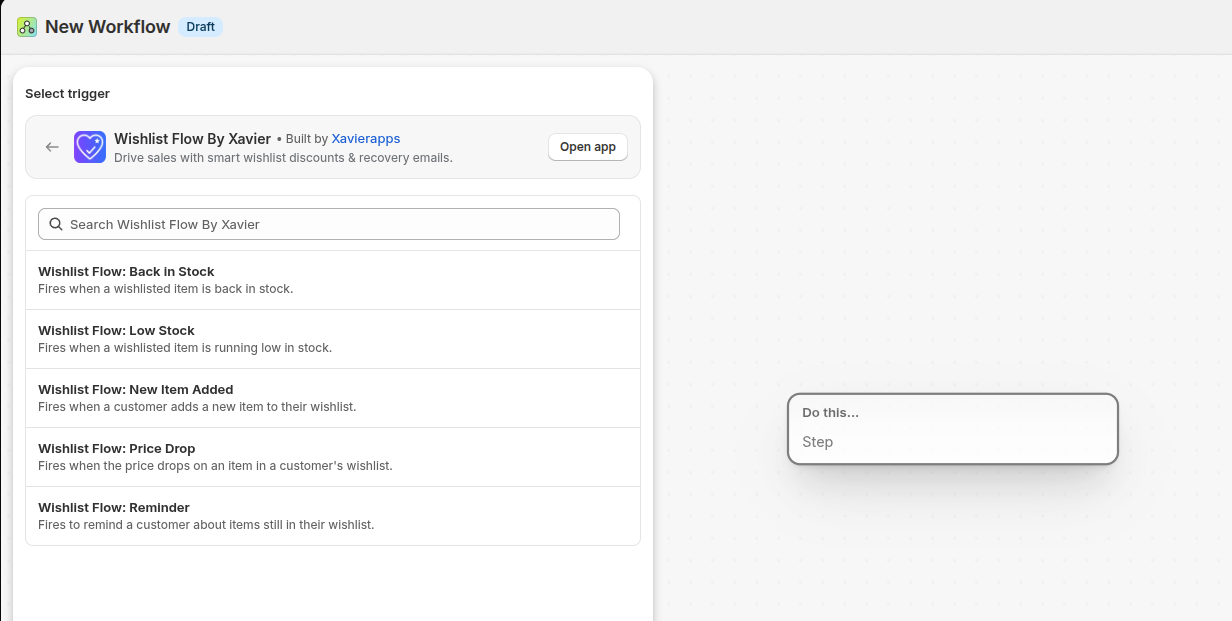
Next there is one + icon clink on it and there is 2 option Action and Condition
select Action

Next search "Customer Tag" and select "Add customer tags"
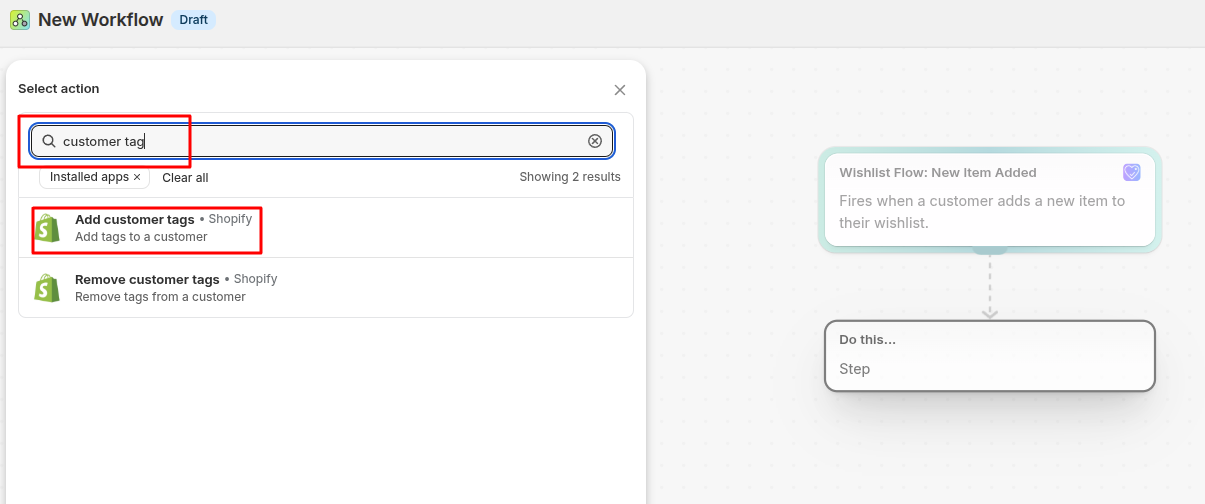
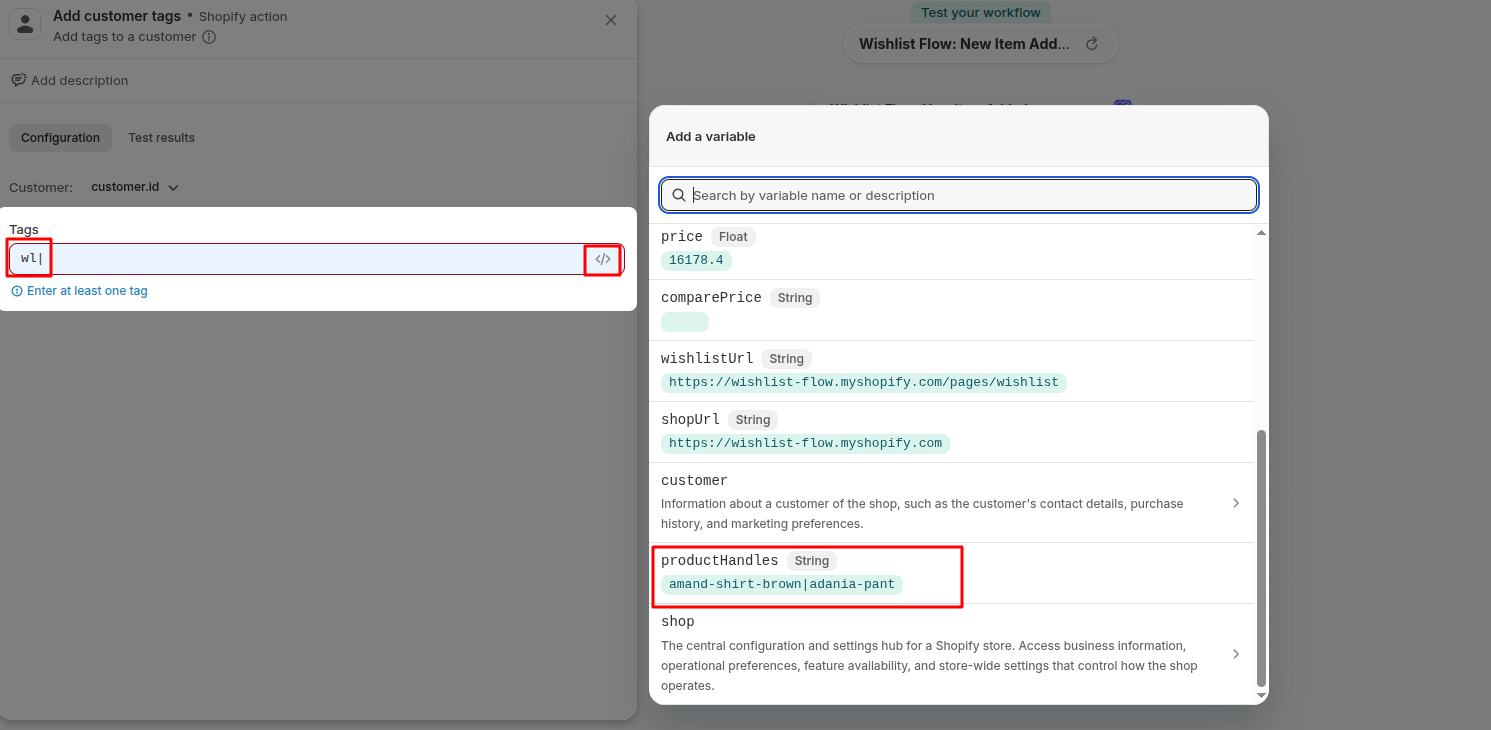
Then type same as it is "wl|" in tags field and click right </> icon it will show model popup like image and select "productHandles" after this press enter
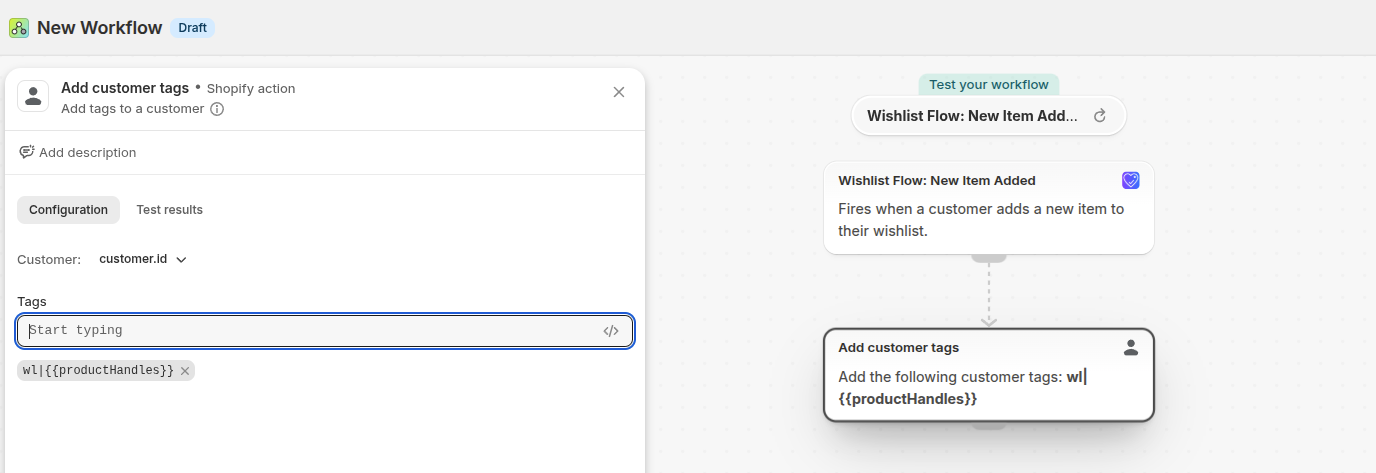
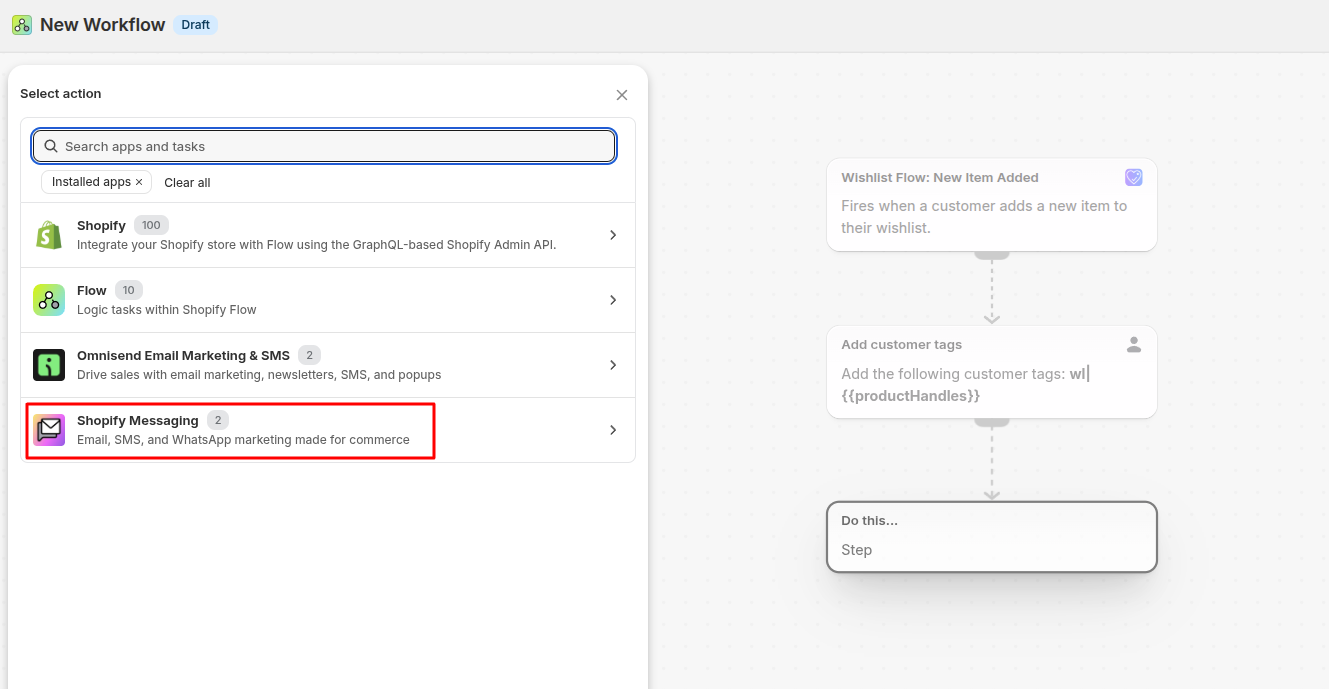
Next click on + icon and select action then select shopify messaging
there it will show 2 option select send marketing mail
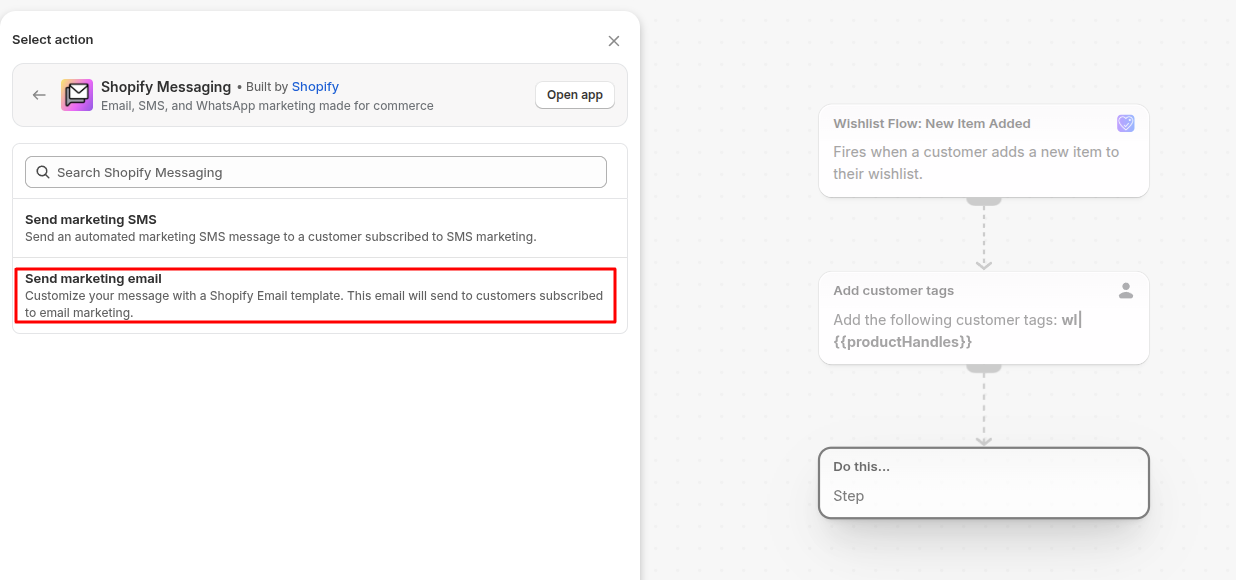
select template then select Code your own and then paste code there which you have copied from app.
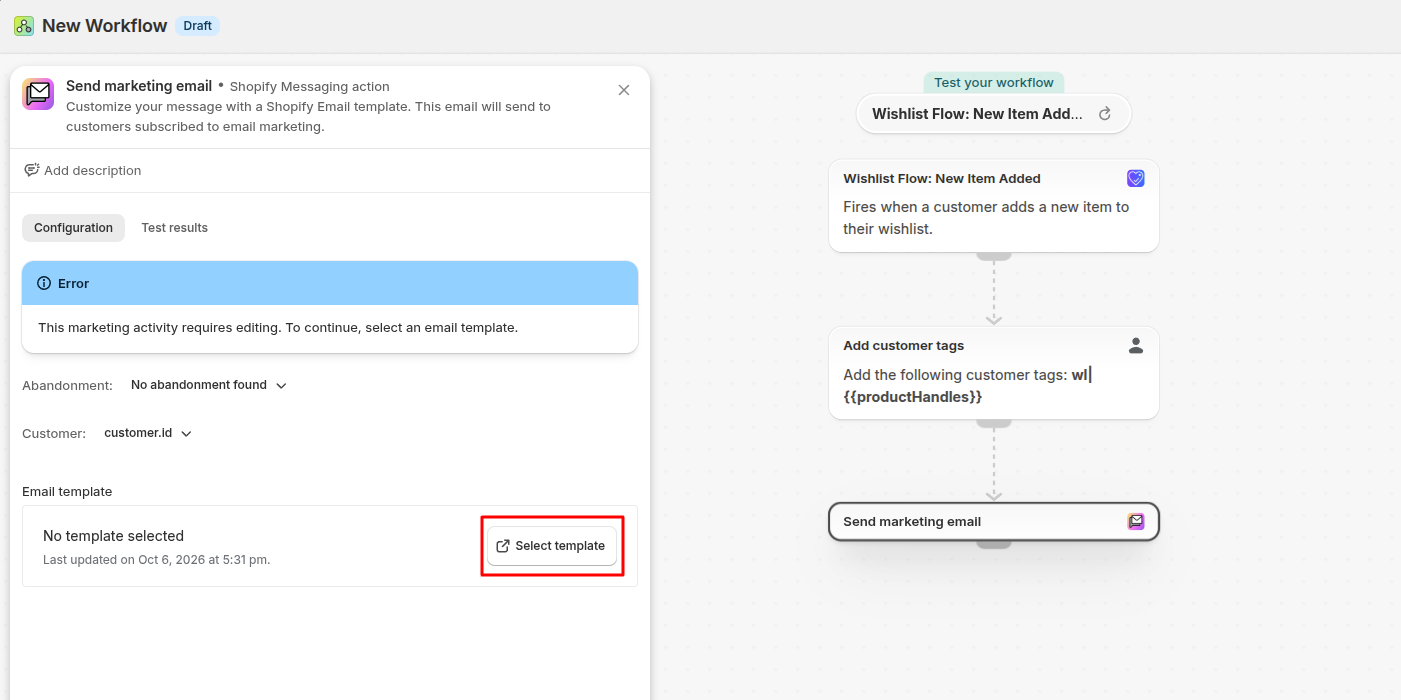
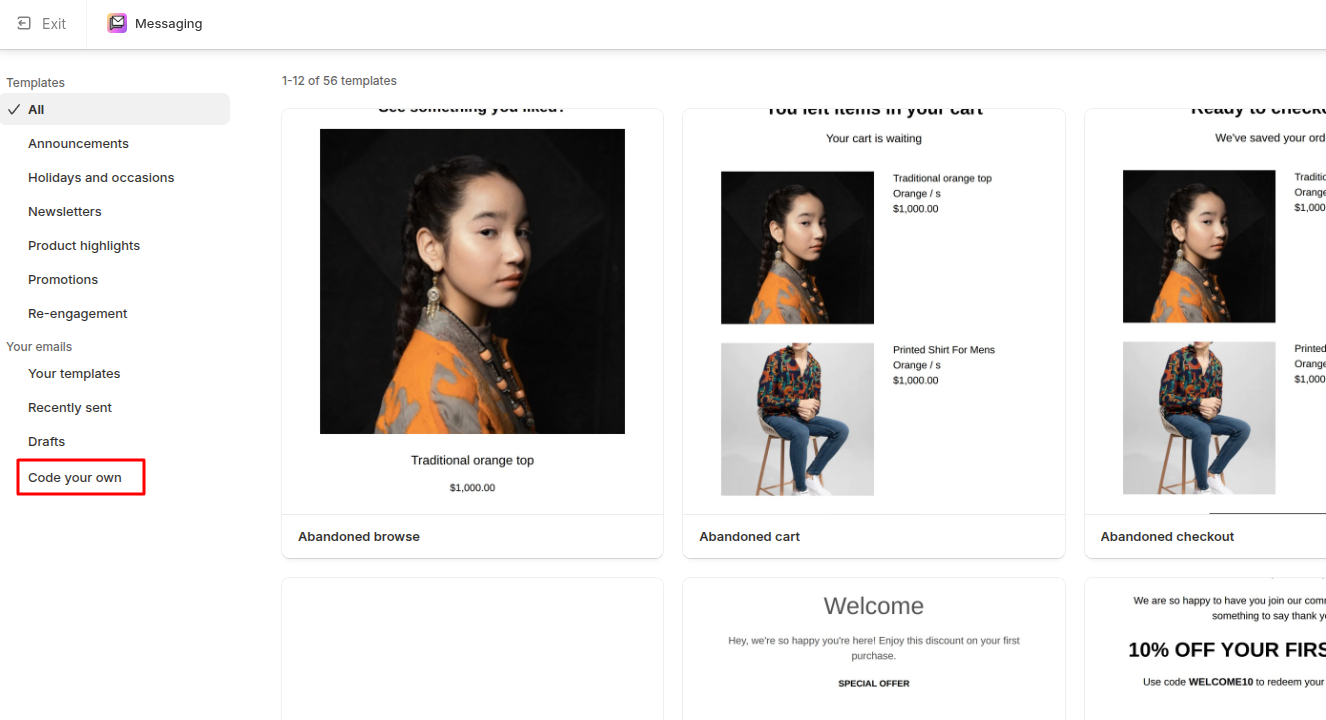
Here you have multiple option at subject. subject is not dynamically supported from app so here you can add here and select some dynamic customer data fields same as this you can add in Preview text.
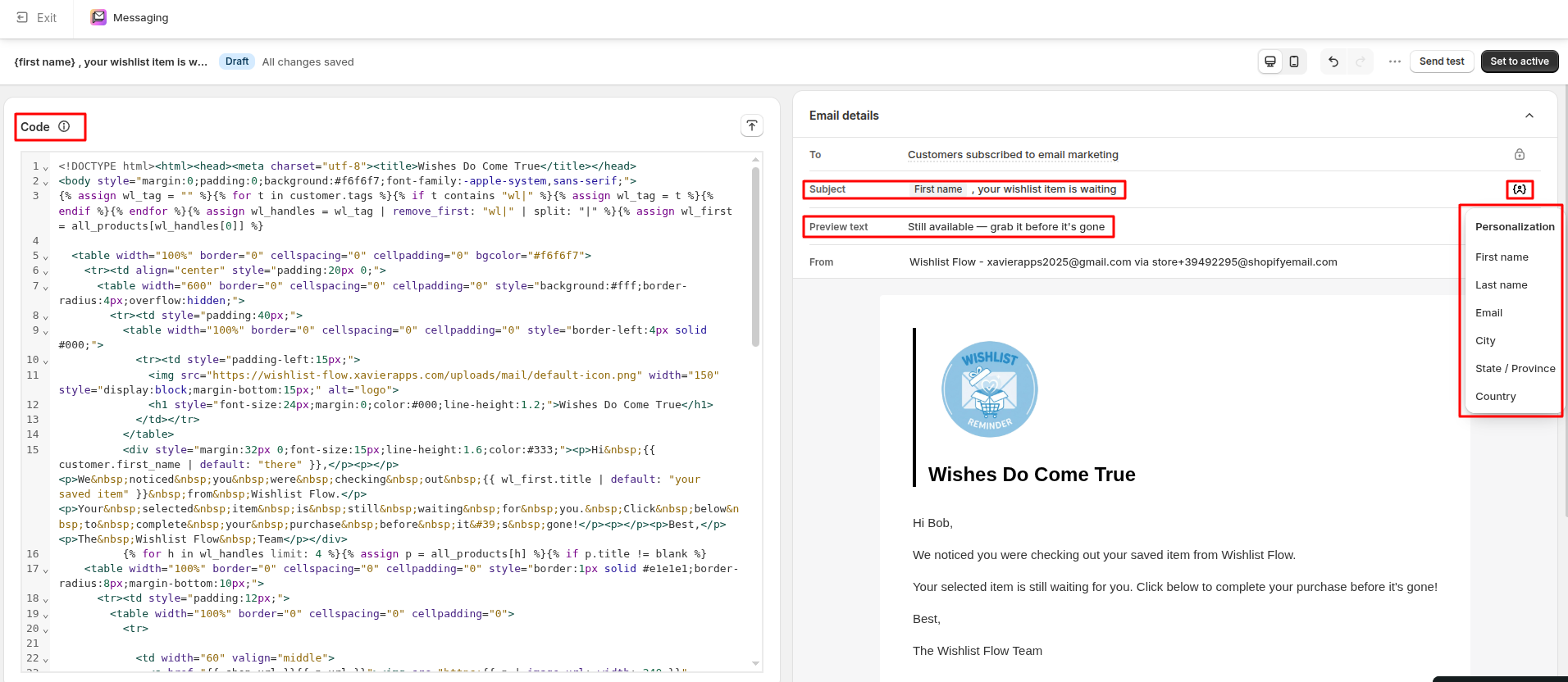
then final Set to active then next click on + and add Action and select remove customer tags
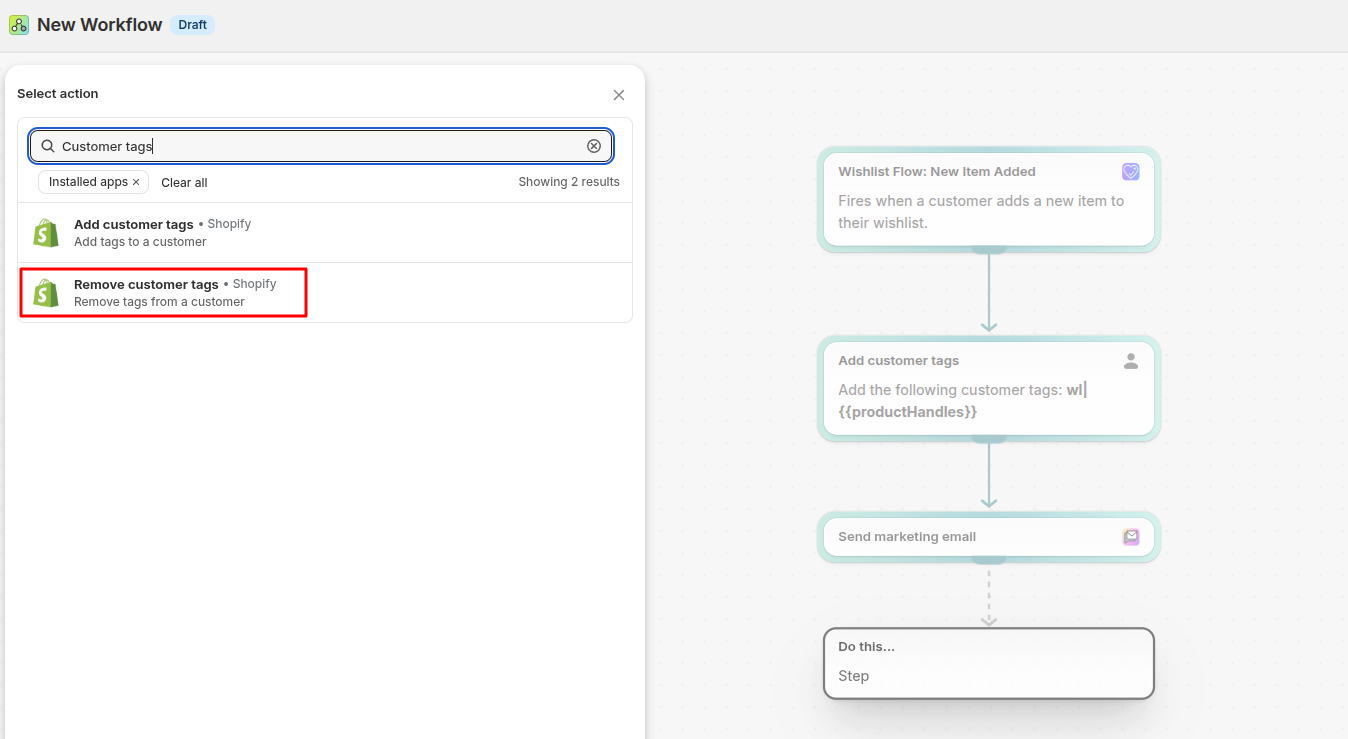
Type same as before "wl|" and select productHandles from right and don't forget to press enter
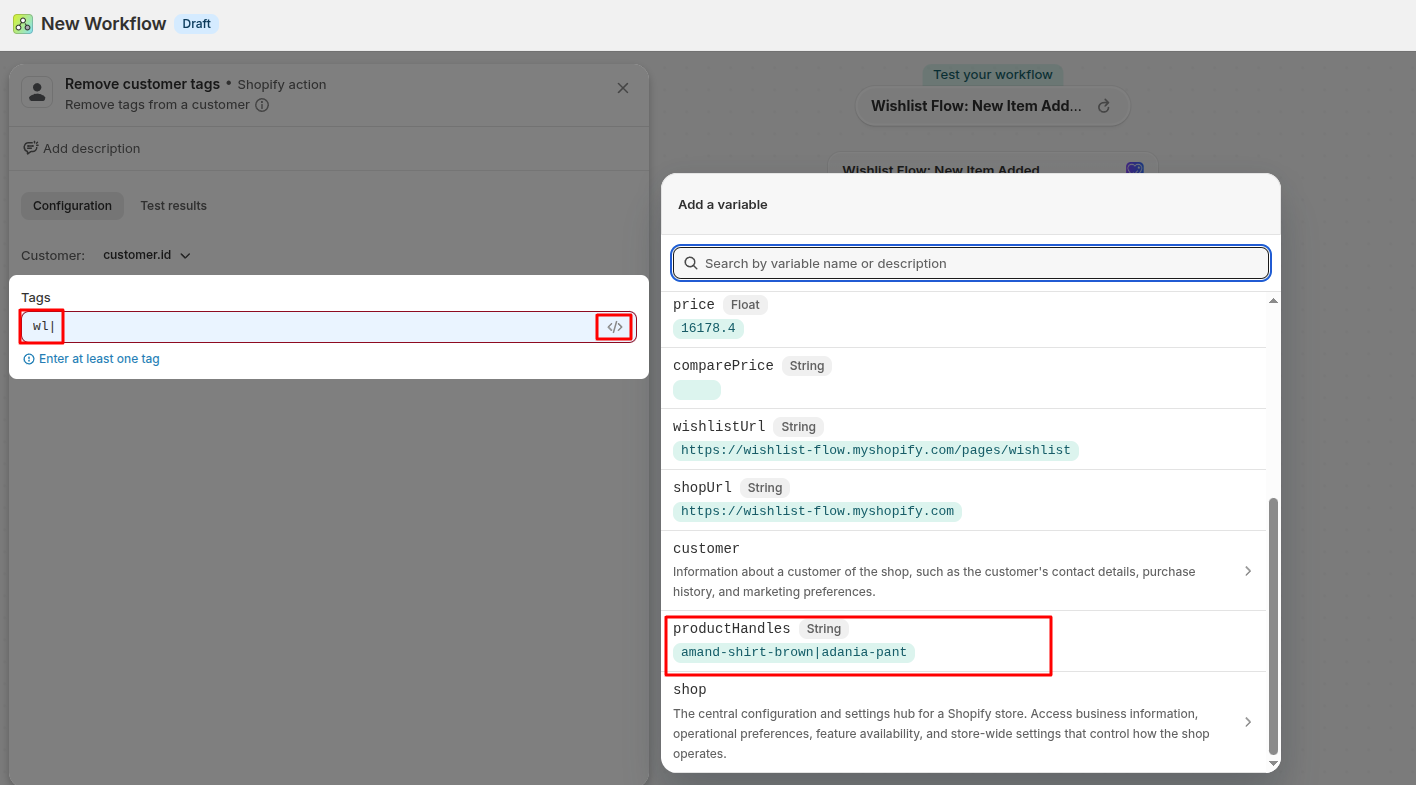
then final Turn on Flow