Klaviyo integration
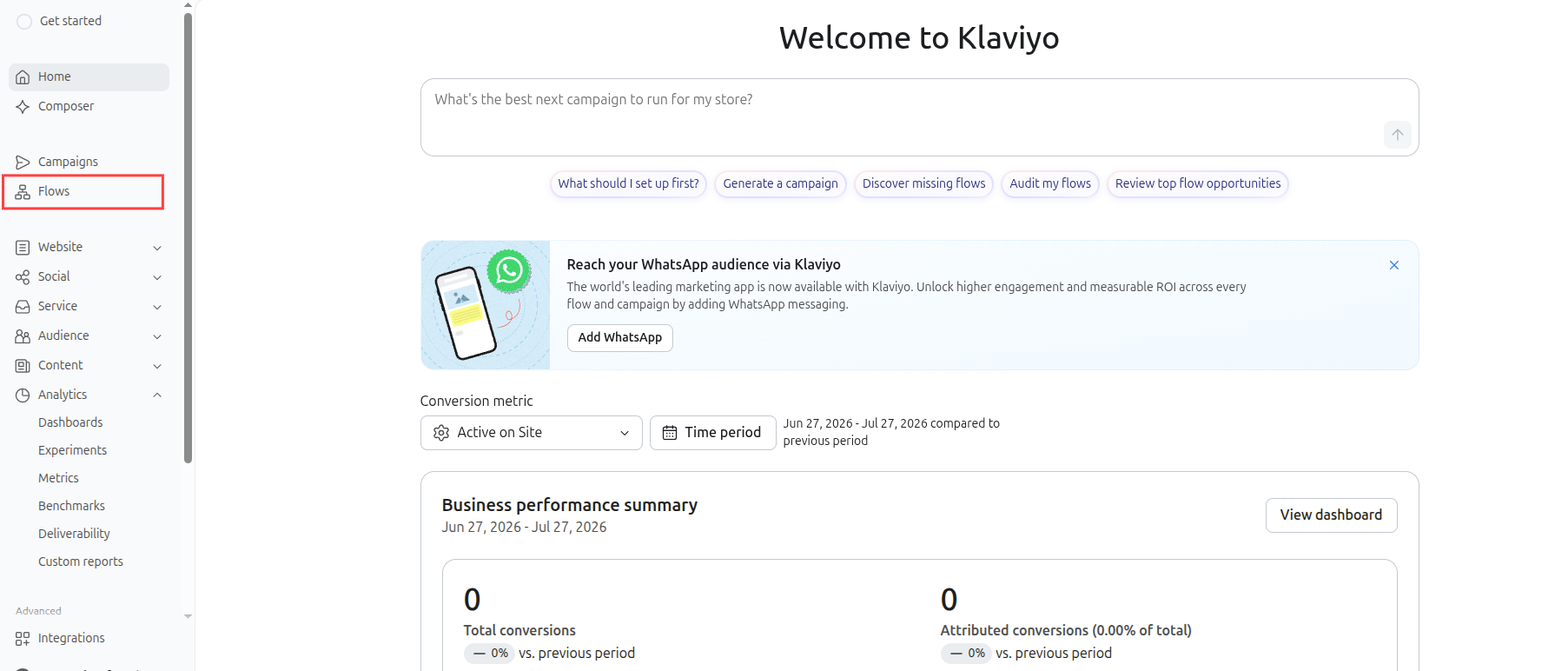
1. Klaviyo dashboard → left menu → click Flows
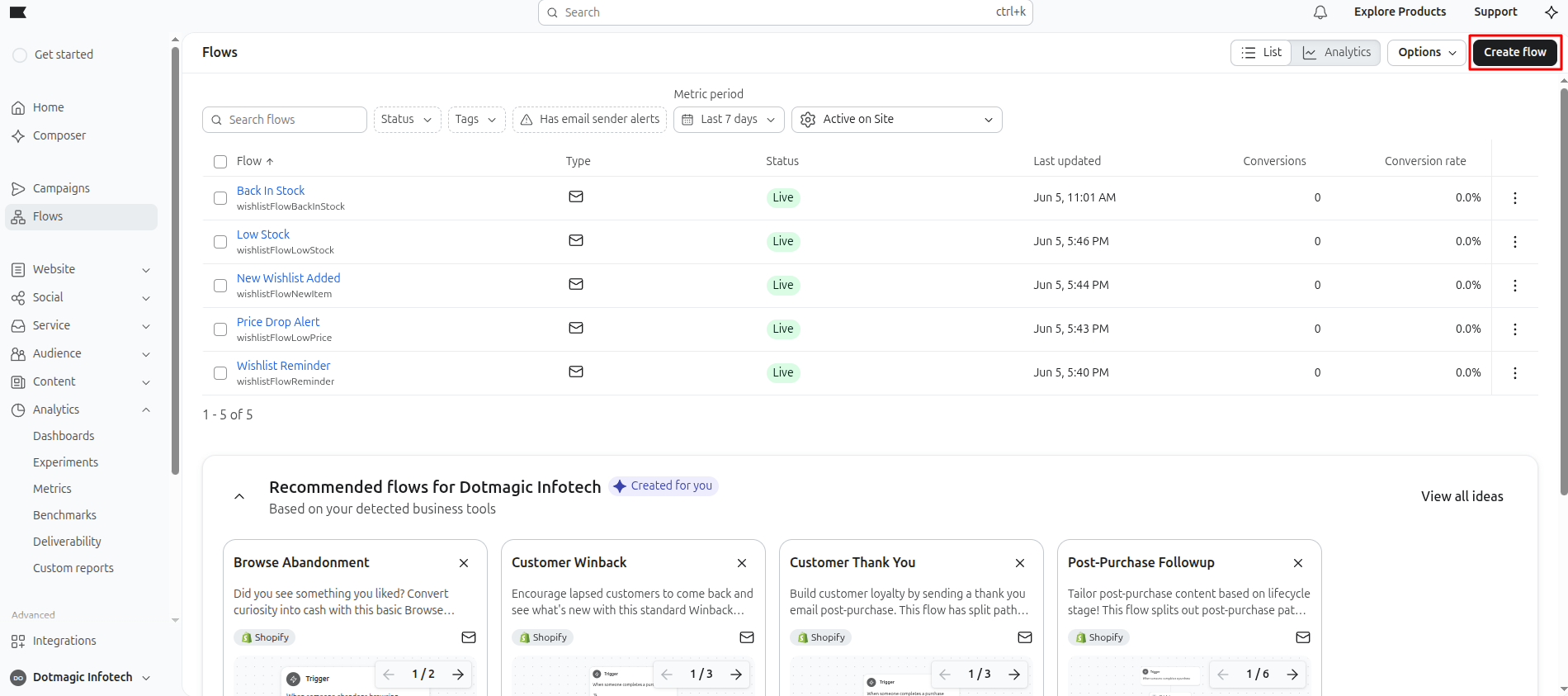
2. Click Create flow (top right)
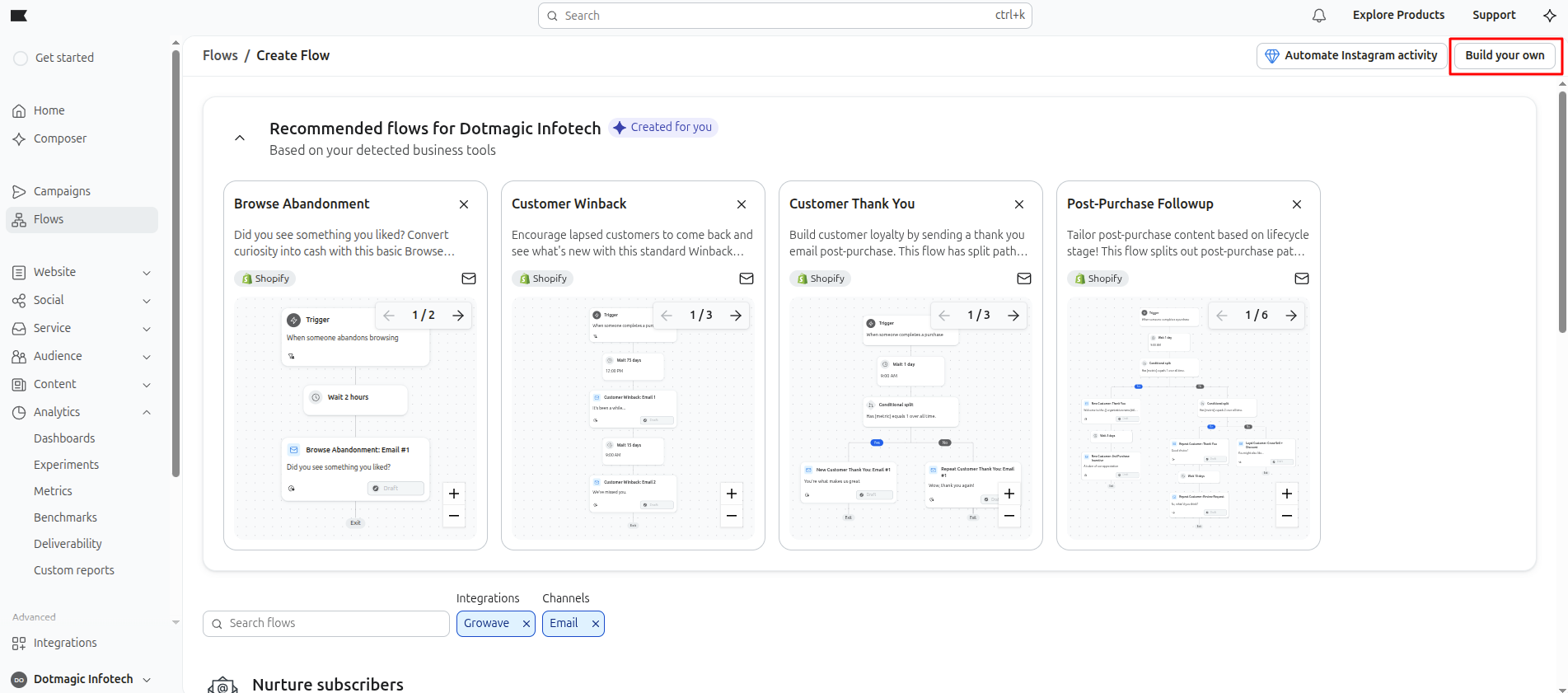
3. Click Build your own (top right)
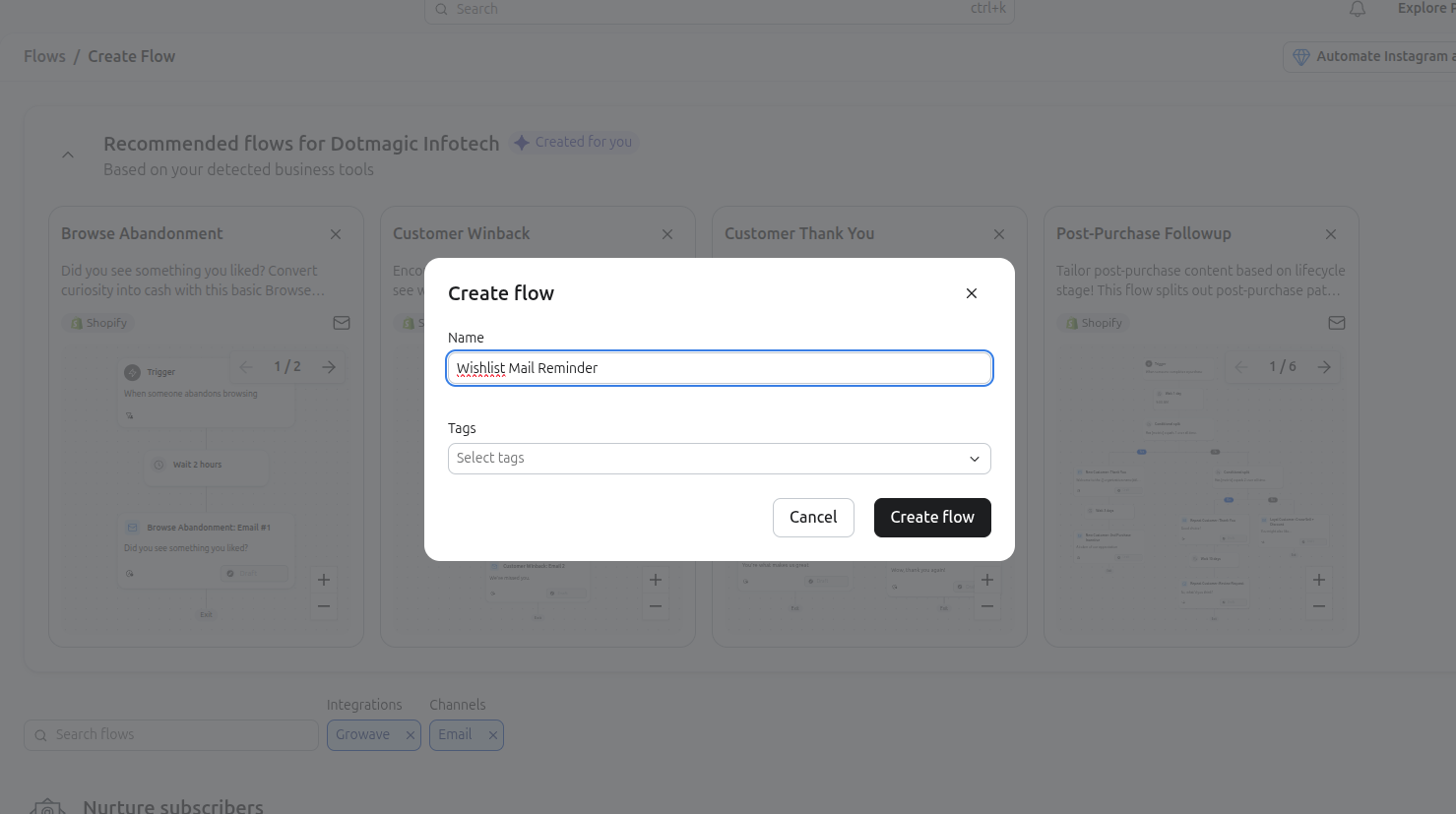
4. Popup open → type flow name (e.g. "Wishlist Mail Reminder") → click Create flow
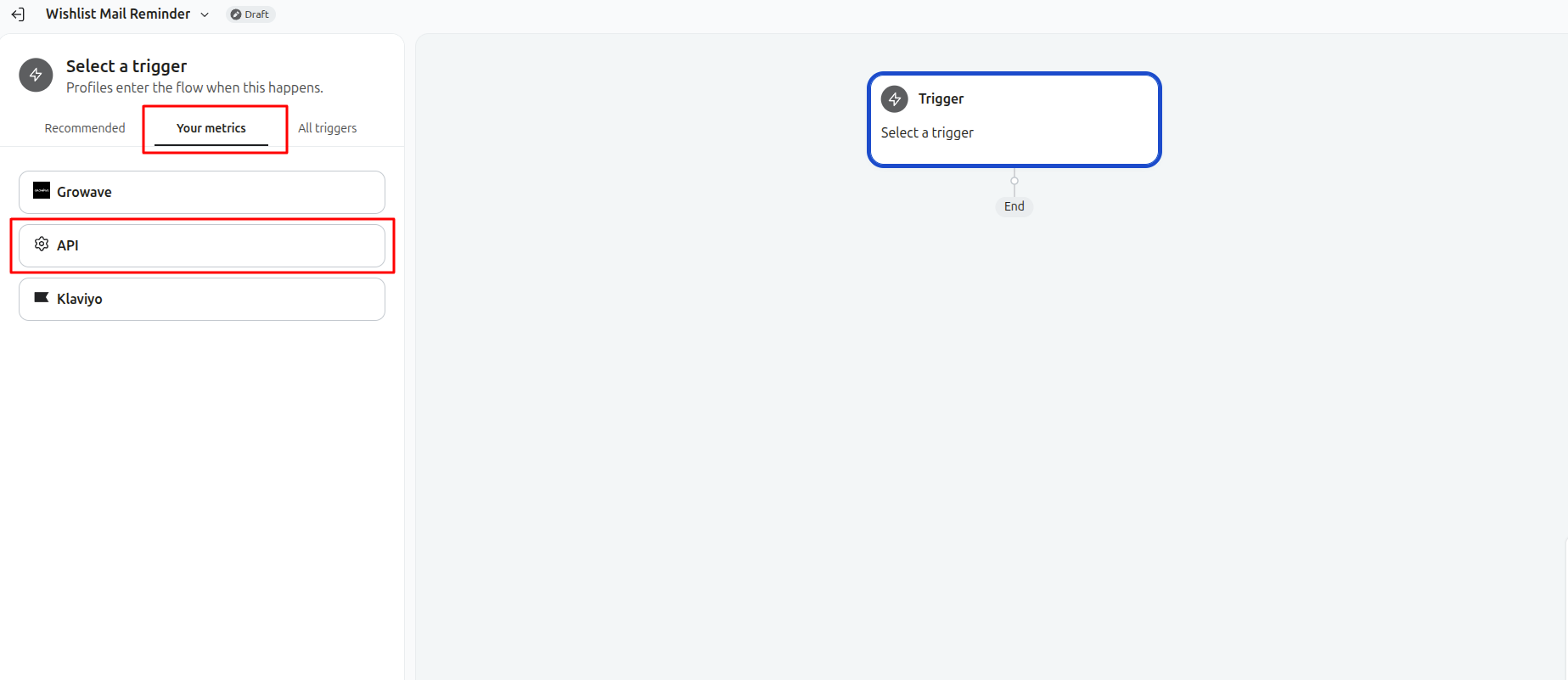
5. Select trigger screen → click Your metrics tab → click API
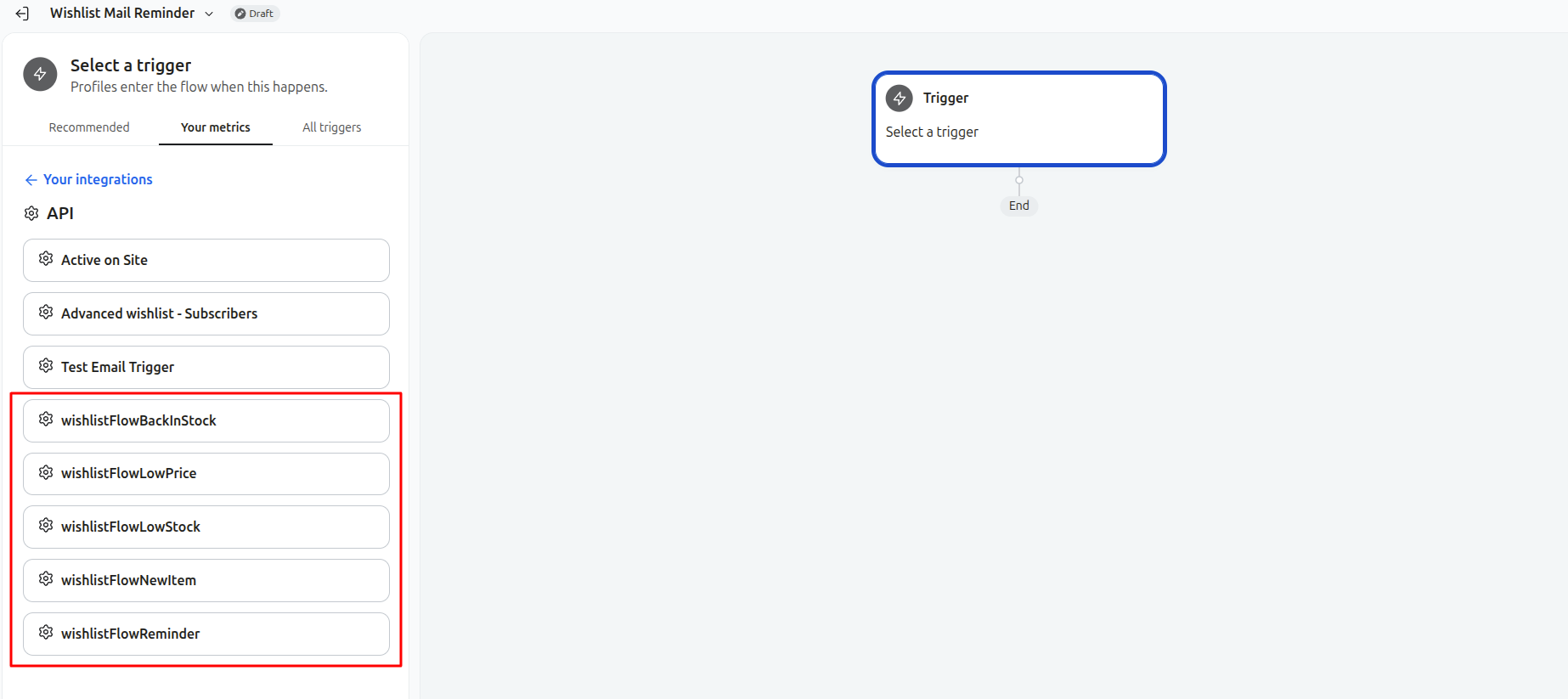
6. List show five app metrics (one per mail type):
- wishlistFlowBackInStock — fire when out-of-stock wishlist item come back in stock. Alert customer product available again.
- wishlistFlowLowPrice — fire when wishlist item price drop. Alert customer good time to buy.
- wishlistFlowLowStock — fire when wishlist item stock going low (few qty left). Create urgency, buy before sold out.
- wishlistFlowNewItem — fire when customer add new item to wishlist. Confirm item saved, maybe cross-sell.
- wishlistFlowReminder — fire on schedule (e.g. X days after add) to remind customer item still sitting in wishlist, nudge to complete purchase.
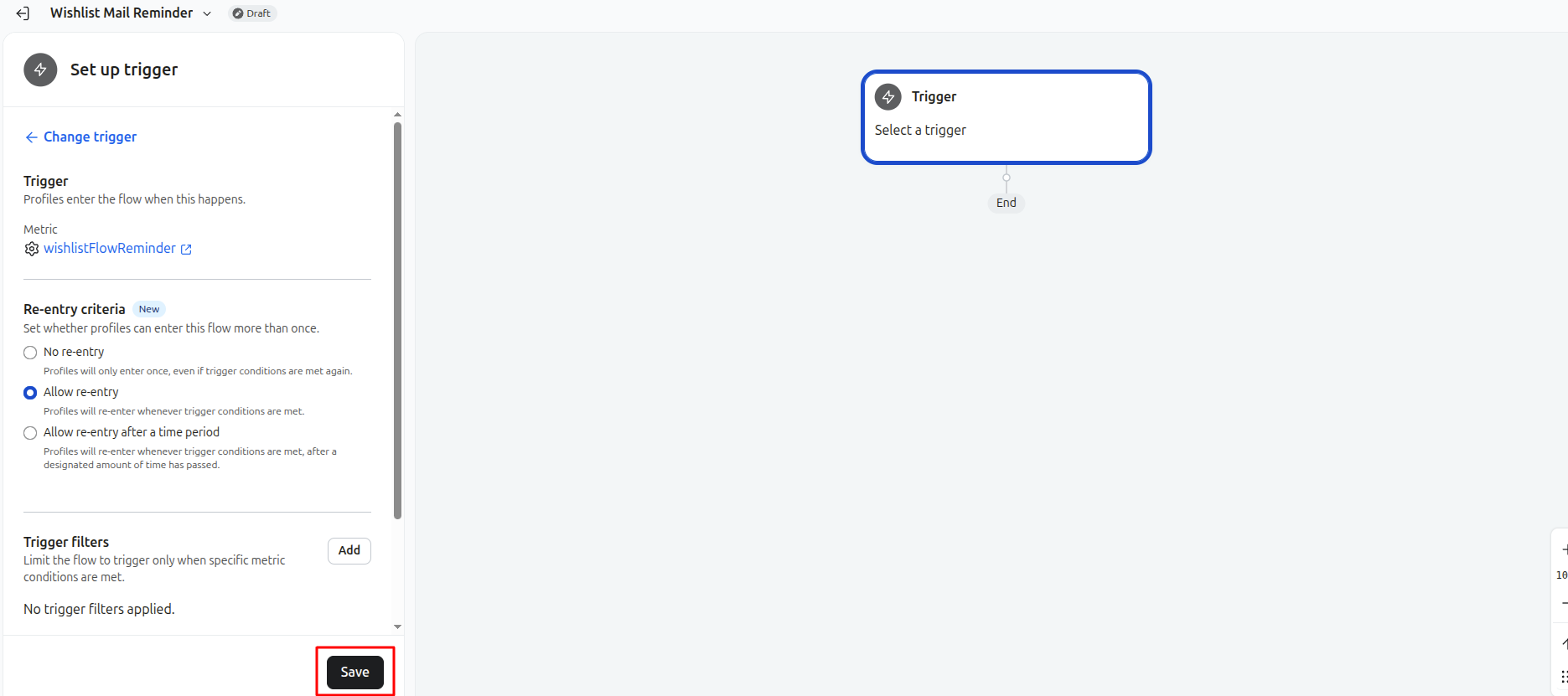
7. Trigger config panel open → re-entry criteria default fine (Allow re-entry) → click Save
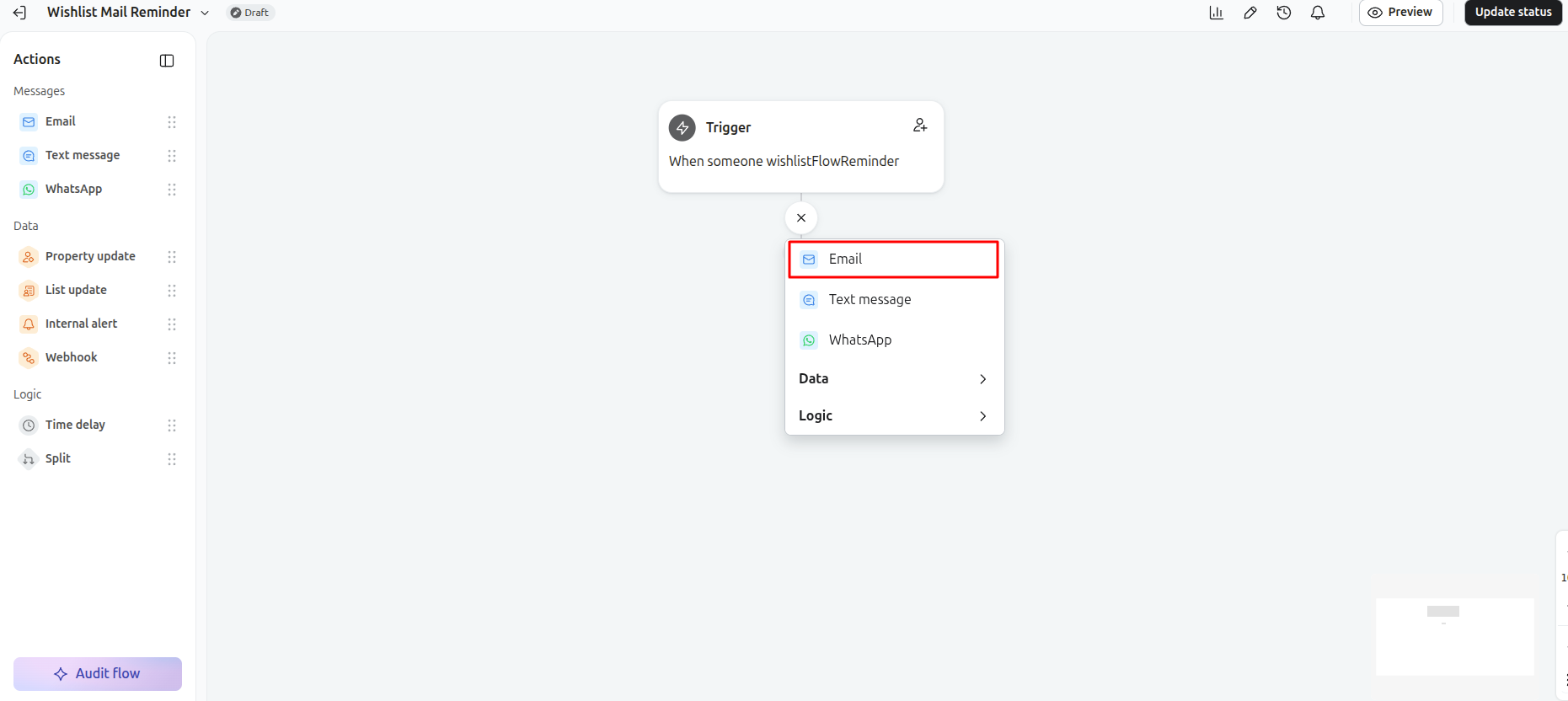
8. Flow canvas show trigger box → click + → select Email action
9. Email details panel open:
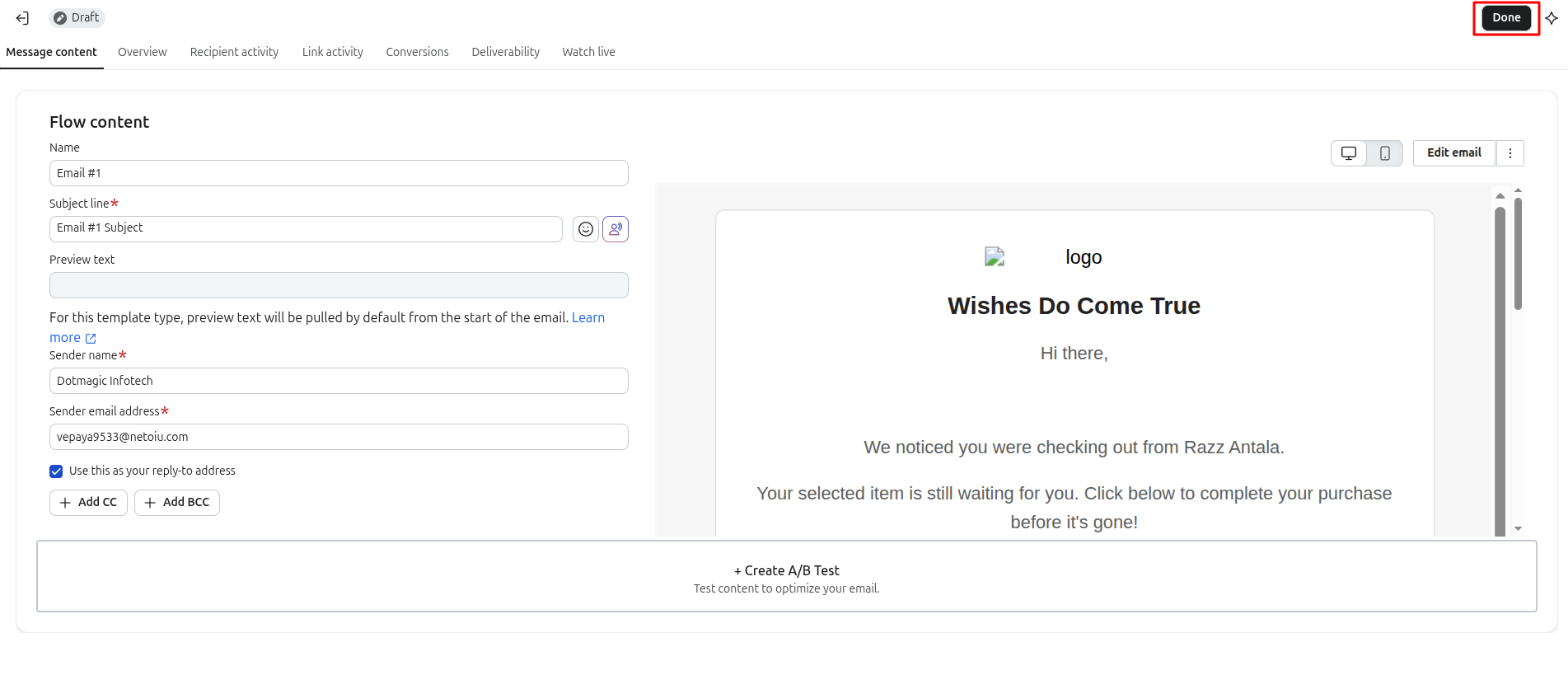
- Email name — set label (e.g. "Email #1"), for dynamic value from app use {{ event.subject }}
- Subject line* (required) — type subject, for dynamic value from app use {{ event.subject }}
- Settings: leave "Skip recently emailed profiles" unchecked (unless want smart sending)
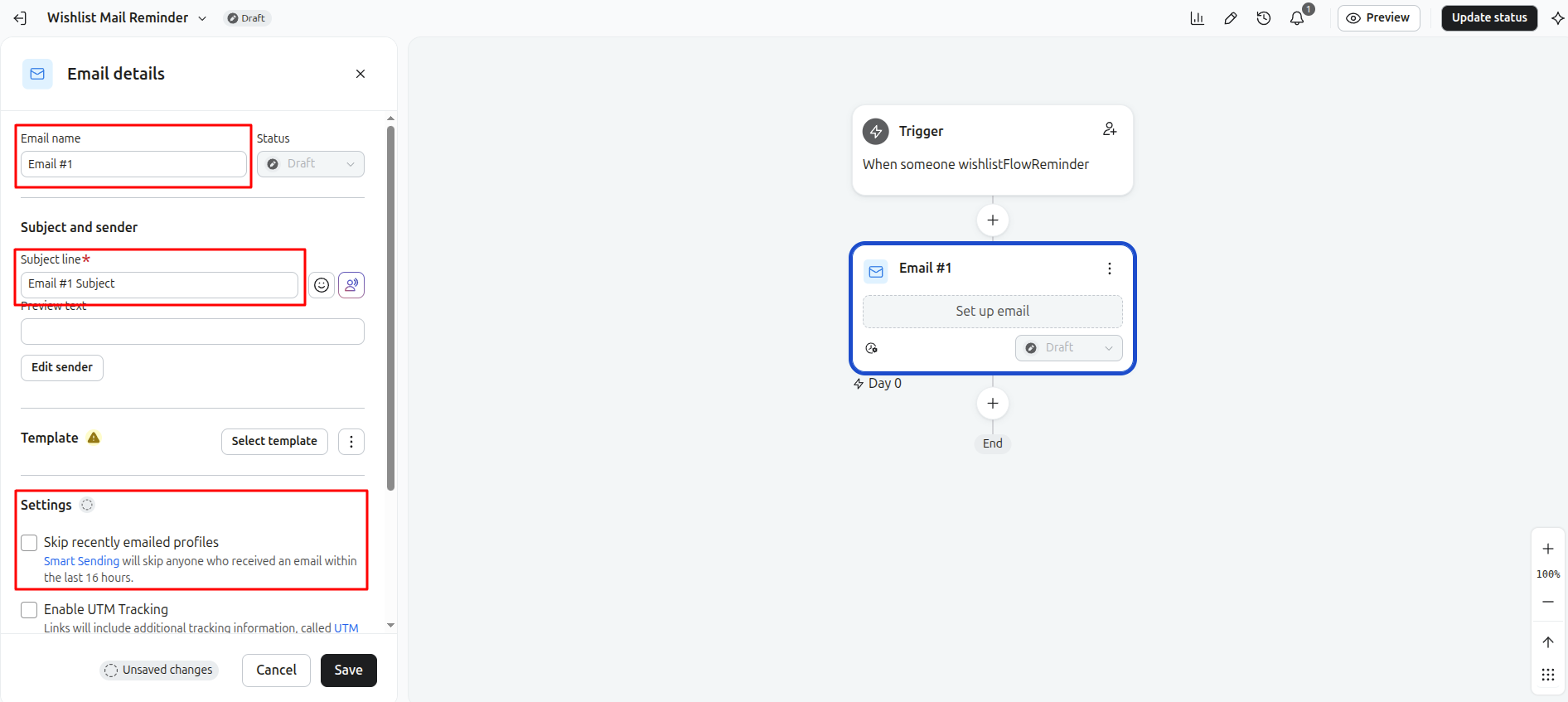
Click Select template.
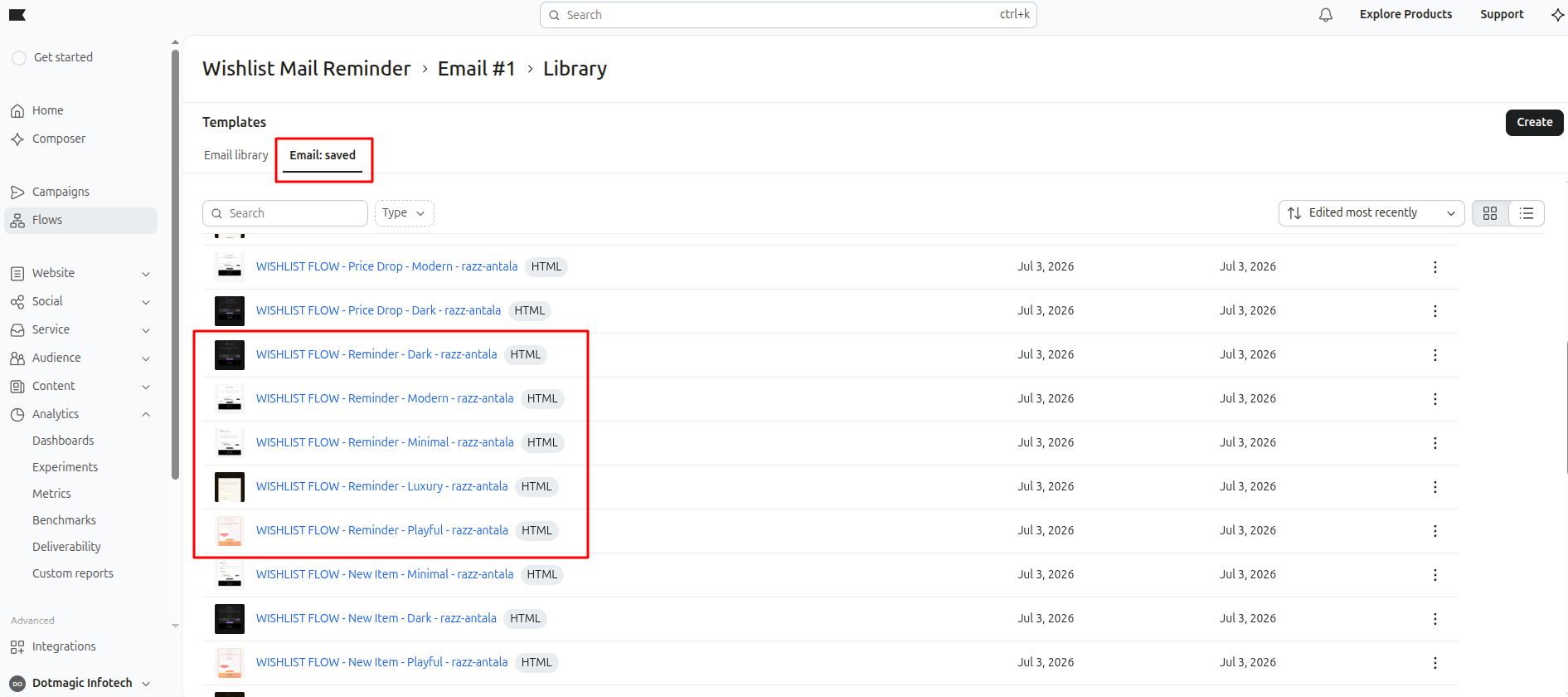
10. Template library popup
→ go to Email: saved tab
→ find app's pre-built templates (e.g. "WISHLIST FLOW - Reminder - Modern - xyz")
Important: template style (Modern / Dark / Minimal / Luxury / Playful) must match same style you selected in app Settings → Features → Email Templates. Pick template matching that same style, else mismatch look/branding on live mail.
Naming pattern: WISHLIST FLOW - [Mail Type] - [Style] - [store-name]
So for reminder mail, if app setting has "Modern" selected → pick WISHLIST FLOW - Reminder - Modern - xyz template here.
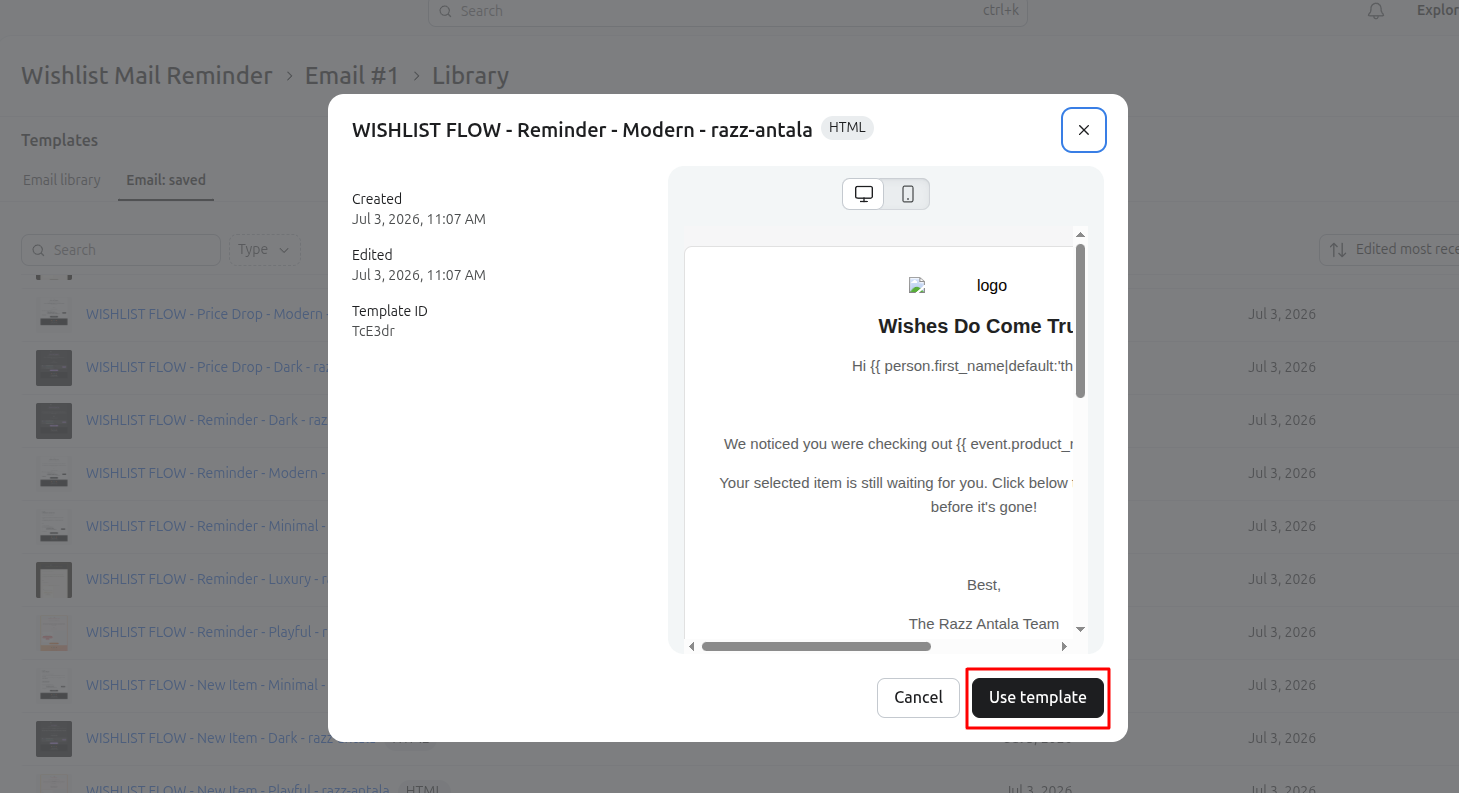
11. Click template → preview popup show → click Use template
12. Save email → back to flow canvas
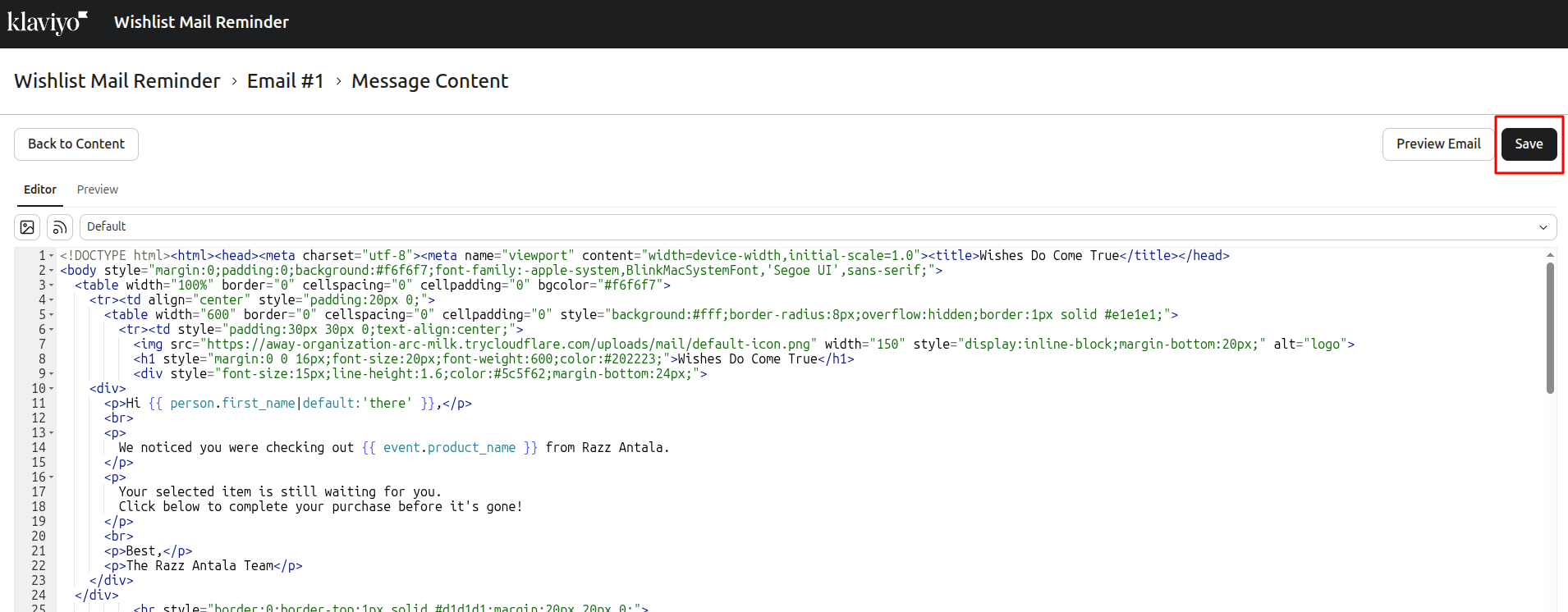
then done
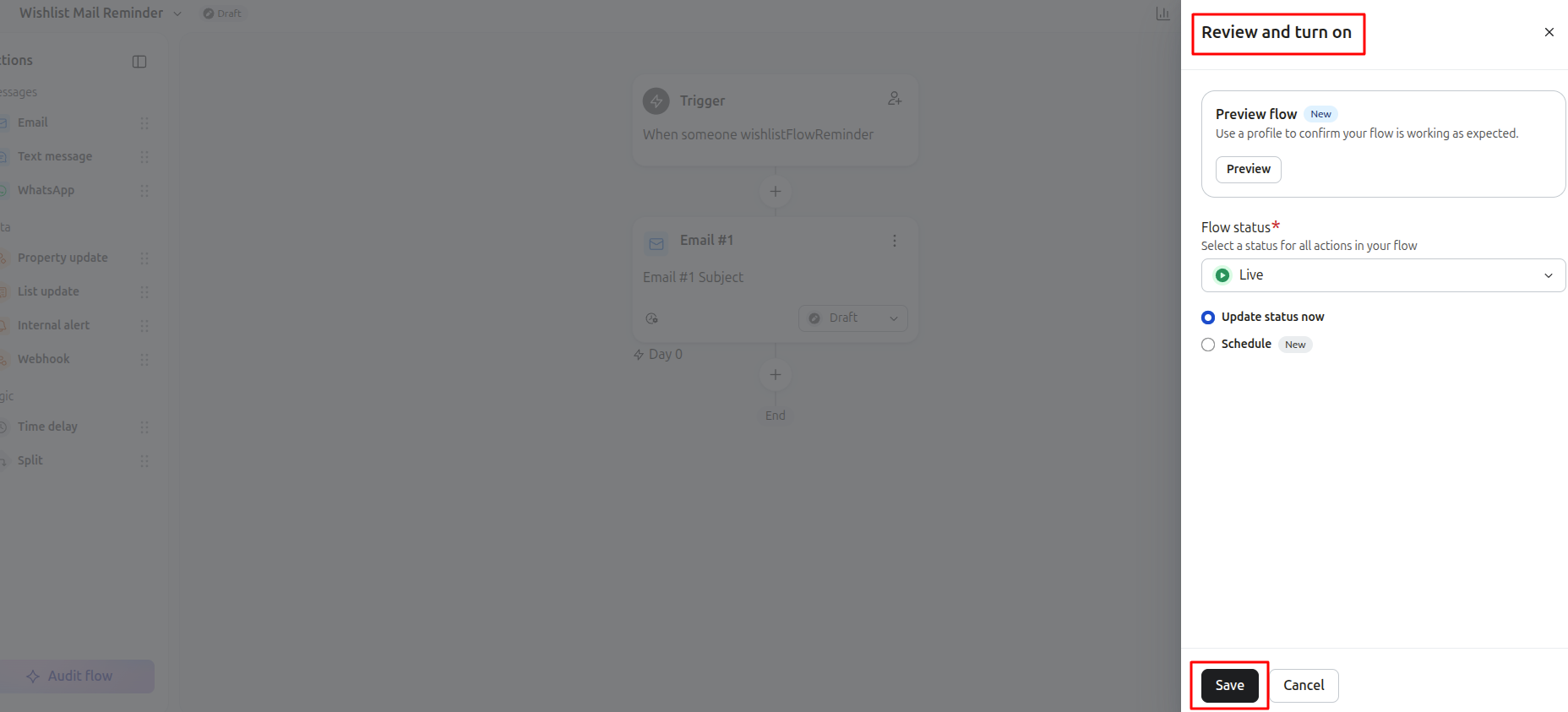
13. Finally toggle flow status Draft → Live (top right "Update status" button) to activate
14. Create flow for each type of mail