Email Automations Guide
Configure, time, and toggle your lifecycle background automation rules to re-engage shoppers based on their wishlist interactions.
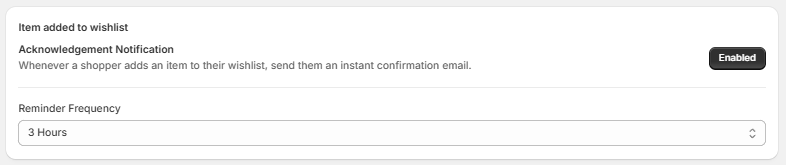
1. Item Added to Wishlist (Acknowledgement)
Set up immediate confirmations to engage users the moment they interact with your wishlist buttons.
- Acknowledgement Notification: Send an instant automated confirmation email whenever a shopper saves an item to their profile.
- Toggle Control: Click the operational toggle switch to mark it as Enabled or Disabled.
- Reminder Frequency Delay: Define the processing delay window using the structured dropdown menu configuration (e.g., set to 3 Hours).
2. Wishlist Reminders (Periodic Loops)
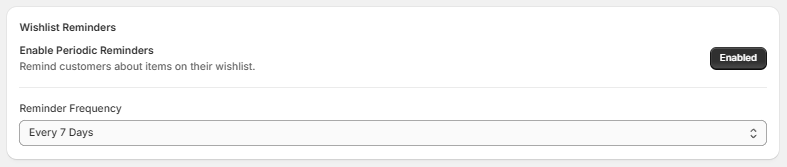
Gently remind shoppers about unpurchased products resting inside their saved folders.
- Enable Periodic Reminders: Toggle automatic background reminder message sweeps on or off.
- Toggle Control: Click the active state toggle block to quickly verify it reads Enabled.
- Reminder Frequency: Use the dropdown menu selector to establish your preferred recurrence timeline limits (e.g., set to Monthly).
3. Back in Stock Alerts
Automatically pull shoppers back to your checkout funnel when high-intent items return to your live inventory.
- Enable Back in Stock Notifications: Alert customers instantly the moment an out-of-stock wishlist item is replenished in your store catalog.
- Toggle Control: Manage the live background scanner status with the click-to-toggle Enabled indicator button.
- System Safeguard Threshold: The system enforces an integrated inventory buffer rule:
- Note: Notification will be sent only when the inventory level goes above 1.

4. Low Stock Alerts
Drive conversion urgency by alerting customers when their saved favorites are close to selling out.
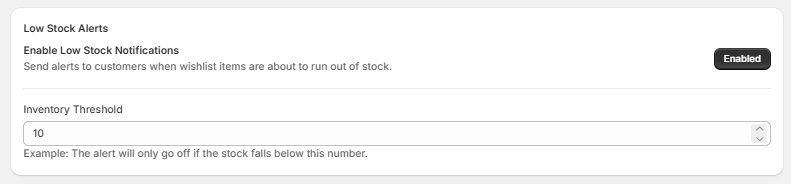
- Enable Low Stock Notifications: Automatically send target emails when a wishlisted item's variant volume drops toward critical levels.
- Toggle Control: Click the quick status button wrapper to set this workflow automation to Enabled.
- Inventory Threshold Input: Define your minimum stock safety numbers using the step-counter input block (e.g., setting it to 10).
- Example: The alert will only go off if the store stock falls below this designated number.
5. Price Drop Alerts
Convert item saves into immediate transactions by letting buyers know the exact moment a product markdown occurs.
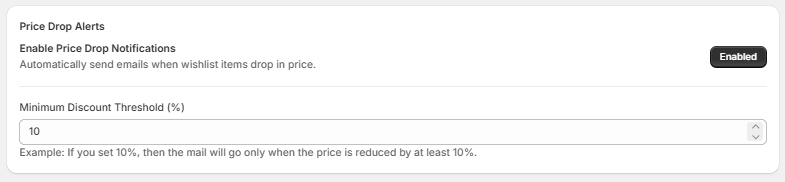
- Enable Price Drop Notifications: Dispatches an automated email blast whenever a variant saved on a wishlist receives a price markdown.
- Toggle Control: Set the background automation workflow scanner status to active using the Enabled indicator switch.
- Minimum Discount Threshold (%): Configure a performance floor value using the numeric percentage increment box (e.g., setting it to 10).
- Example: If you set this field to 10%, the mailer will only go off if the product price drops by at least 10% on your storefront.