Omnisend integration
Pre-setup (in app):
- In app itself, go to Settings → Integrations → Omnisend → connect/integrate store with Omnisend account.
- Then go to Settings → Sender Configuration → set status Active.
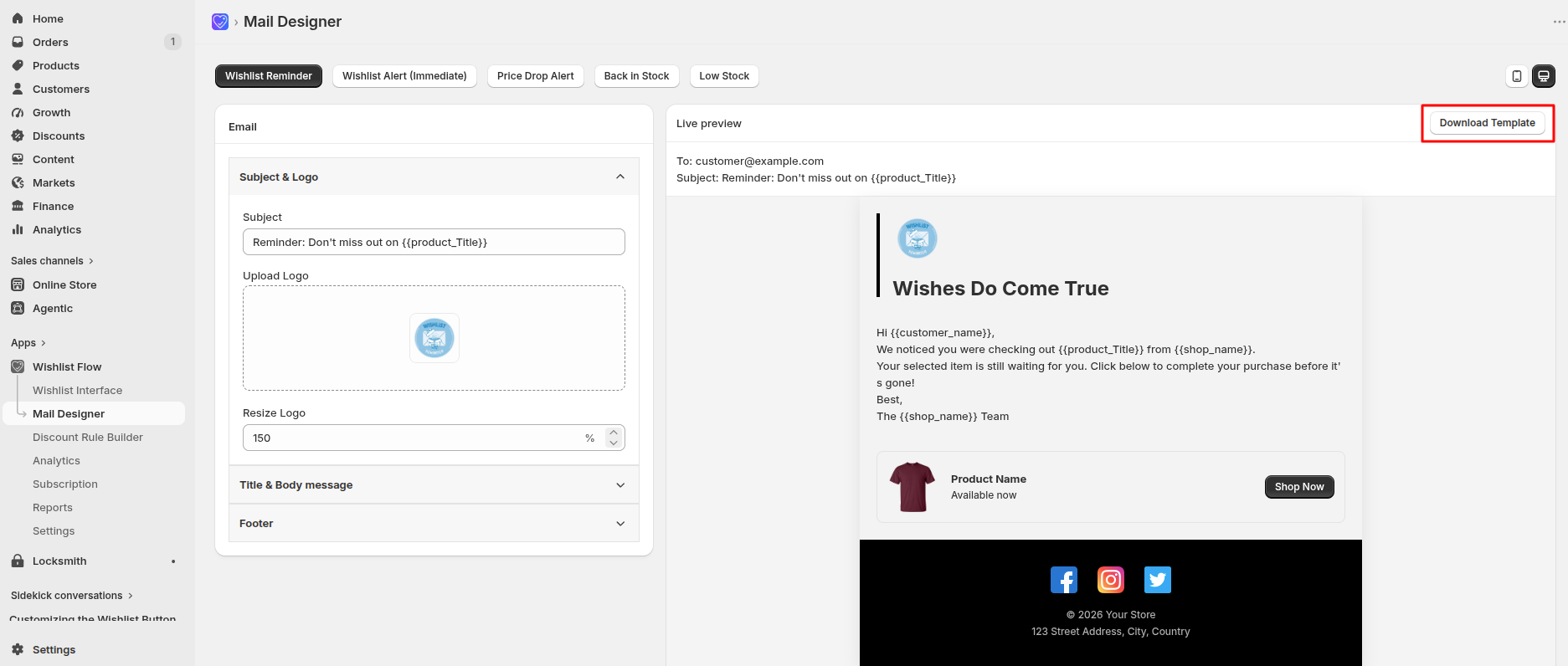
In app, go to Wishlist Flow → Mail Designer
Top tabs show five mail types (Wishlist Reminder, Wishlist Alert, Price Drop Alert, Back in Stock, Low Stock) → select mail type you building.
Review Subject, Logo, Title & Body, Footer sections as needed → click Download Template (top right) → get HTML file.
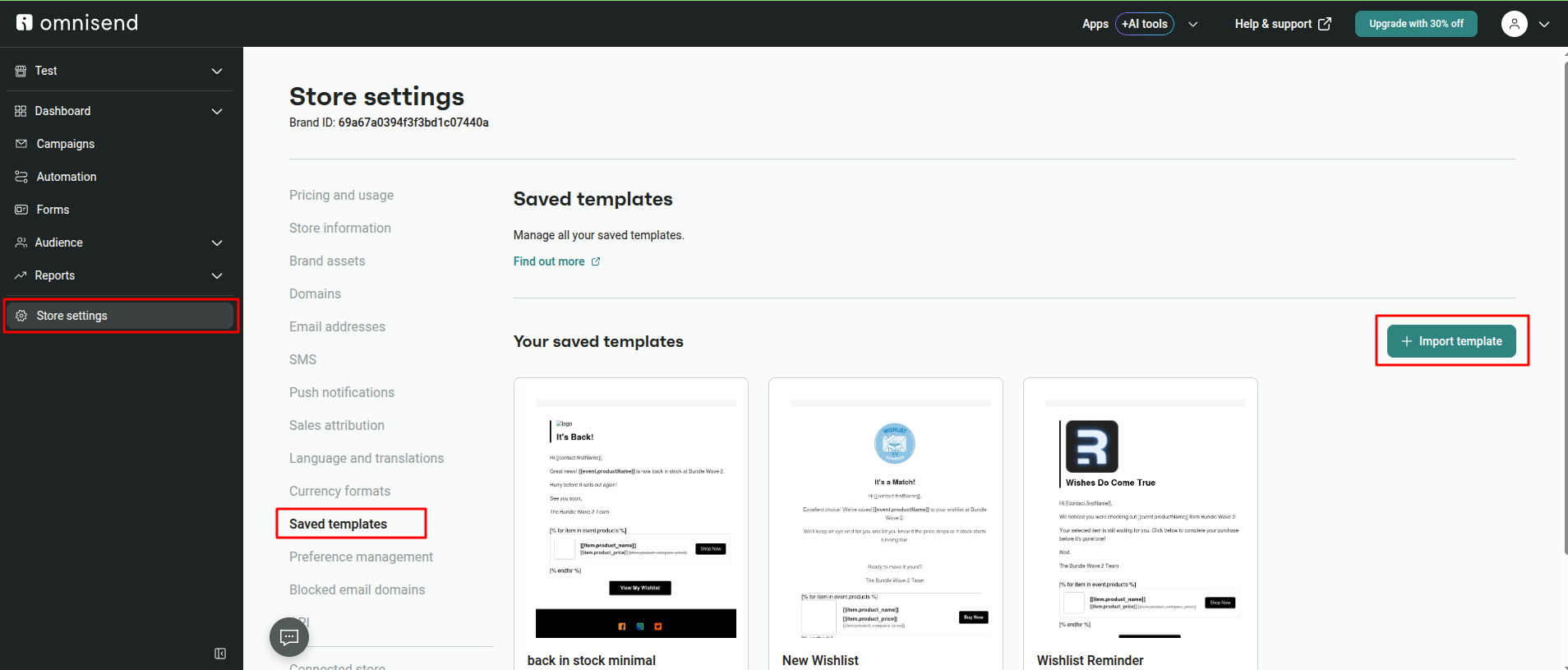
1. Omnisend → left menu → Store settings → Saved templates tab → click Import template
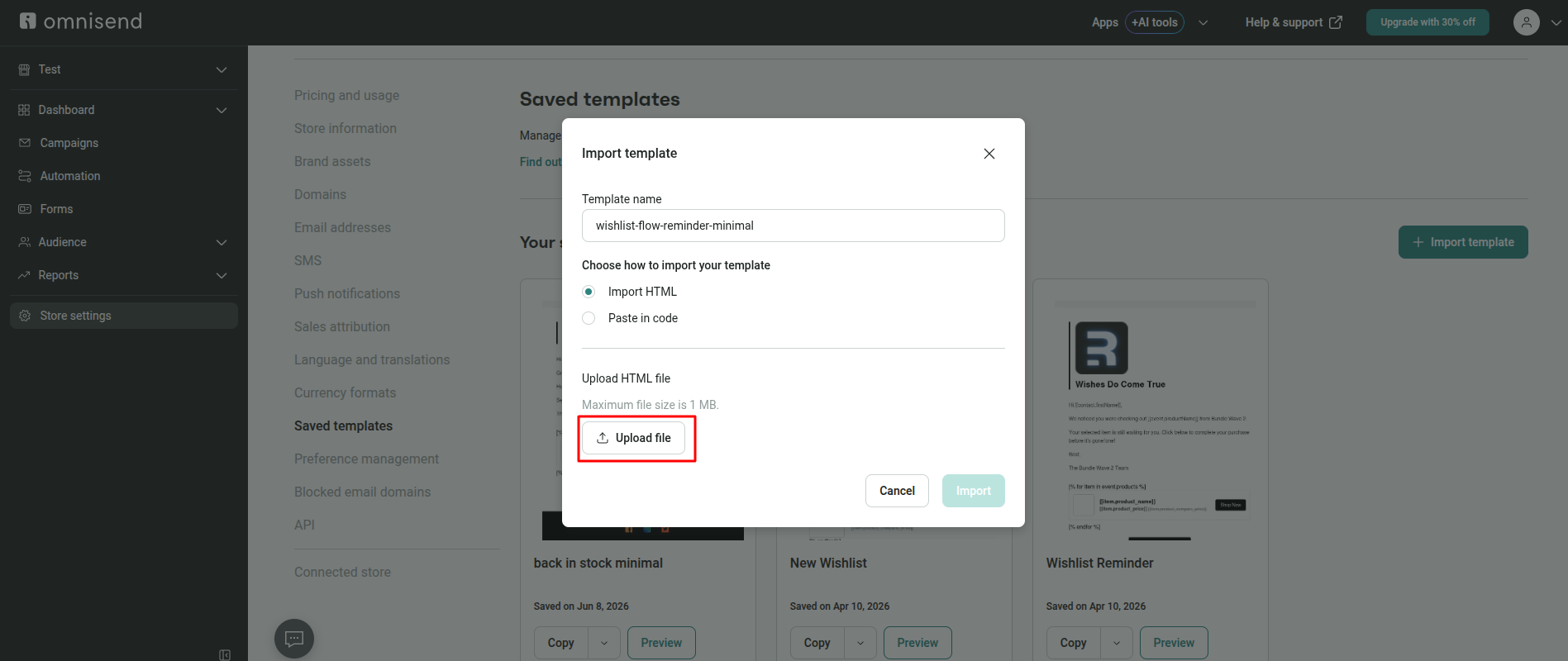
2. Import template popup:
- Template name — type name (e.g. "wishlist-flow-reminder-minimal")
- Choose how to import → select Import HTML
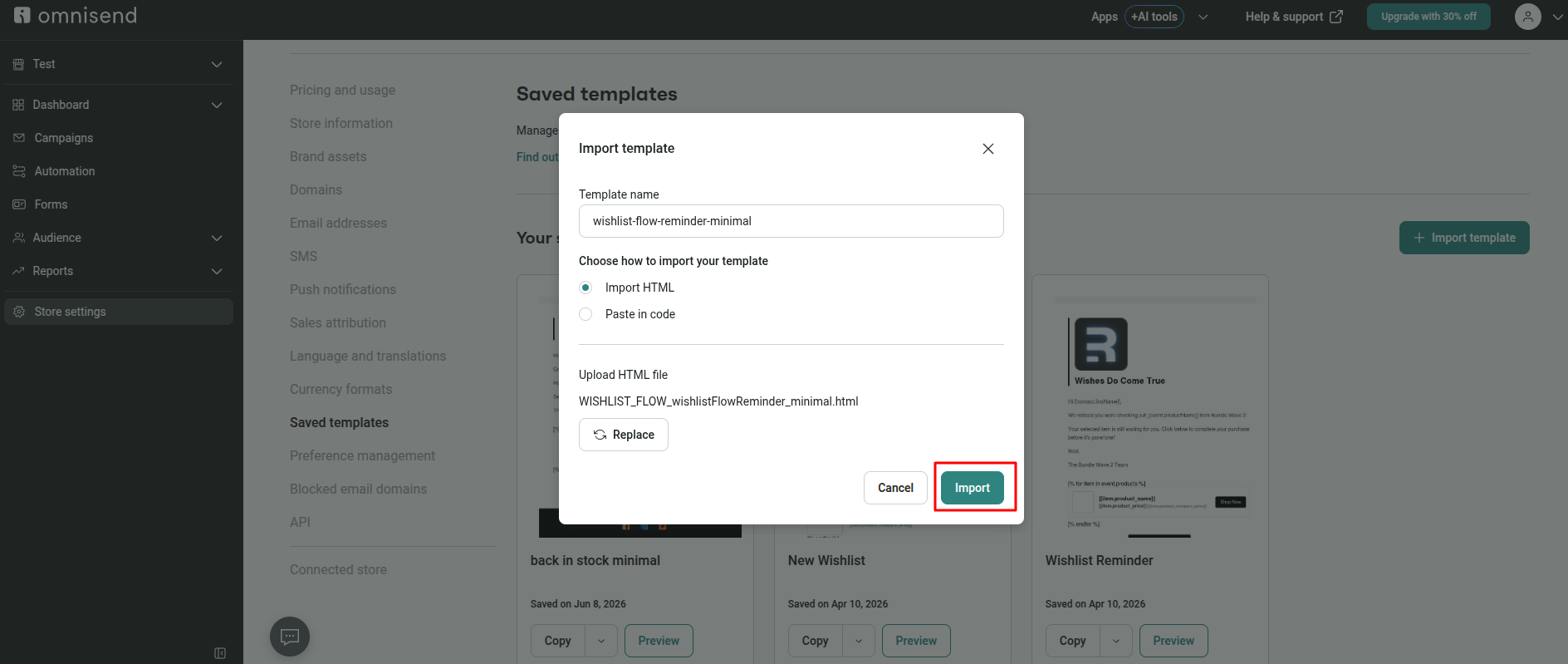
- Click Upload file → upload HTML downloaded from app
- Click Import
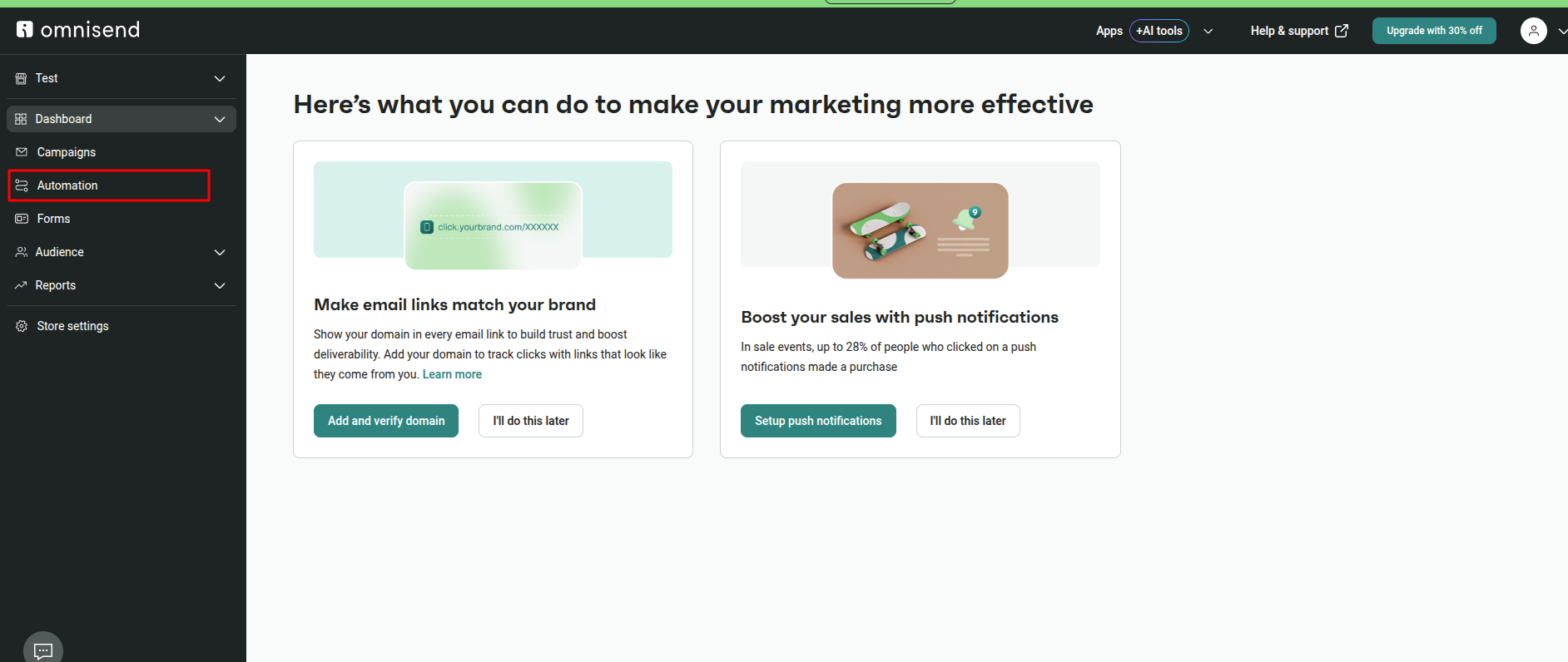
3. Left menu → Automation → click + Create workflow
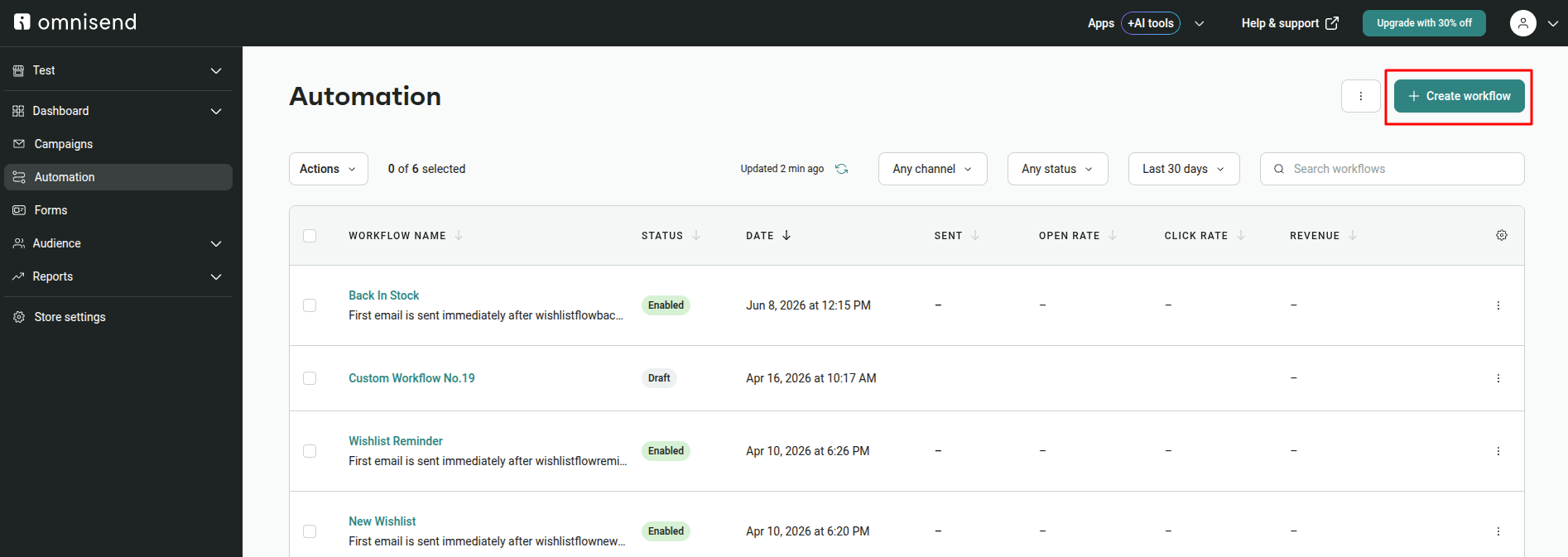
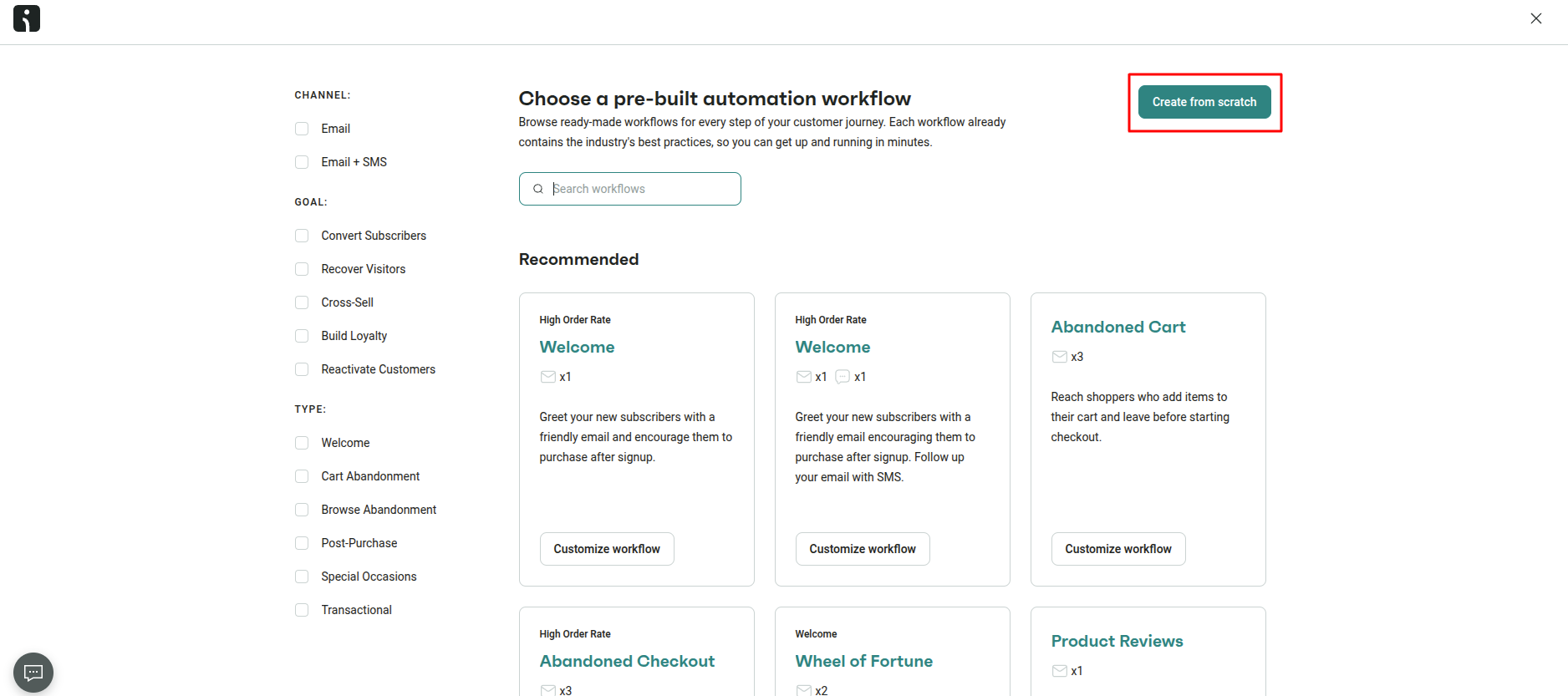
4. Popup "Choose a pre-built automation workflow" → click Create from scratch (top right)
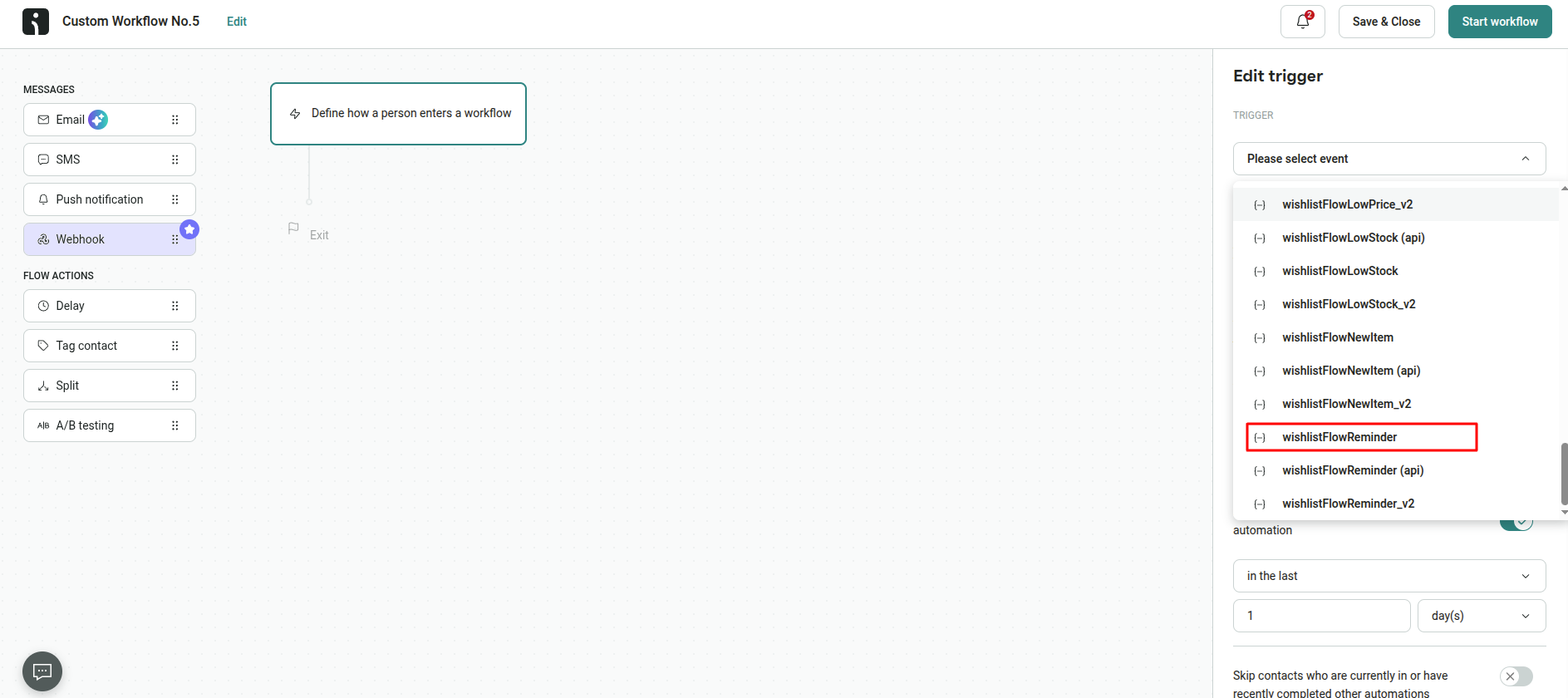
5. Right panel "Edit trigger" → dropdown click → list show app events :
6. Below trigger dropdown
→ Frequency section
→ toggle Skip contacts who have already been in this automation OFF (unless want no re-entry).
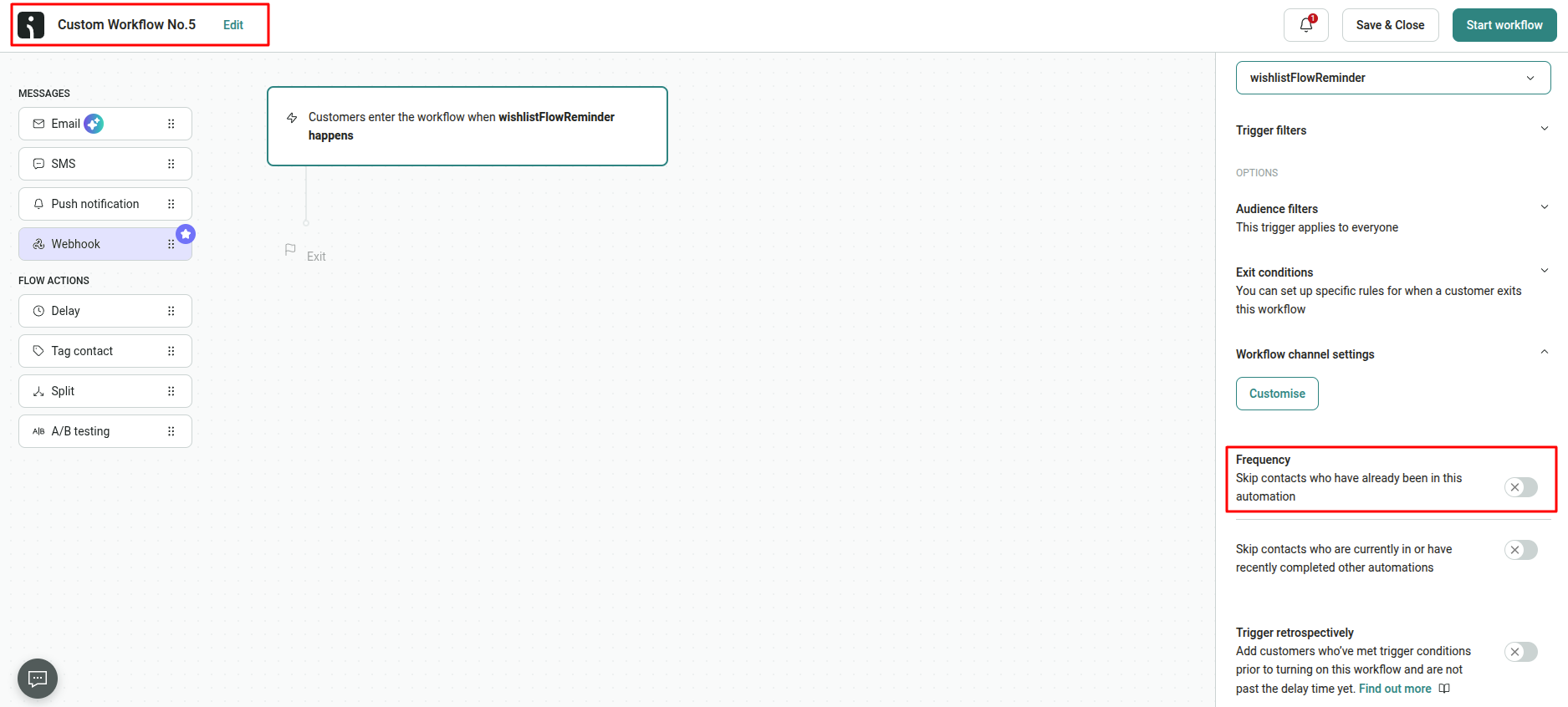
also at top left there is option to edit the automation name
7. Workflow canvas open ("Custom Workflow No.X") → left panel MESSAGES → drag/click Email action onto canvas
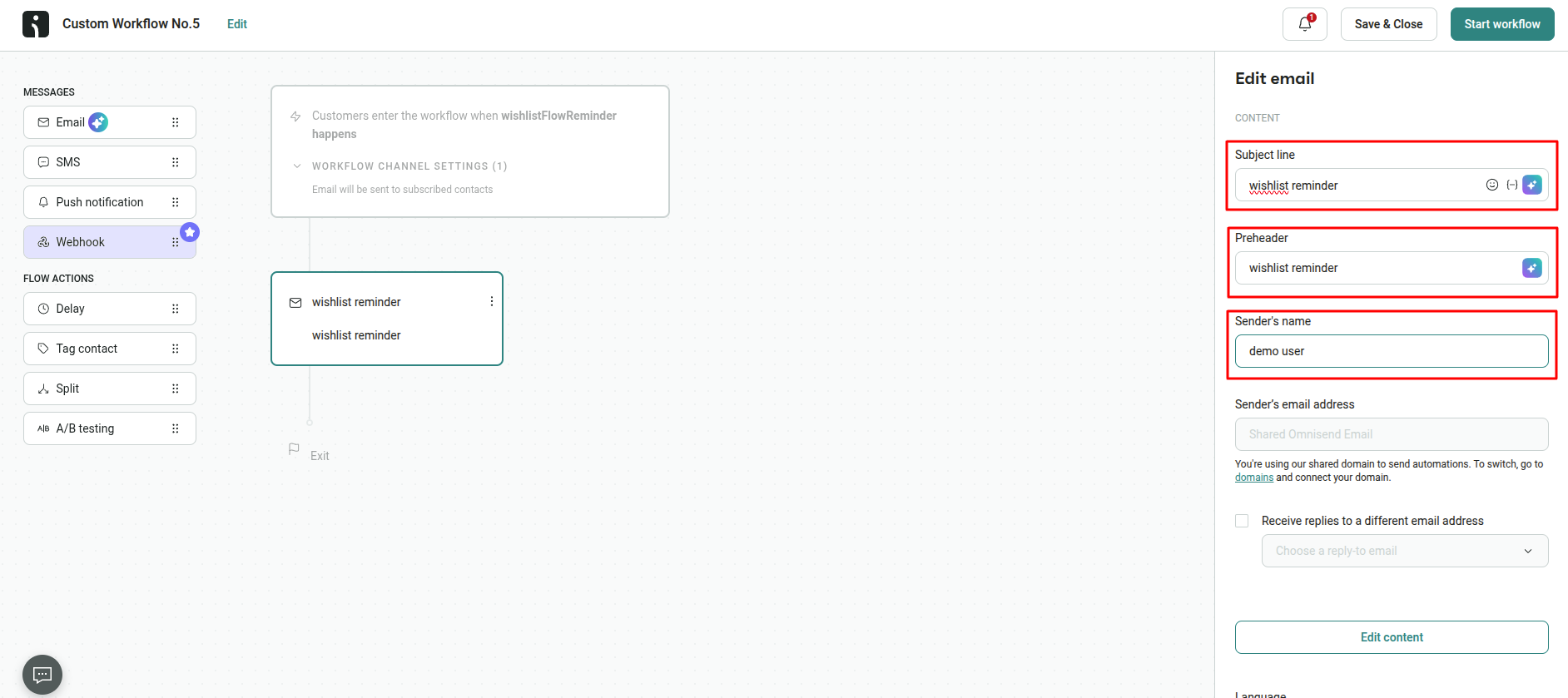
- Subject line — type subject, for dynamic value from app use [[event.subject]]
- Preheader — type preview text
- Sender's name — type sender name
- Sender's email uses shared Omnisend domain by default
Click Edit content → email editor open.
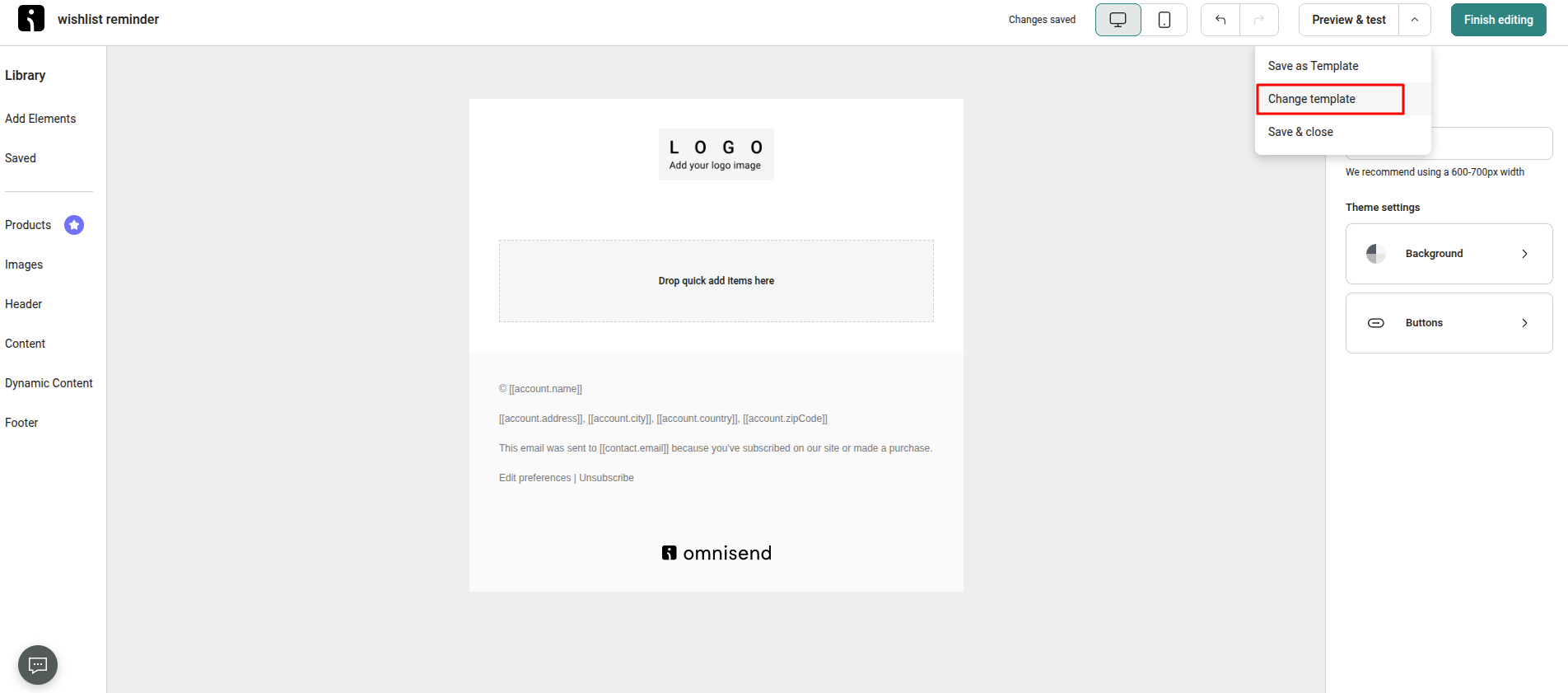
8. Top right menu (dropdown near Preview & test) → click Change template
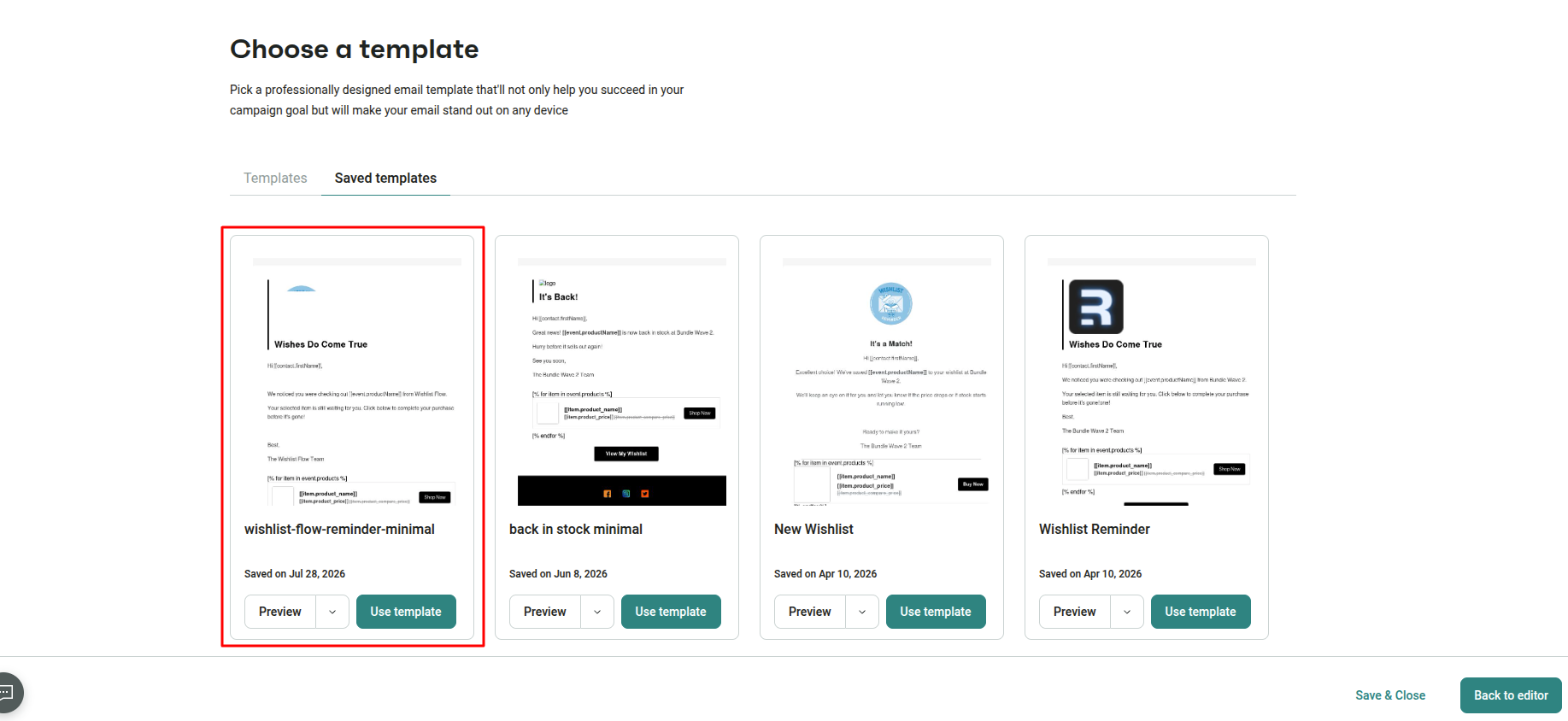
9. "Choose a template" popup → Saved templates tab → find your imported template (e.g. "wishlist-flow-reminder-minimal") → click Use template
10. Back in editor → right panel Email settings → set Canvas width to 700 (recommended 600-700px)
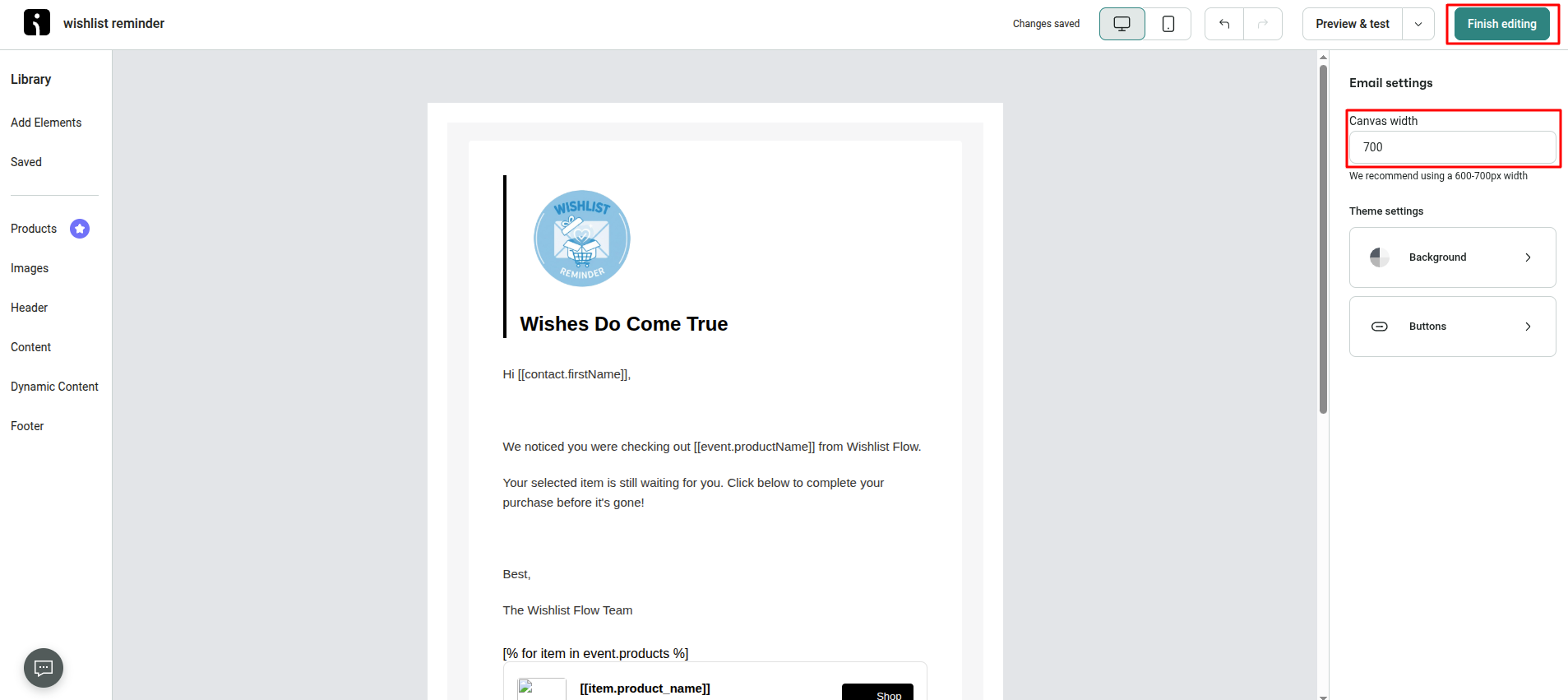
click Finish editing (top right)
11. click Start workflow (top right) to activate
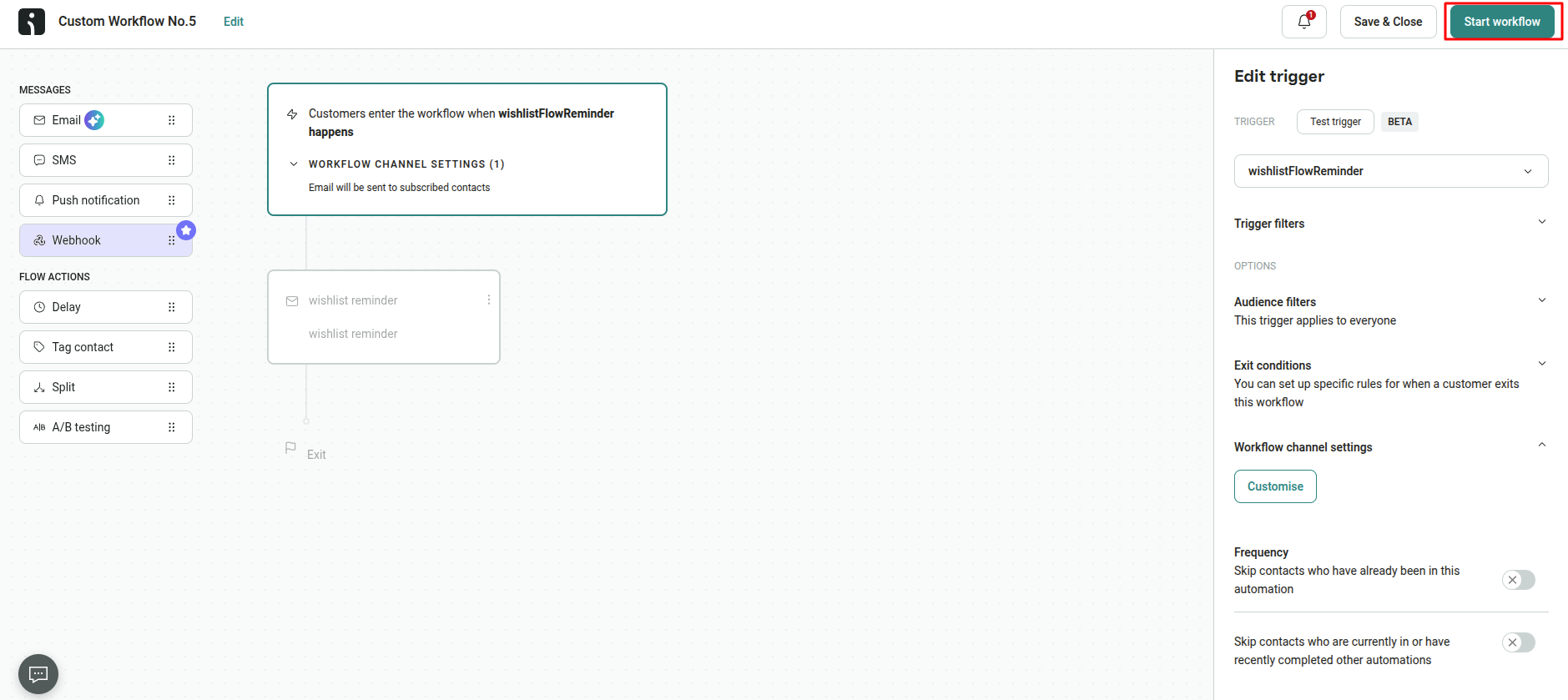
12. Create flow for each type of mail