Reports
Reports - Purchases Guide
1. Navigating the Purchases Table
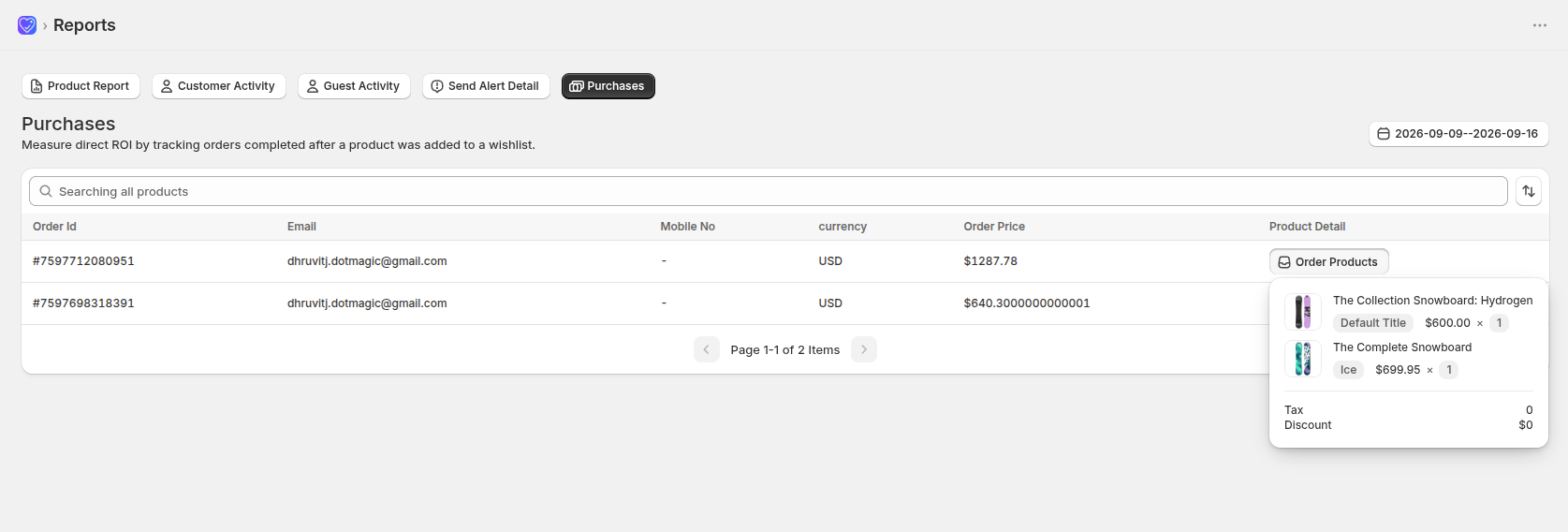
This tab helps you measure direct ROI by tracking orders that were completed after a product was added to a wishlist.
- Order Id: Displays the unique Shopify order-number (e.g., #7597712080951) linked to a wishlisted purchase, so you can cross-reference it directly in your Shopify Admin.
- Email: Shows the customer's registered email address, letting you map the purchase back to a specific shopper.
- Mobile No: Displays the customer's phone number, if collected at checkout. Shows "-" when not available.
- currency: Indicates the currency the order was placed in (e.g., USD), useful for stores selling in multiple currencies.
- Order Price: Shows the total value of the order, giving you a quick view of revenue generated from wishlist-driven purchases.
- Product Detail: Features an interactive "Order Products" button. Clicking this button opens a breakdown of every line-item in that order — including product image, title, variant, unit price, and quantity — along with the order's Tax and Discount totals.
2. Global Table Controls
- Active Tab Selection: Ensure that the Purchases tab is highlighted at the top to access these specific order rows.
- Search Bar: Use the "Searching all products" input field to look up orders containing a specific product instantly.
- Date Range Picker: Filter purchases across precise marketing cycles using the calendar toggle widget on the right.
- Pagination: Use the bottom navigation arrows to flip through your purchase records cleanly.