Common information about integration
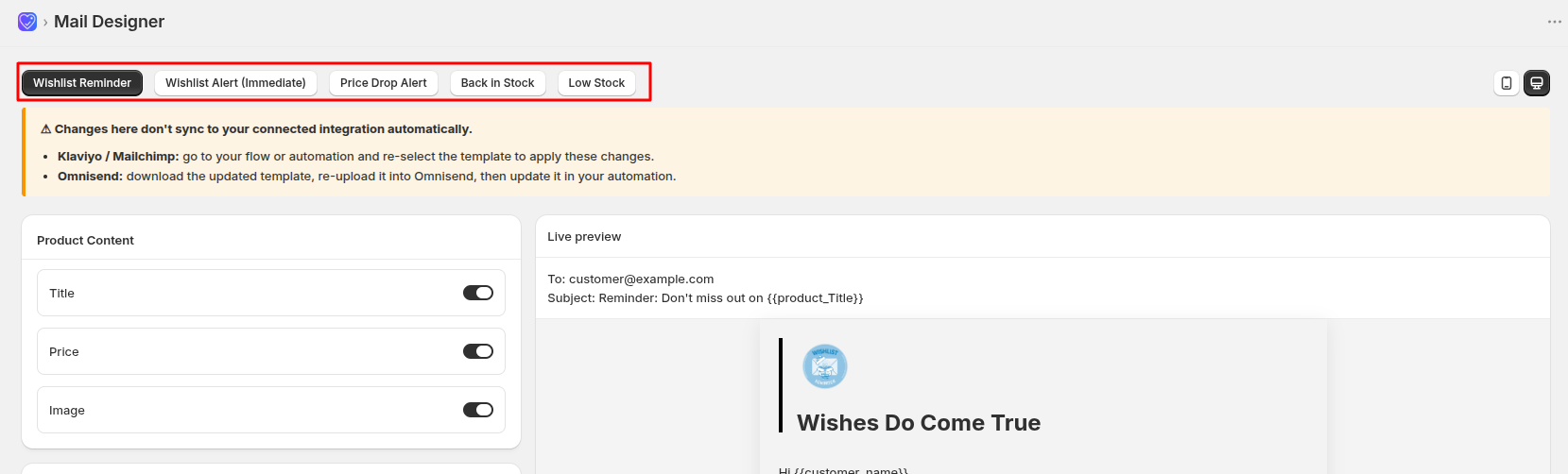
When you edit a template in Wishlist Flow's Mail Designer, what happens next depends on the platform:
Klaviyo & Mailchimp — template auto-updates, flows don't
Your changes are automatically pushed to the template saved on Klaviyo/Mailchimp's side — you don't need to re-upload anything. However, if a flow or automation has already selected that template for one of its email steps, the flow keeps its own saved copy from the moment it was selected — it does not automatically pick up later edits. To apply your changes, open the flow, go to the relevant email step, and re-select the template (or use the platform's "sync/refresh template" option, if available). Until you do this, customers on that flow will keep receiving the older version.
Omnisend — nothing updates automatically
Omnisend doesn't support live template-syncing from external apps at all. After editing here, use "Download Template", then manually re-upload the file into Omnisend's template library, and update the relevant automation step to point to the newly-uploaded template.
Why this matters
A template showing correctly in this app's live-preview does not guarantee customers are receiving the updated version — the actual email step inside your flow/automation must also reference the latest template. When in doubt, always check the specific flow after making changes.
How to select the correct template for each flow
Wishlist Flow offers 5 email designs (Modern, Minimal, Luxury, Dark Mode, Playful), and each design has a version built for each of the 5 flow-types (Wishlist Reminder, Wishlist Alert, Price Drop Alert, Back in Stock, Low Stock) — giving 25 templates total.
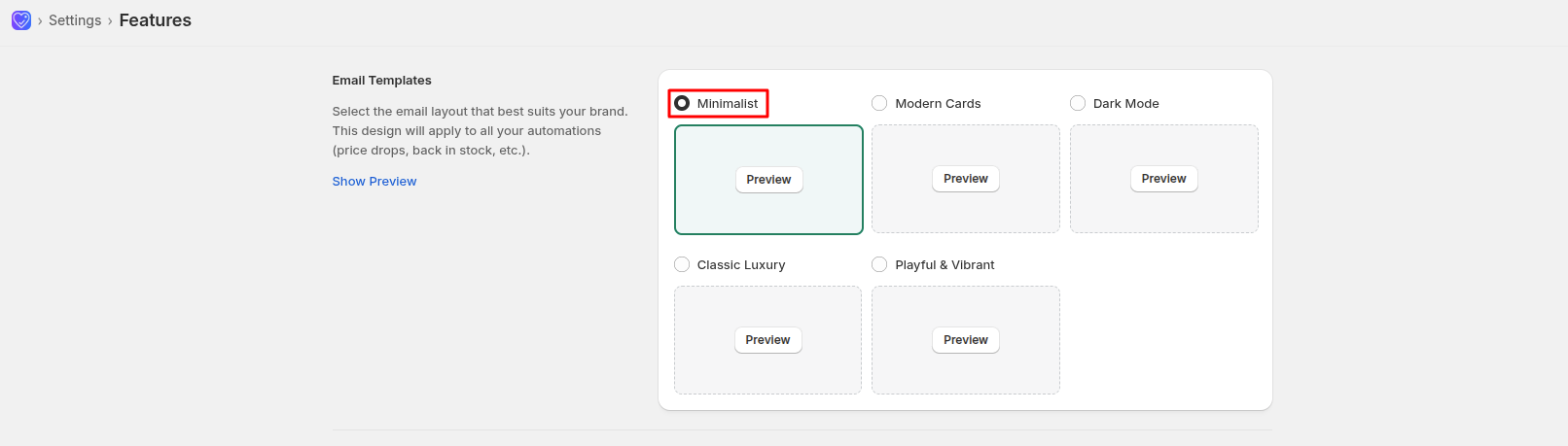
You can select any of the 5 designs for your flow — for example, for your Reminder flow, you can choose Modern-Reminder, Minimal-Reminder, Luxury-Reminder, Dark-Reminder, or Playful-Reminder. All 5 are valid choices for that flow.
Recommendation: keep the design that's already selected in Settings by default, unless you have a specific reason to change it. Here's why: if you select a different design in Settings (say, Playful) than what's already configured on your connected automation platform's flow (say, Klaviyo has Minimal saved), the two can fall out of sync — leading to confusion about which design is actually live, and possibly showing customers a different look than what you see in your Settings preview.
Safest approach: stick with the default design already assigned to each flow. If you do want to change the design, make sure you also update the corresponding flow on your connected platform (see the "Common information about integration" article) so both stay in sync.