Features Settings
Configure your storefront appearance, email layout baselines, and core sharing interactions. The controls inside this workspace directly modify your live storefront presentation and customer assets.
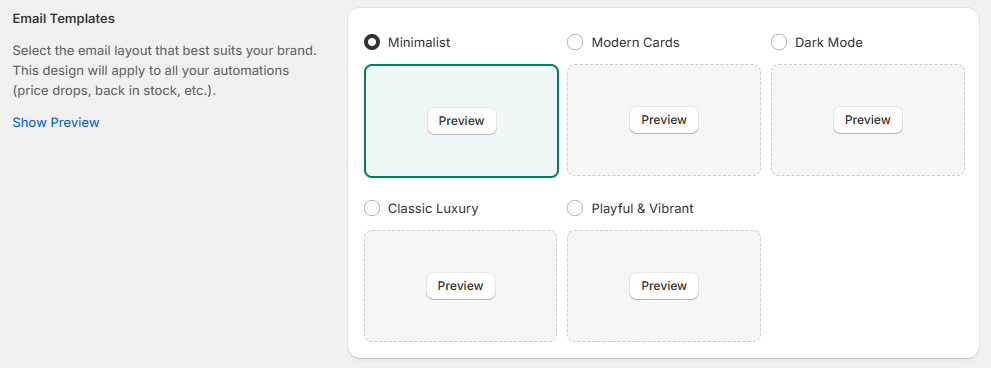
1. Email Templates Choice Block
Select the foundational baseline design structure for all automated customer notifications (Price Drops, Back in Stock, Wishlist Reminders, etc.).
- Layout Options: Choose from 5 distinct preset themes:
- Minimalist: A clean, spacious style focusing entirely on the product content.
- Modern Cards: Wraps email structures inside highly structured content containers.
- Dark Mode: A sleek style using deep color palettes.
- Classic Luxury: Traditional layouts suited for premium brand aesthetics.
- Playful & Vibrant: Bright design structures using bold typography presets.
- Actions: Click the text link labeled "Show Preview" on the left to see an expanded preview popup, or select a radio checkbox to set your store's default baseline style.
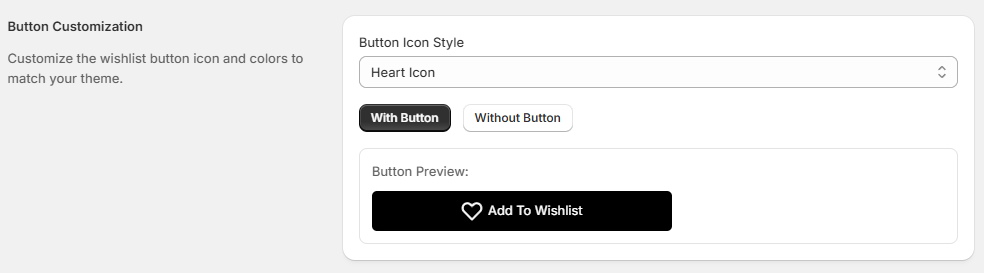
2. Button Customization Panel
Tailor the absolute appearance of your interactive wishlist buttons to match your theme guidelines.
- Button Icon Style: Use the dropdown menu to choose your vector layout icon anchor type (e.g., Heart Icon).
- Display Toggles:
- With Button: Encases the core layout icon inside a wide, fully filled button rectangle.
- Without Button: Displays the custom style vector link completely standalone without an outer button wrapper container.
- Button Preview Tracker: A real-time rendering module instantly reflects your current layout modifications (e.g., displaying a dark "Add To Wishlist" layout bar with an integrated heart icon).
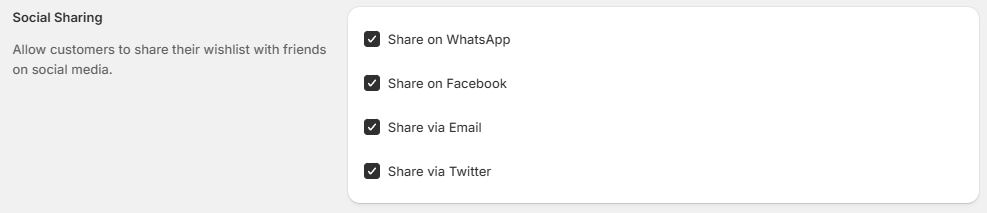
3. Social Sharing Activations
Control exactly where your customers can distribute their collection URLs with friends or followers on major social platforms.
- Check or uncheck individual platform settings to toggle explicit visibility fields:
- Share on WhatsApp
- Share on Facebook
- Share via Email
- Share via Twitter
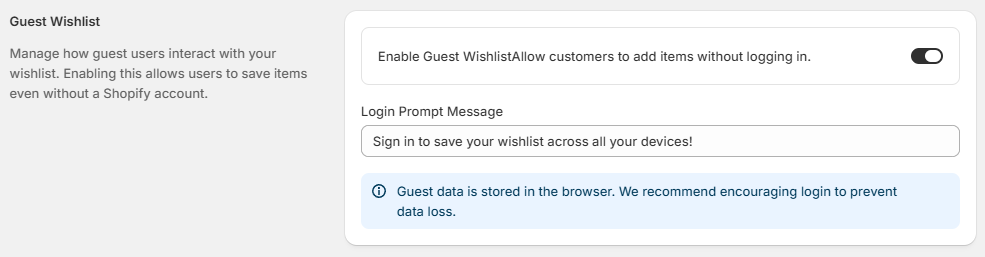
4. Guest Wishlist Settings
Manage how non-logged-in store visitors interact with your application tools without requiring a formal Shopify registration profile.
- Enable Toggle: Slide the horizontal activation control labeled "Enable Guest Wishlist Allow customers to add items without logging in." to activate or disable this capability on your store.
- Login Prompt Message: Customize the text prompt displayed to guest visitors to encourage permanent registry behavior (e.g., "Sign in to save your wishlist across all your devices!").
- Informational Safe Notice: A blue informational notice explicitly flags storage boundaries:
- Notice: Guest data is stored in the browser. We recommend encouraging login to prevent data loss.
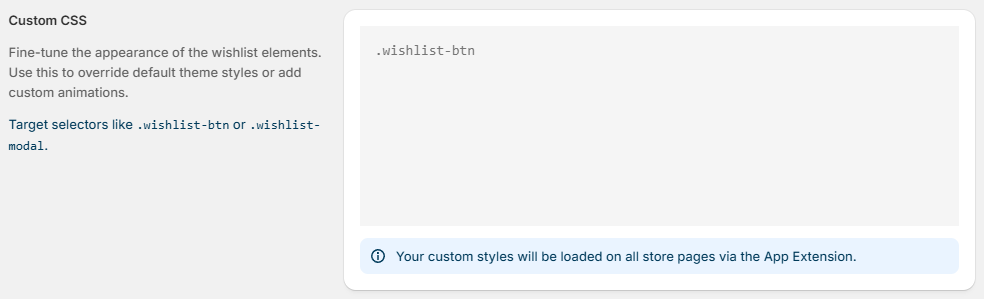
5. Custom CSS Code Sandbox
Fine-tune the exact layout appearance of your wishlist components or insert advanced custom layout styles into your storefront structure.
- Style Input Area: A raw text code container allows you to write clean CSS stylesheet rules natively (e.g., targeting elements using class hooks like .wishlist-btn).
- Target Guide Selectors: The instructions on the left identify the exact global theme target hooks you can use to apply style rules: .wishlist-btn or .wishlist-modal.
- Deployment Notice: A blue informational notice confirms automatic theme execution asset syncing:
- Notice: Your custom styles will be loaded on all store pages via the App Extension.