How Can I Customize Volume Bundle Appearance?
1. Volume Discount Customize Design
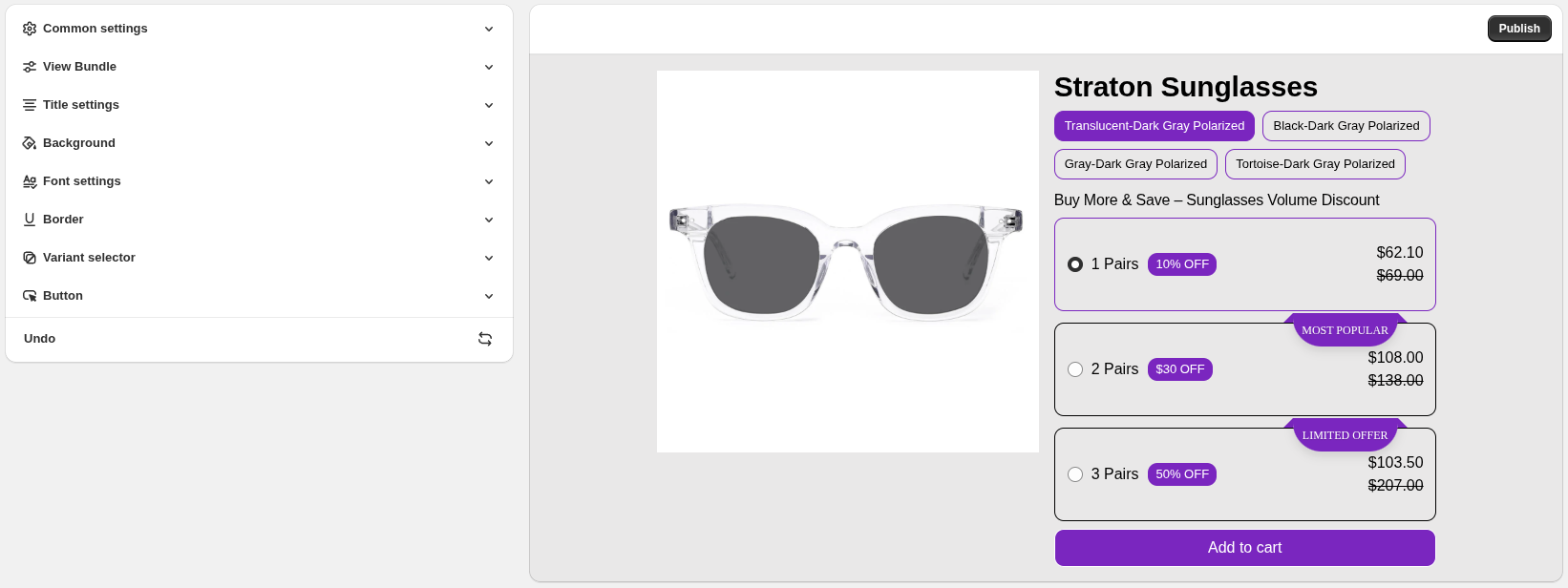
In the Customize Design section, you can control how the Volume bundle is displayed and how customers interact with it.
2. View Bundle
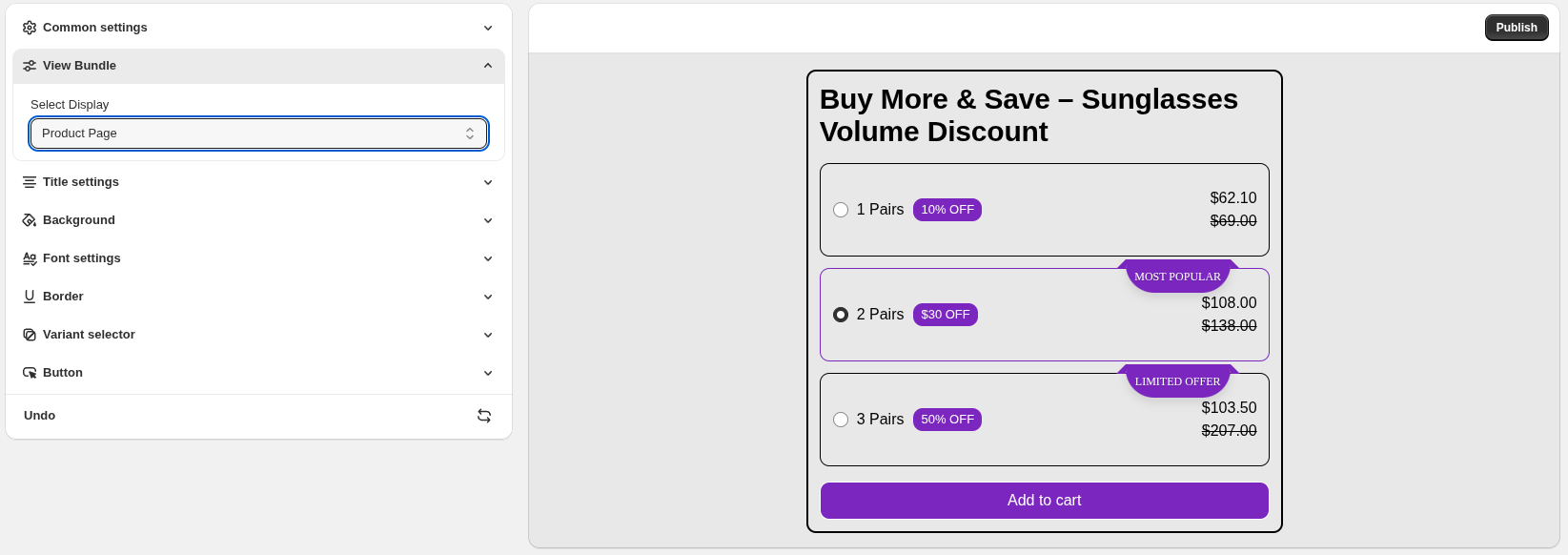
Choose how discounts are applied in your Volume bundle :
Main Page :
Select this option to preview how the bundle appears on the main bundle layout, including the product image gallery and detailed pricing view.
Product Page :
Select this option to preview how the bundle will appear directly on the product page, matching the live storefront layout customers will see.
3. Border Settings
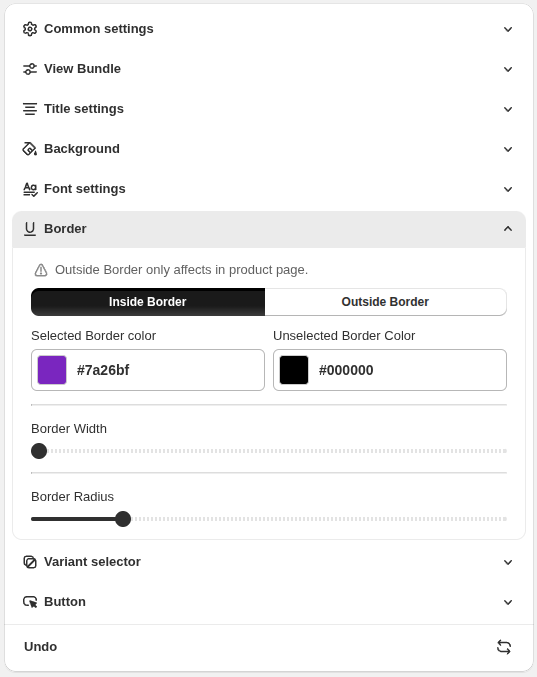
The Border settings let you customize the borders used in Volume Discount bundles.
Inside Border / Outside Border :
Choose whether you want to style the border inside the bundle cards or the outer border of the bundle.
- Inside Border - Affects the borders within the bundle items.
- Outside Border - Affects the outer border of the bundle (product page only).
Selected Border Color :
Set the border color for selected items.
Unselected Border Color :
Choose the border color for unselected items.
Border Width :
Adjust the thickness of the border.
Border Radius :
Control the roundness of the border corners.
Note: The Outside Border option applies only to the product page.