App Settings
App Settings Overview
Customize how your bundles behave and display on your store using the available settings. Here's a breakdown of each option :

1) Track Inventory
Control how the app handles out-of-stock products within bundles.
- Track inventory - Enable this to monitor stock levels for bundled products. If disabled, bundles are shown regardless of product availability.
- Don’t display the unavailable bundles - Hide a bundle if any product in it is out of stock.
- Show the sold-out badge for the unavailable bundles - Keep the bundle visible and show a “Sold out” badge on it.
2) Button Action
Manage what page the customer is taken to after clicking the bundle button.
- Cart - The customer is redirected to the cart page.
- Checkout - The customer is redirected straight to the checkout page.
- Cart drawer - The Bundle Wave cart drawer opens on the same page, so the customer can keep shopping.
3) Bundle Display Type
Choose whether bundles are shown inside the product page or in a popup.
- Inside product page - All bundles are shown directly on the product page.
- Popup - Selected bundle types are shown in a popup. Choose which bundle types use the popup: Fixed Bundle, Mix and Match, Buy X Get Y, Volume Discounts, Add-Ons and Frequently Bought Together. Unchecked bundle types are still shown inside the product page.
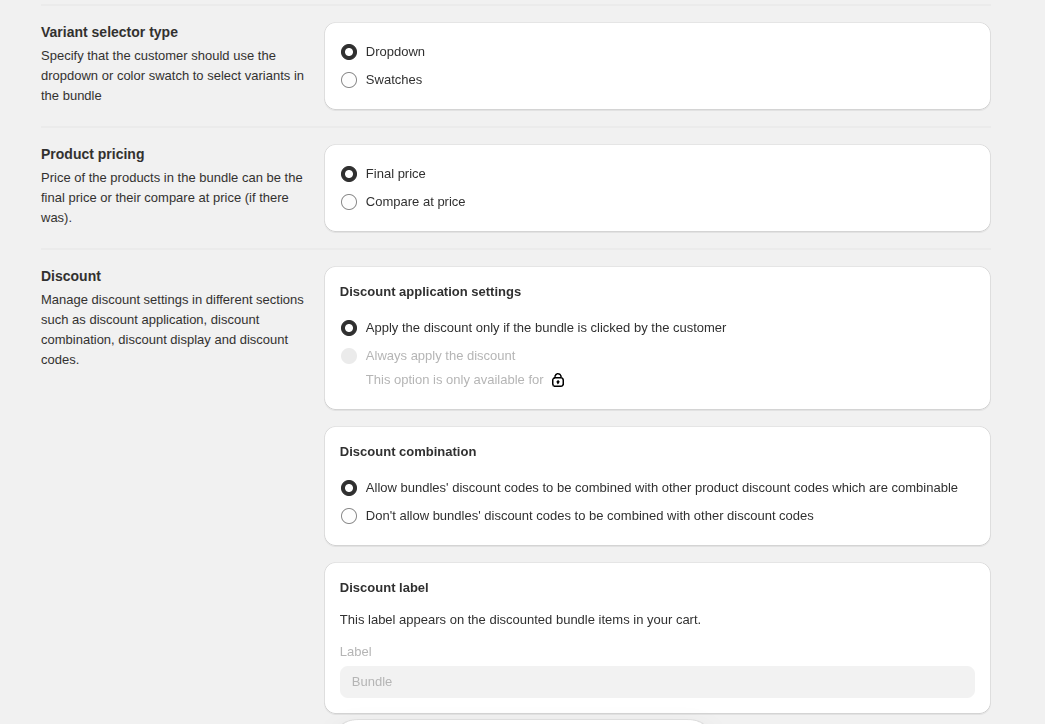
4) Variant Selector Type
Decide how customers select product variants in the bundle.
- Dropdown - Customers pick variants from a dropdown list.
- Swatches - Customers pick variants using color or style swatches.
5) Product Pricing
Choose which price is used for the products in the bundle.
- Final price - Use the product’s current selling price.
- Compare at price - Use the product’s compare-at price, if one is set.
6) Discount Application
Define when the bundle discount should be applied.
- Apply the discount only if the bundle is clicked by the customer - The discount applies only when the bundle is added to the cart through the bundle widget.
- Always apply the discount - The discount is always applied, regardless of how the products were added to the cart. (Available on higher plans only.)
7) Discount Combination
Choose whether your bundle discounts can be used with other discount codes.
- Allow combination - Bundle discount codes can be combined with other product discount codes that are set as combinable.
- Don’t allow combination - Bundle discount codes cannot be combined with any other discount codes, to avoid double discounting.
8) Discount Label
This label appears on the discounted bundle items in the cart. The default label is “Bundle”.
Example: “Bundle Discount” or “Save with Bundle”.
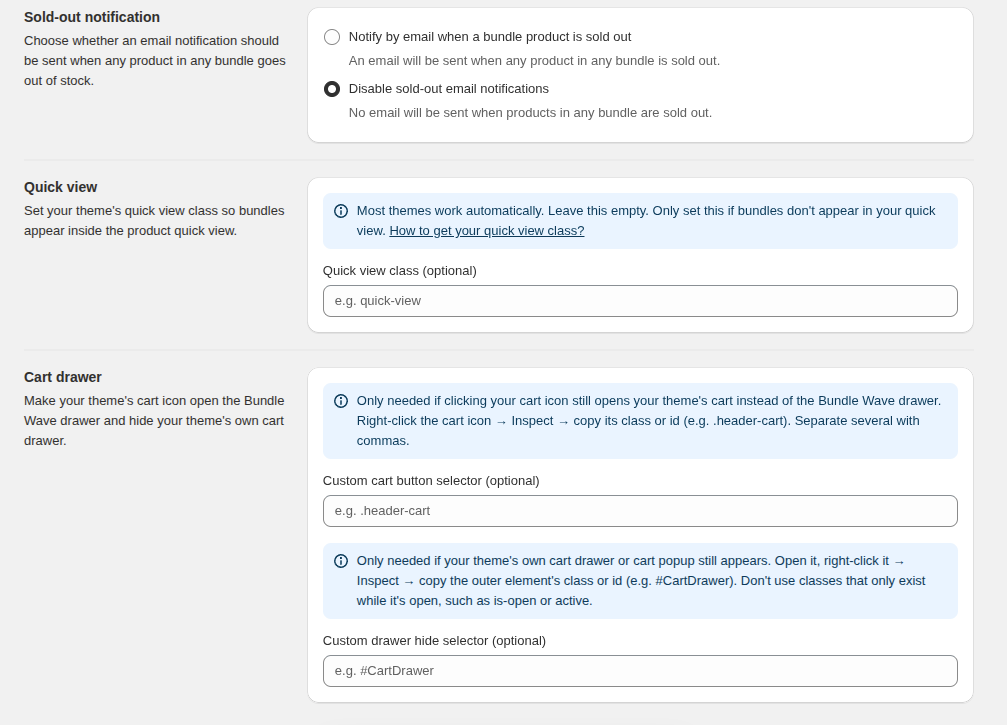
9) Sold-out Notification
Choose whether an email notification should be sent when any product in any bundle goes out of stock.
- Notify by email - An email is sent when any product in any bundle is sold out.
- Disable sold-out email notifications - No email is sent when products in any bundle are sold out.
10) Quick View
Set your theme’s quick view class so bundles appear inside the product quick view.
- Quick view class (optional) - Most themes work automatically, so leave this empty. Only fill it in if bundles don’t appear in your theme’s quick view (e.g. quick-view).
11) Cart Drawer
Make your theme’s cart icon open the Bundle Wave drawer and hide your theme’s own cart drawer.
- Custom cart button selector (optional) - Only needed if clicking the cart icon still opens your theme’s cart. Right-click the cart icon → Inspect → copy its class or id (e.g. .header-cart). Separate multiple selectors with commas.
- Custom drawer hide selector (optional) - Only needed if your theme’s own cart drawer or popup still appears. Open it, right-click → Inspect → copy the outer element’s class or id (e.g. #CartDrawer). Don’t use classes that exist only while it’s open, such as is-open or active.