How Can I Customize Mix-Match Bundle Appearance?
1. Mix & Match – Customize Design
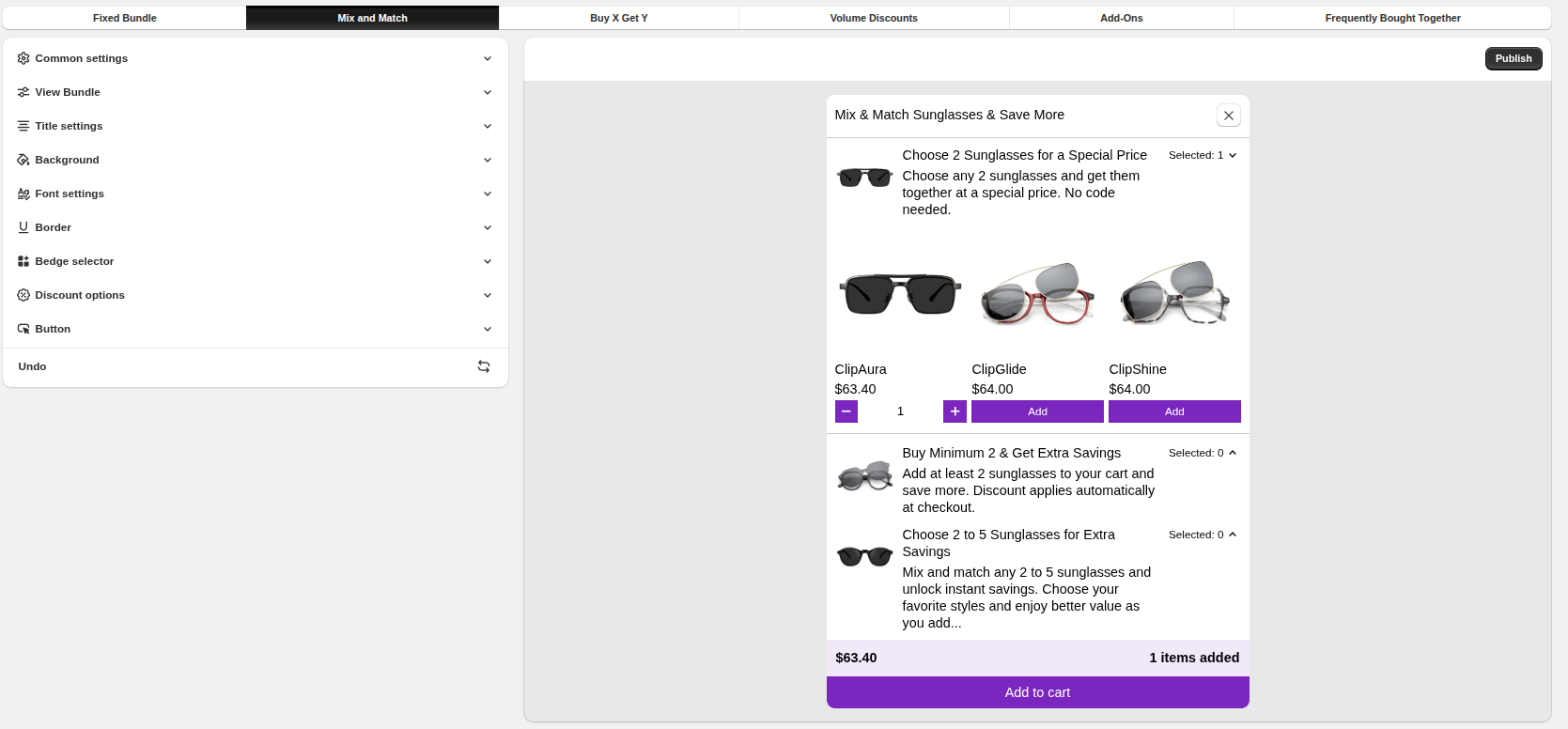
In the Customize Design section, you can control how the Mix & Match bundle is displayed and how customers interact with it.
2. View Bundle
Choose how discounts are applied in your Mix & Match bundle :
Single Discount :
A fixed discount applies once the minimum required quantity is selected (for example, Choose 2 items for a special price).
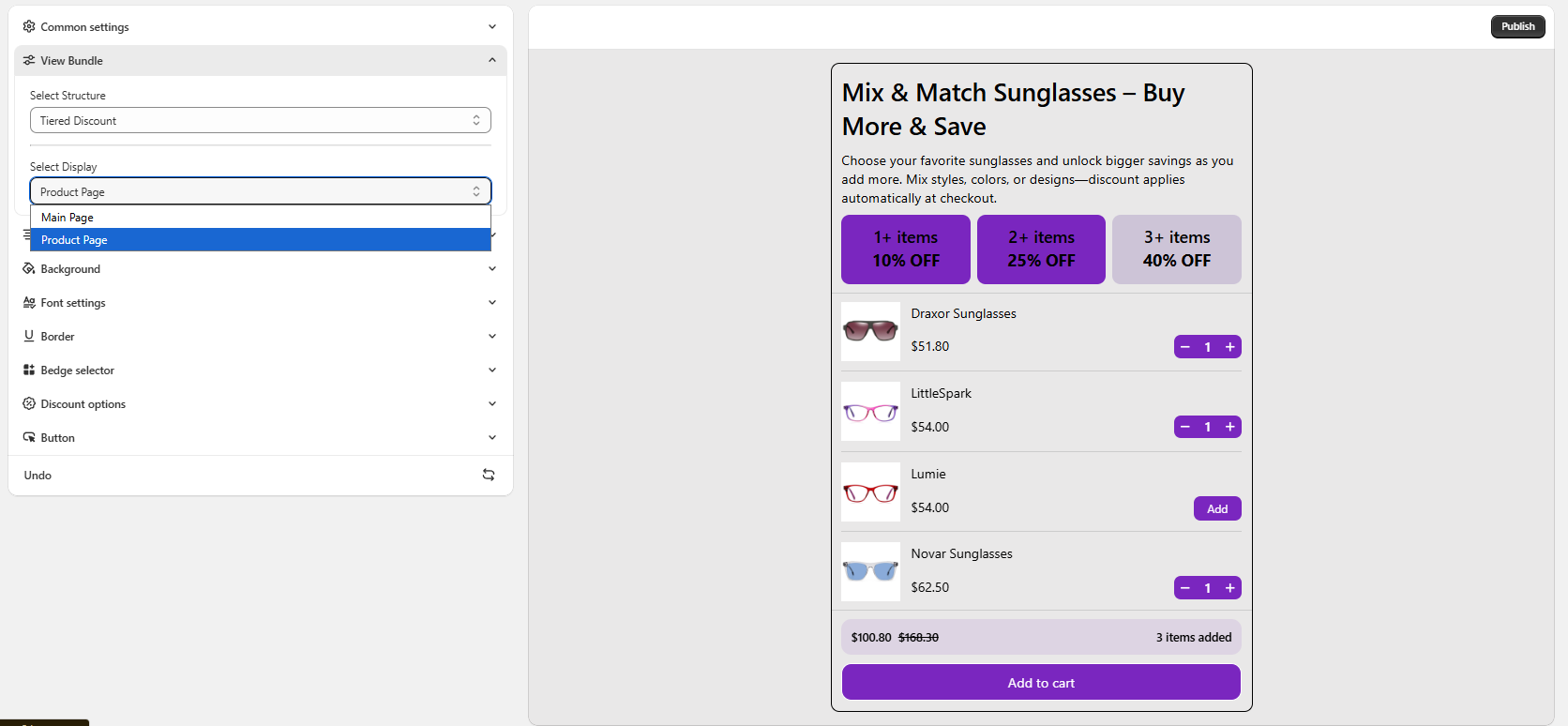
Tiered Discount :
Discounts increase as customers add more items (for example, 1+ items – 10% off, 2+ items – 25% off, 3+ items – 40% off).
Choose where the Mix & Match bundle will appear on your store :
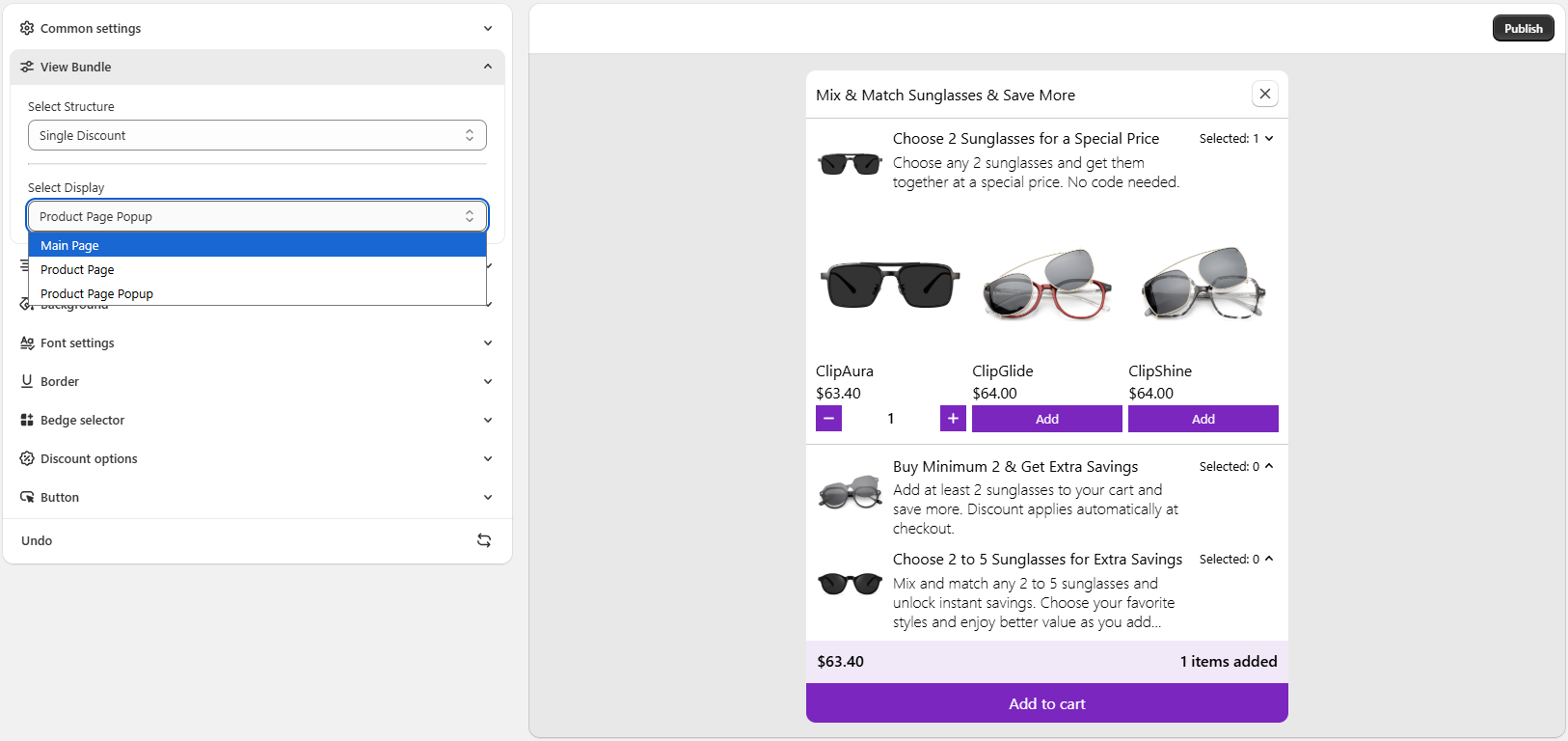
Main Page : Displays the bundle directly on the main bundle layout with full product selection and pricing detailsProduct Page : Shows the bundle embedded on the product page, matching your store’s product layout
Product Page Popup : Opens the Mix & Match bundle in a popup when customers interact with the product page—keeping the page clean while offering a focused selection experience
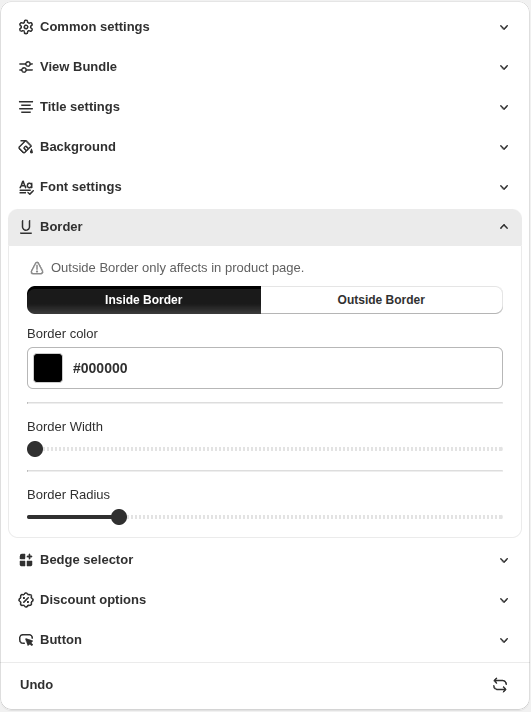
3. Border Settings
The Border option lets you customize the outer border of the bundle on the product page.
Border Width : Adjust the thickness of the border
Border Radius : Control the roundness of the bundle corners
Note: These settings apply only to the product page
4. Badge Selector
The Badge Selector allows you to customize the appearance and position of discount badges in the Mix & Match bundle.
Badge Position :
Choose where the badge appears — Left, Center, or Right .
Badge Color :
Set the background color of the badge to match your store branding.
Badge Font Color :
Choose the text color for clear visibility.
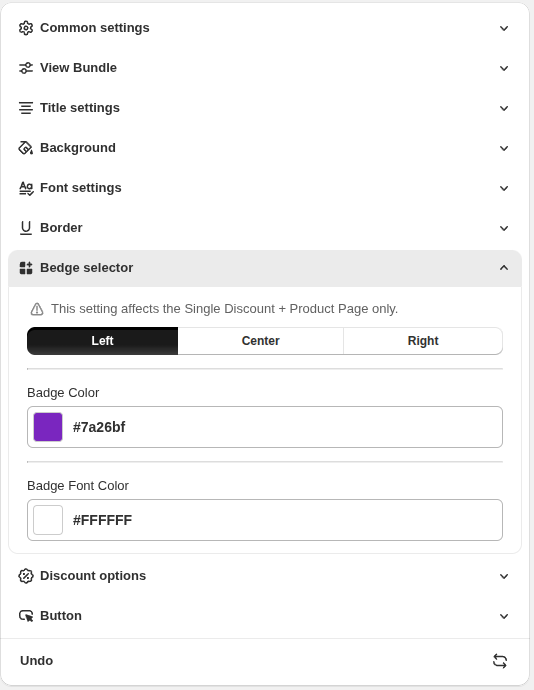
Note: This setting applies only to Single Discount + Product Page displays.
5. Discount Options
The Discount Options setting lets you customize how discount tiers appear in Mix & Match bundles using Tiered Discounts.
Applied Options :
Customize the appearance of discount tiers that are currently active.
Background Color : Set the background color for applied discount tiersFont Color : Choose the text color for applied tiers
Unapplied Options :
Style discount tiers that are not yet unlocked.
Background Color : Set the background color for unapplied tiersFont Color : Choose the text color for unapplied tiers
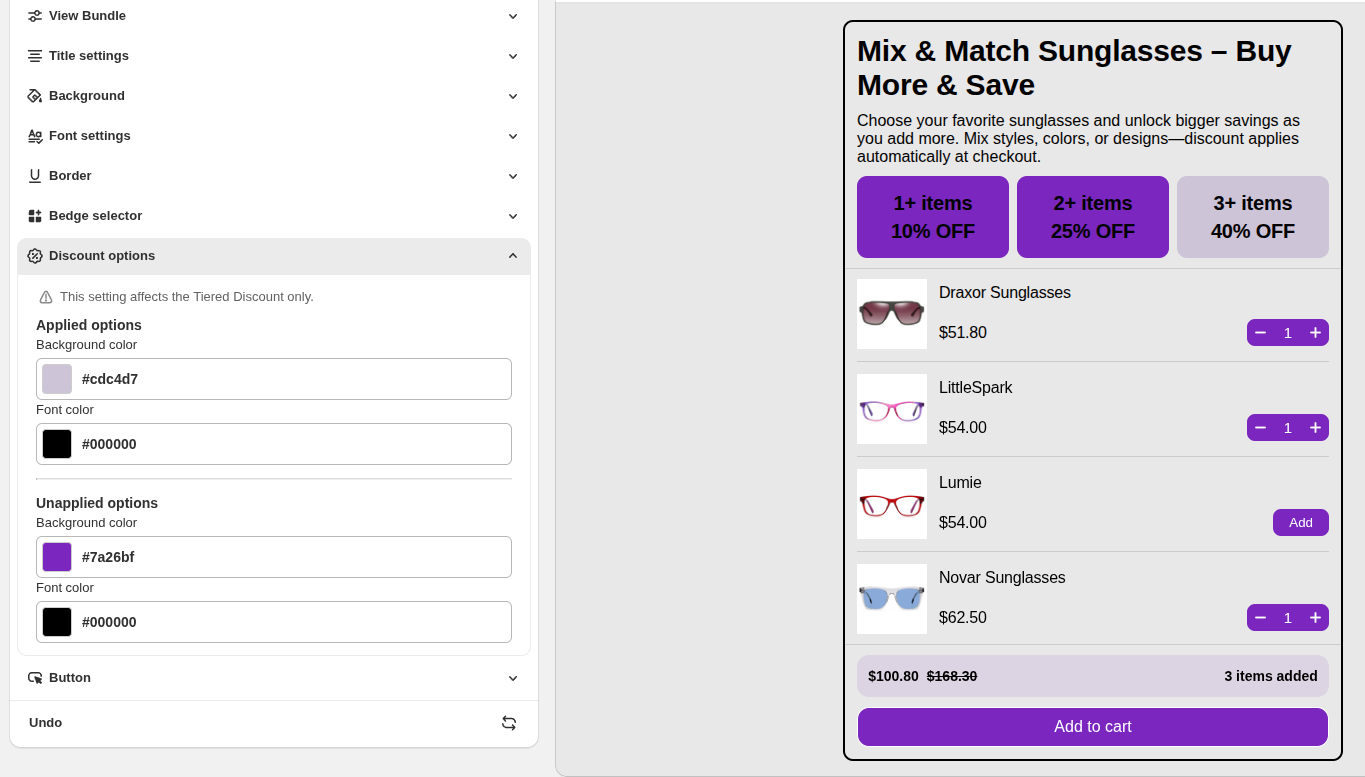
Note: This setting applies only to Tiered Discount bundles.