How to Create a Volume Discounts Bundle
The step-by-step explanation of how to create a Volume Discount Bundle :
1. Click on the "Create bundle" button from your Bundle Wave app homepage
Click on the "Create bundles" button located on the Home or Bundles tab. This will open up the bundle creation menu for you.
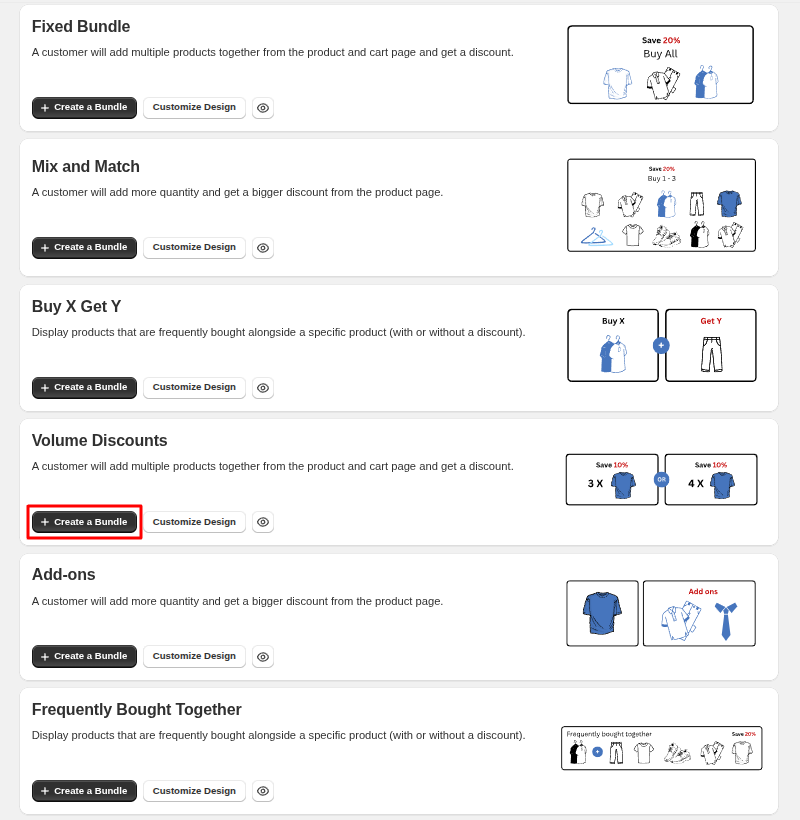
2. Choose the Volume Discount type
In this case, we choose the "Volume Discount" type :
3. Add discounted products
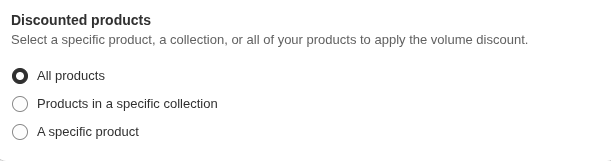
In the Discounted Products section, you determine whether you want to create this bundle for a specific product, product in a specific Collection, or all your products.
4. Set discount options
In the "Discount options" section, you can define your discount options.
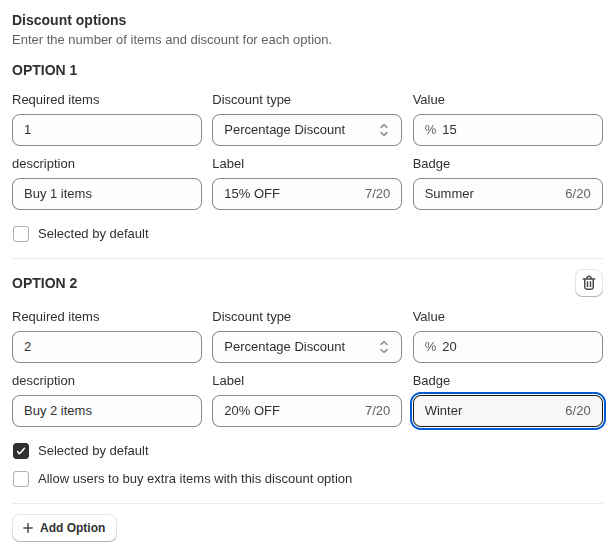
In this section, you can :
- Define your discount options by choosing the required number of products and the discount type
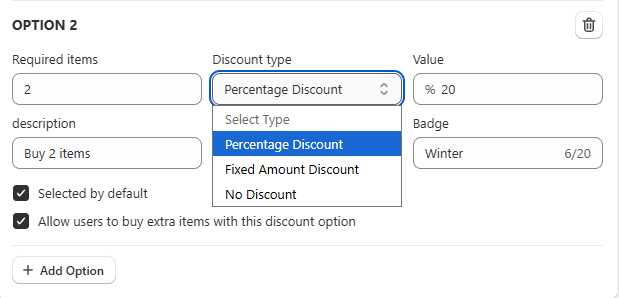
- Optionally, define the first discount option with 1 required item and "No Discount". (You can also set a discount)
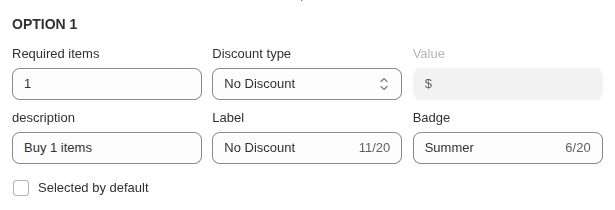
- Add descriptions and labels for each discount option to appear on the bundle widget
- Preselect one option by default
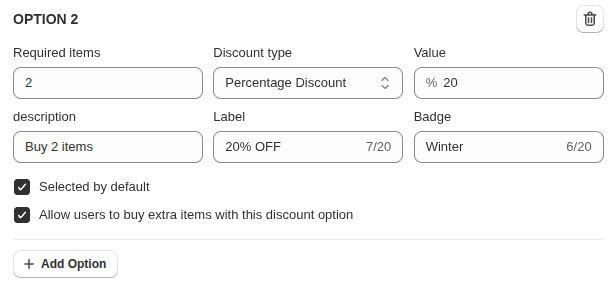
- Allow customers to buy extra items with the last discount option and get the discount
- Add additional options using the "Add option" button. You can add as many options in this part as needed to maximize the value of your bundle
5. Set a title
In the details section, you can choose a title for the bundle, which will show on the bundle widget. You can count on the assistance of the AI in this step, too.

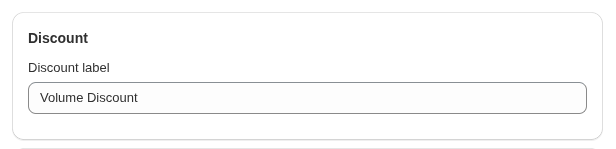
6. Set discount label
From the Discount label, you can write your preferred label in the box, and that will be displayed with the discounted products in the cart page, cart drawer (mini cart), and in the checkout.
7. View Your Bundle
You can view your bundle on your shop from the "Preview" button in the right-hand corner of the "Update bundle" page and view your bundle in Store.
