How to Create a Add-Ons Bundle
The step-by-step explanation of how to create a Add-Ons Bundle :
1. Click on the "Create bundle" button from your Bundle Wave app homepage
Click on the "Create bundles" button located on the Home or Bundles tab. This will open up the bundle creation menu for you.
2. Select Bundle Type
Choose "Product add-ons" from the list below :
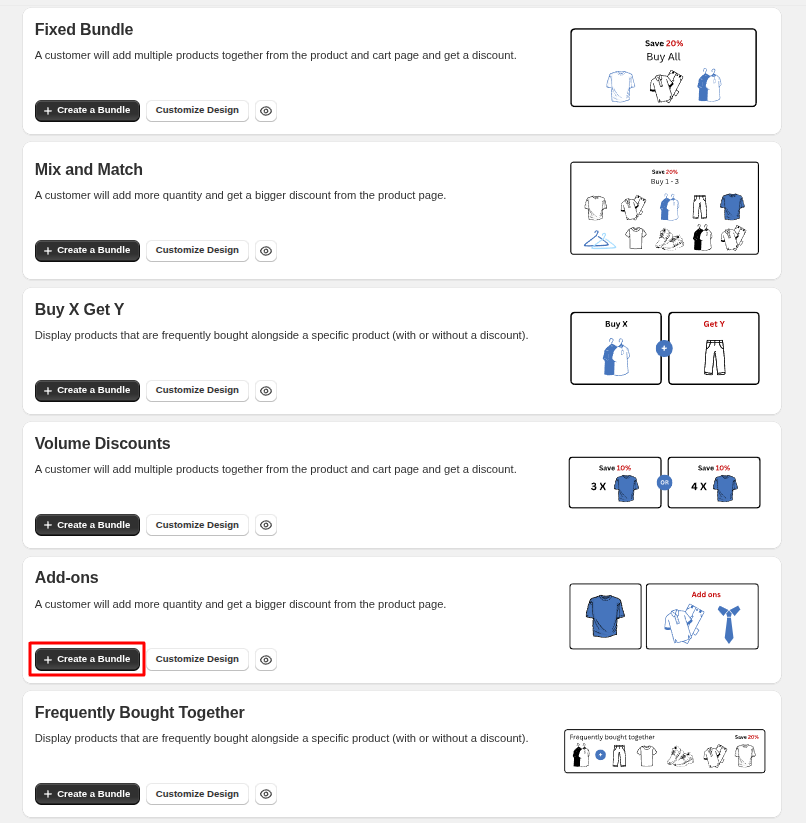
3. Add your Main product
You can create an add-on bundle for your "All Products," "Specific Collection," or a "Specific product". This flexibility enables you to customize bundles according to your entire catalog, a specific collection, or an individual item.
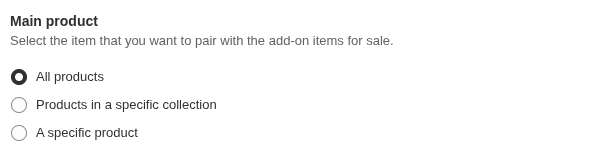
Here, you can list the products you want to offer, along with the main product:

4. Name Your Bundle
Choose a title and subtitle for your bundle :
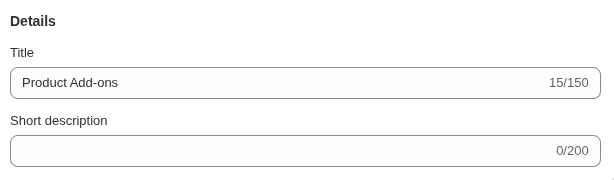
5. Advanced settings
In this section, you can customize how the Add-on bundle behaves and is displayed. The following options are available :
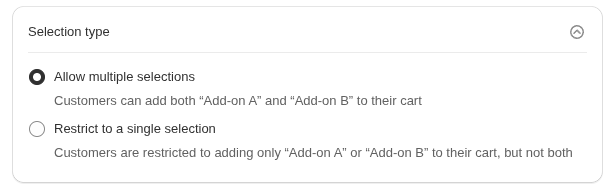
Choose how customers can interact with the add-on items :
- Allow Multiple Selections : Customers can add one, several, or all add-on items to their cart with no restrictions
- Restrict to a Single Selection : Customers can add only one item from the add-on list to their cart
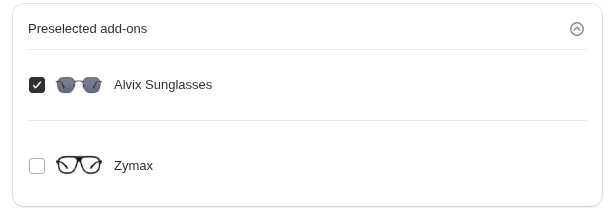
Preselected add-ons :
You can preselect specific add-on items so they appear checked by default when the bundle is shown.
6. Set discount label
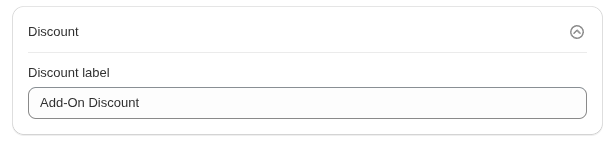
This label appears on the discounted bundle items in your cart.
7. View your bundle on your shop
You can view your bundle on your shop from the "Preview" button in the right-hand corner of the "Update bundle" page and view your bundle in Store.
