How to change the bundle's position using
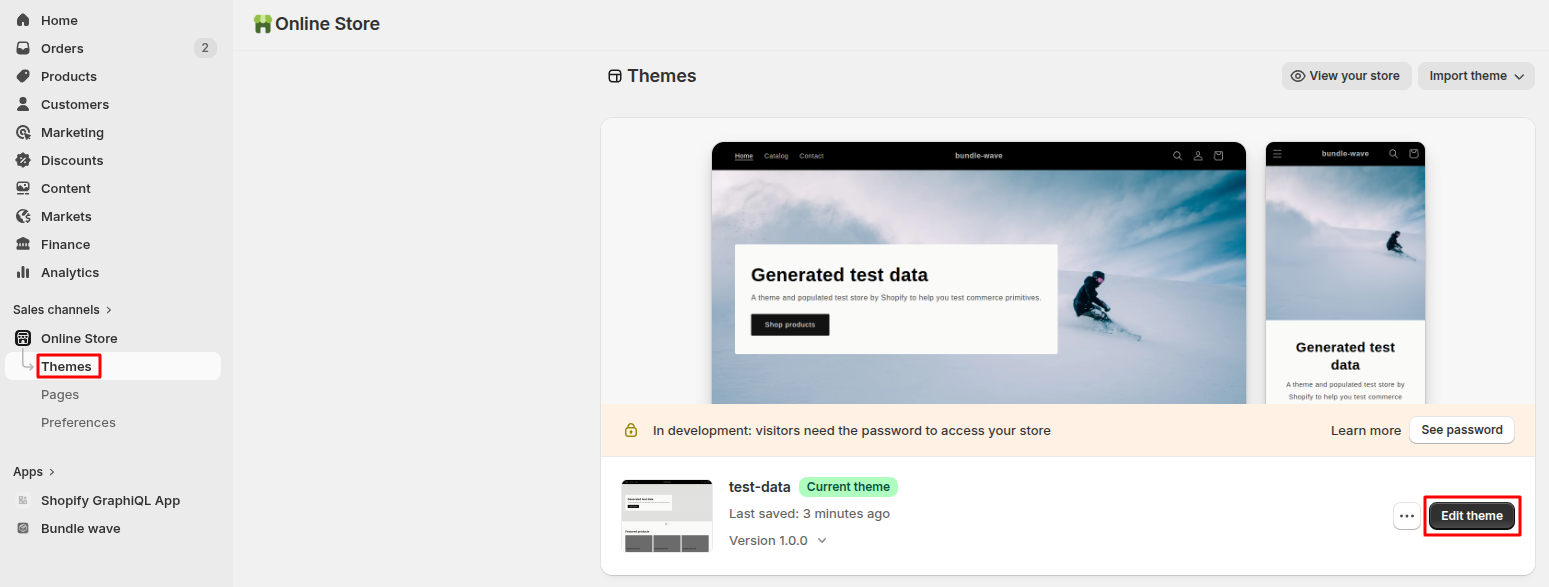
1. Navigate to "Online Store" > "Themes" > "Customize"
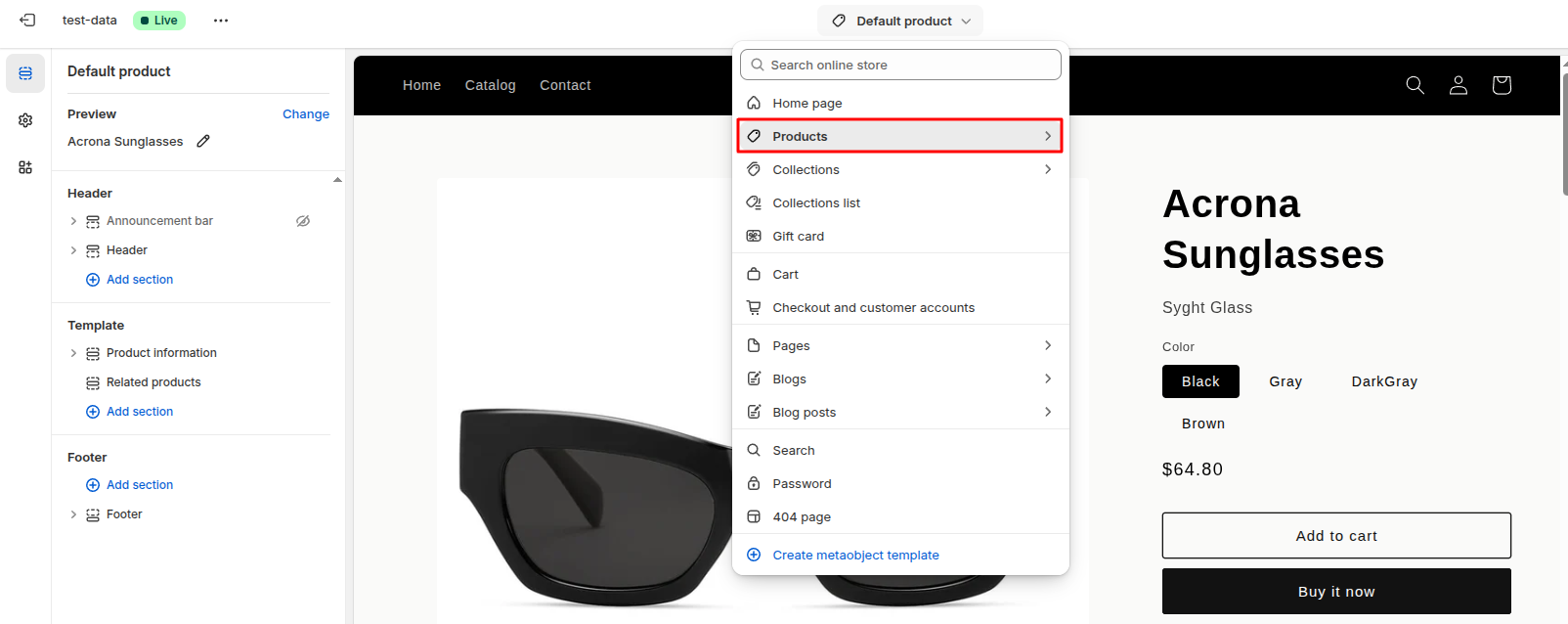
2. Choose the template
Choose the desired page where you want to adjust bundle positions (e.g., "Products" > "Default product").
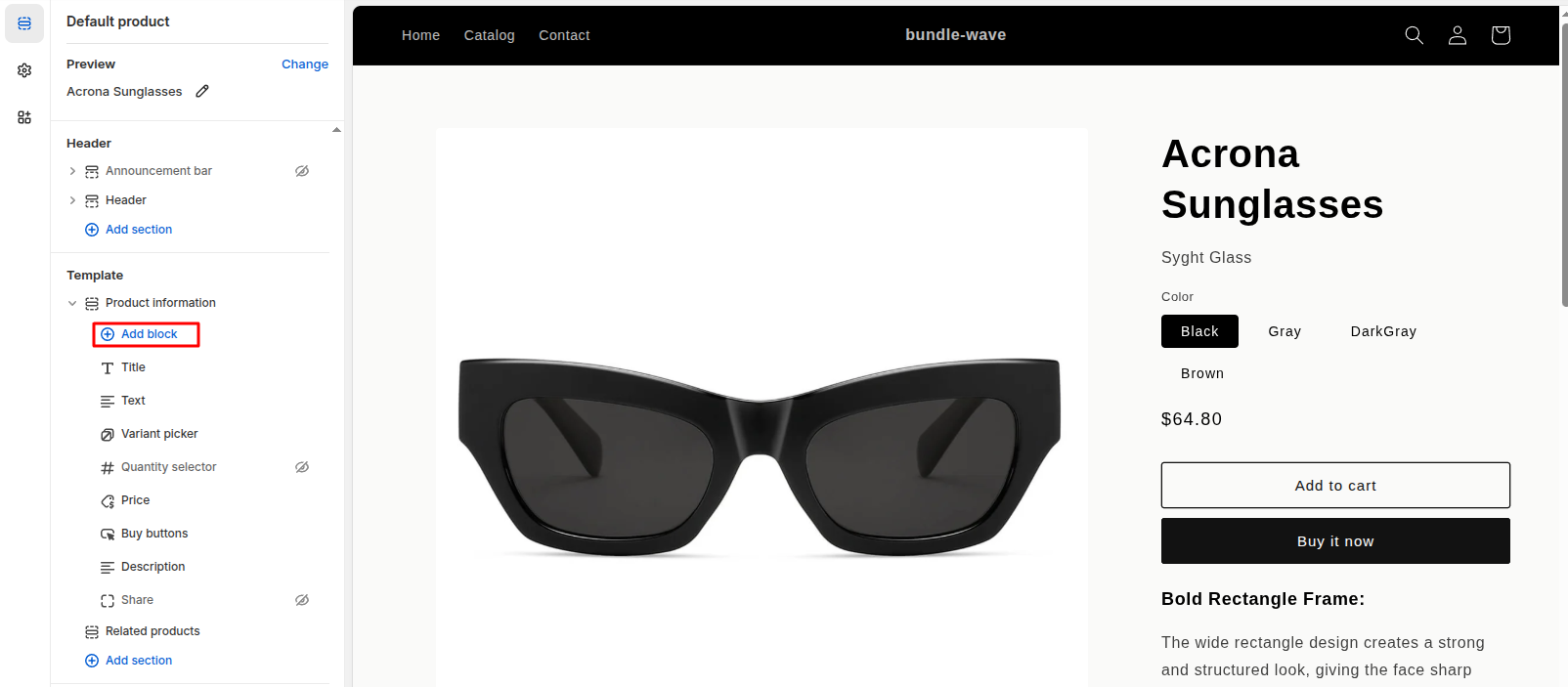
3. Add block
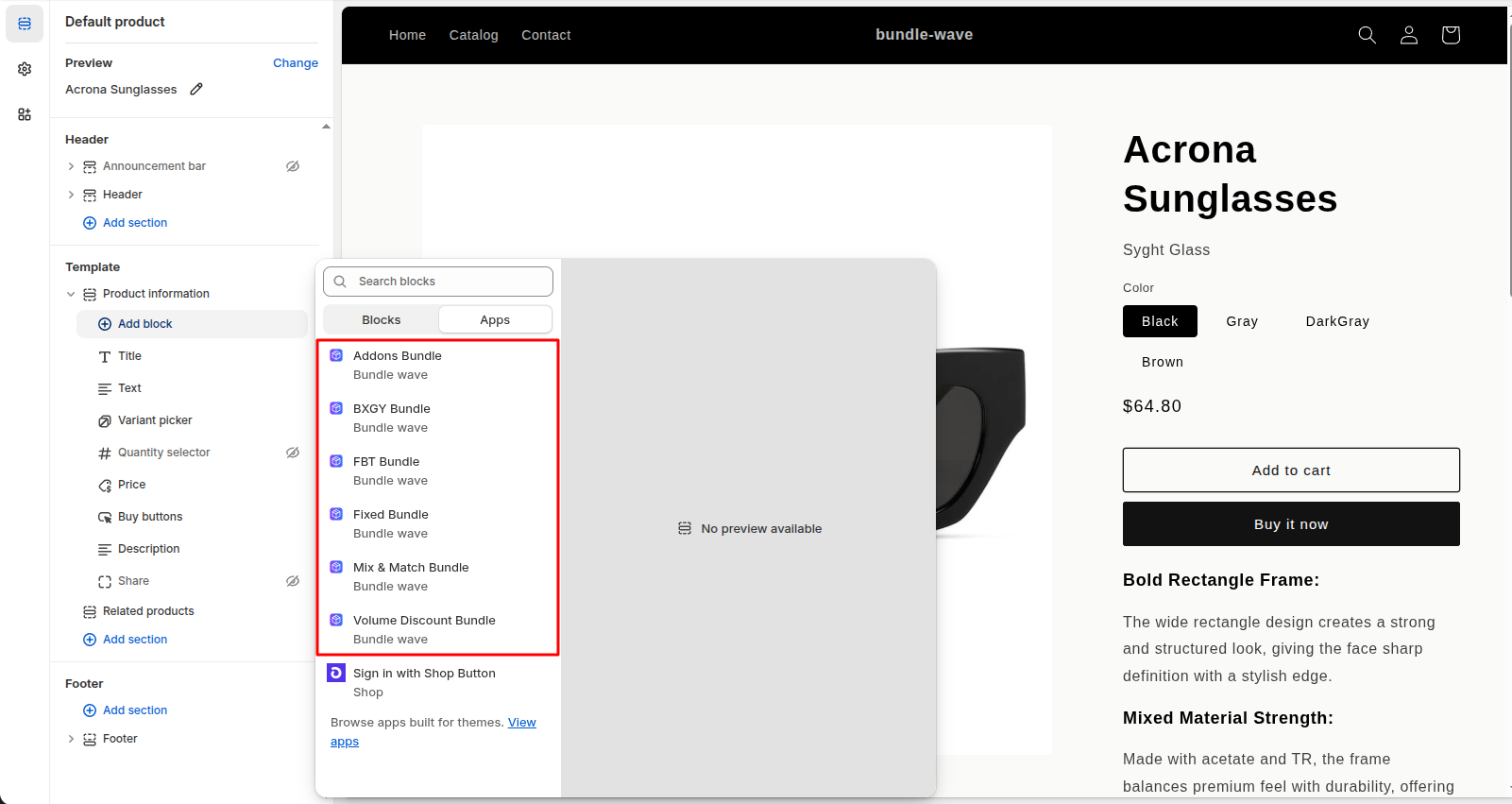
Access the section where you wish to add Bundle Wave blocks, click "Add Block," search "Bundle Wave," and select the appropriate block type.
Important note :
If you can't find the "Add block" option, simply hover over the section where you want to place the bundle. When the blue line appears, click on "Add block".
4. Choose block type
5. Choose the template
Choose the desired page where you want to adjust bundle positions (e.g., "Home page").
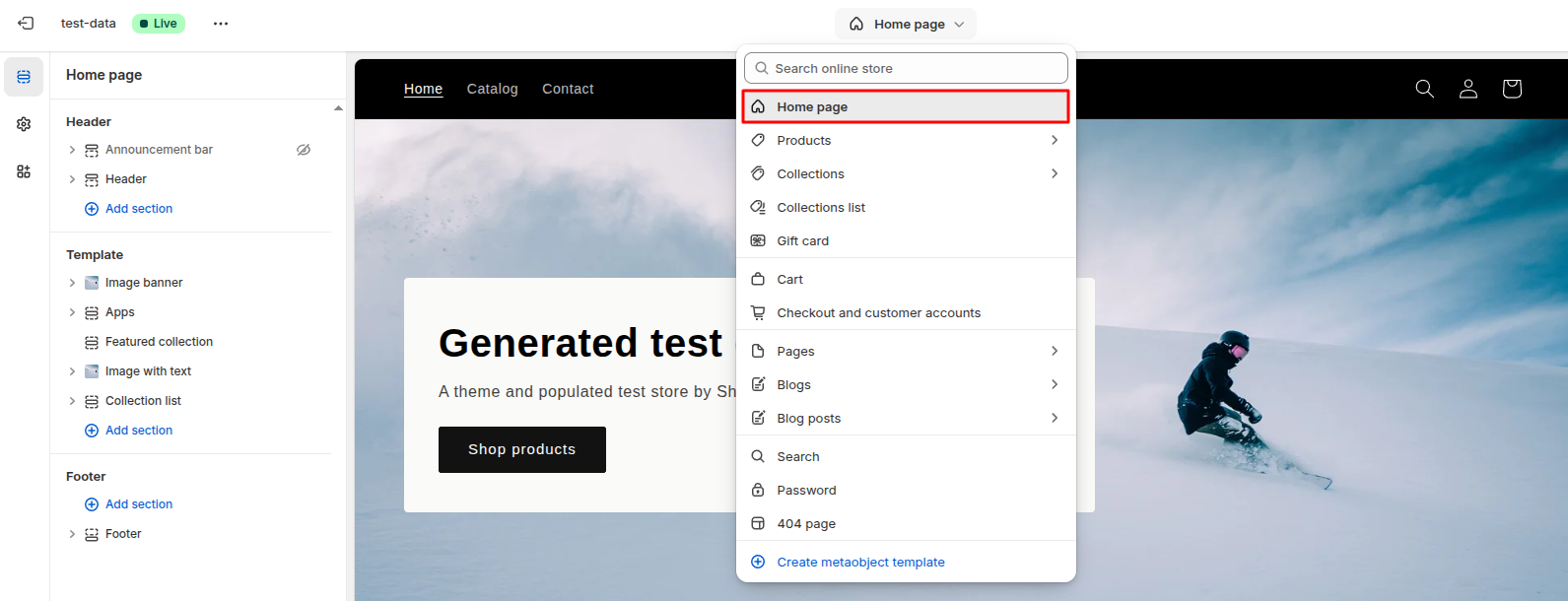
6. Add Block for Home Page
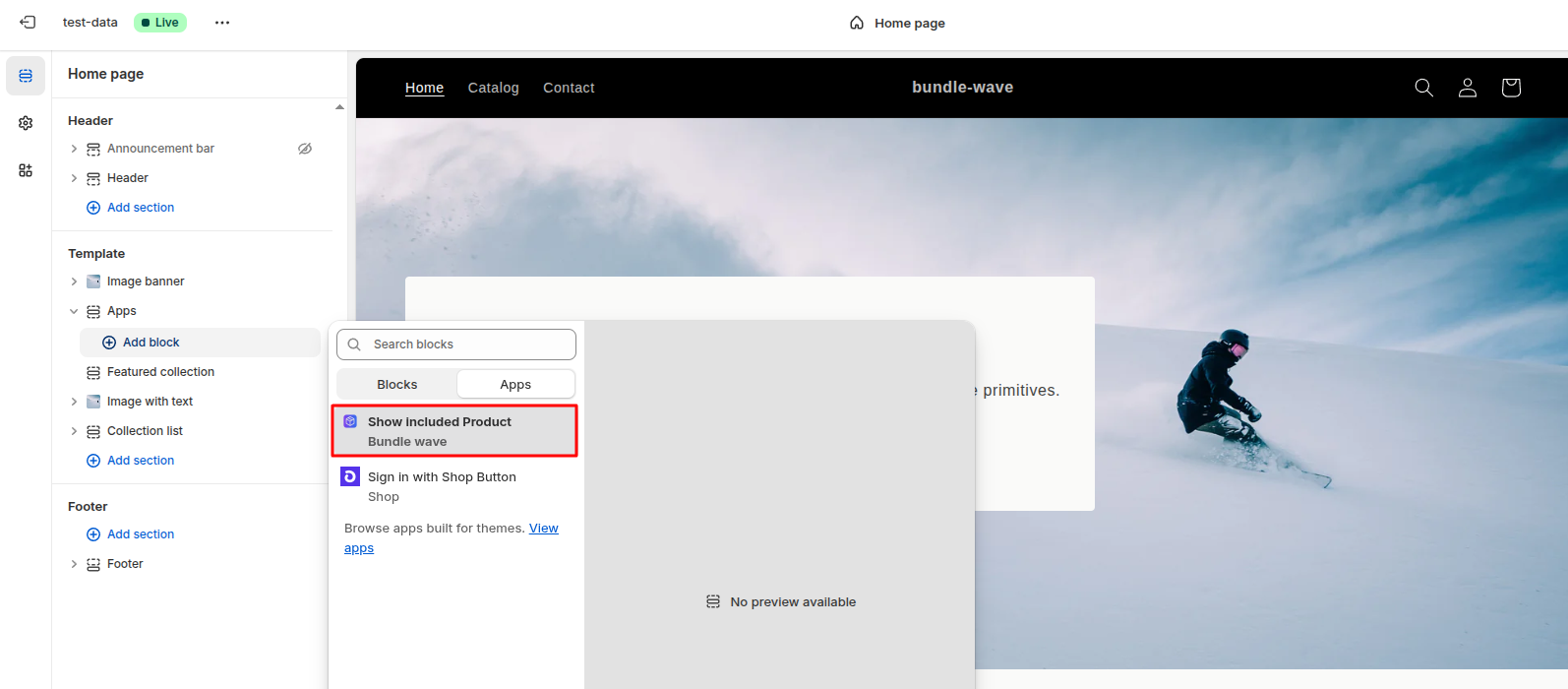
Access the section where you wish to add Bundle Wave blocks, click "Add Block," search "Bundle Wave," and select the appropriate block type.
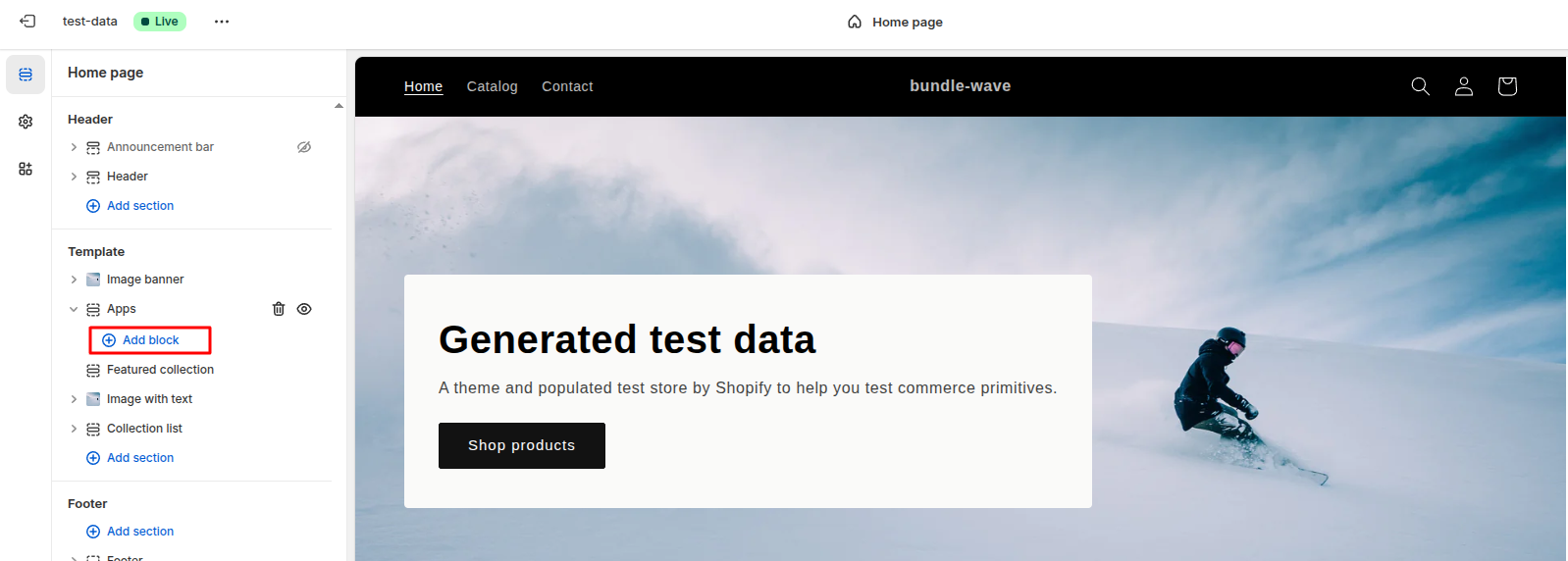
Select Block "Show Included Product".
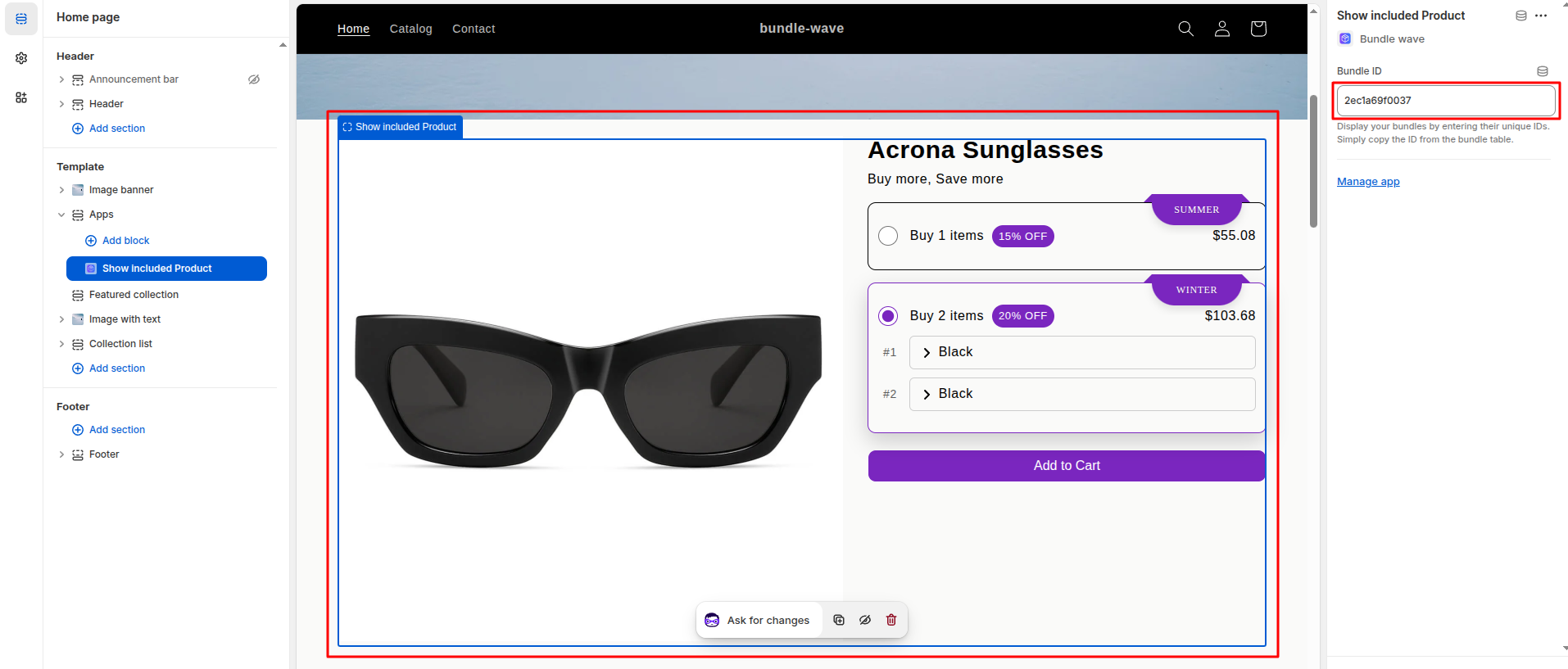
7. Add Bundle Id in bundle Block
Access the section where you wish to add Bundle Wave blocks, click "Add Block," search "Bundle Wave," and select the appropriate block type.
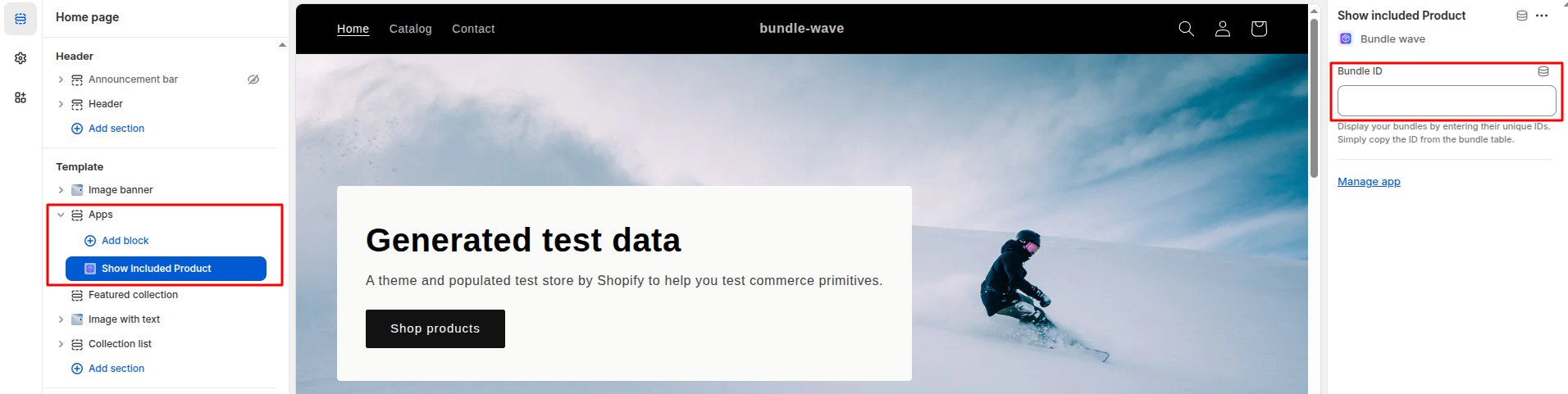
Get Bundle Id from Bundle List.

8. Show bundle with Bundle Id
Access the section where you wish to add Bundle Wave blocks, click "Add Block," search "Bundle Wave," and select the appropriate block type.
9. Save