App Settings
App Settings Overview
Customize how your bundles behave and display on your store using the available settings. Here's a breakdown of each option :
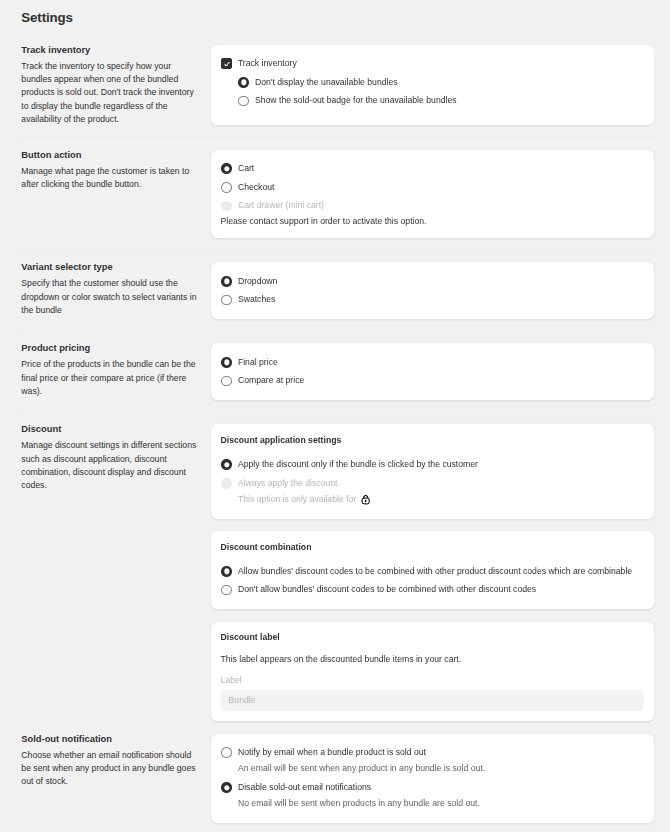
1) Track Inventory
Control how the app handles out-of-stock products within bundles.
- Track Inventory - Enable this to monitor stock levels for bundled products.
- Don't display unavailable bundles - Hide bundles if any included product is out of stock.
- Show sold-out badge - Show a "sold out" label on bundles that are not currently available.
2) Button action
Manage what page the customer is taken to after clicking the bundle button.
- Cart - After clicking the Add to Cart user will redirected to Cart.
- Checkout - After clicking the Add to Cart user will redirected to Checkout page.
3) Variant Selector Type
Decide how customers select product variants in the bundle.
- Dropdown - Default dropdown selection.
- Color Swatch - Show color or style swatches for variant selection.
4) Product Pricing
Choose how pricing is displayed for bundled products.
- Final Price - Show the final discounted price.
- Compare at Price - Show the original price alongside the discounted one.
5) Discount Settings
Define how and when discounts should be applied to bundles.
- Apply discount only if the bundle is clicked - Discount applies only when a bundle is added to the cart using the bundle widget.
- Always apply the discount - Discount is always applied, regardless of how the bundle was added.
6) Discount Combination
Choose whether your bundle discounts can be used with other Shopify discount codes.
- Allow combination - Bundle discounts can be stacked with other eligible product discounts.
- Don't allow combination (Recommended) - Bundle discounts cannot be combined with other discount codes to avoid double-discounting.
7) Discount Label
This label will appear on discounted bundle items in the cart.
Example : "Bundle Discount" or "Save with Bundle".
8) Sold-out notification
Choose whether an email notification should be sent when any product in any bundle goes out of stock.
- Notify by email - An email will be sent when any product in any bundle is sold out.
- Disable sold-out email notifications - No email will be sent when products in any bundle are sold out.