How Can I Customize My Banner's Appearance?
Customize the banner
On the Lock Manger admin panel, go to the "Customization" tab.
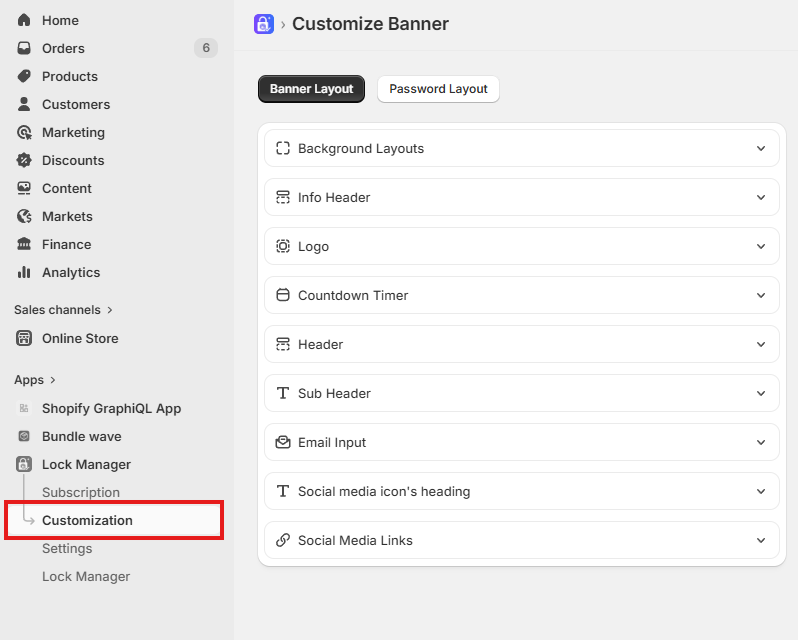
Common customization for banner
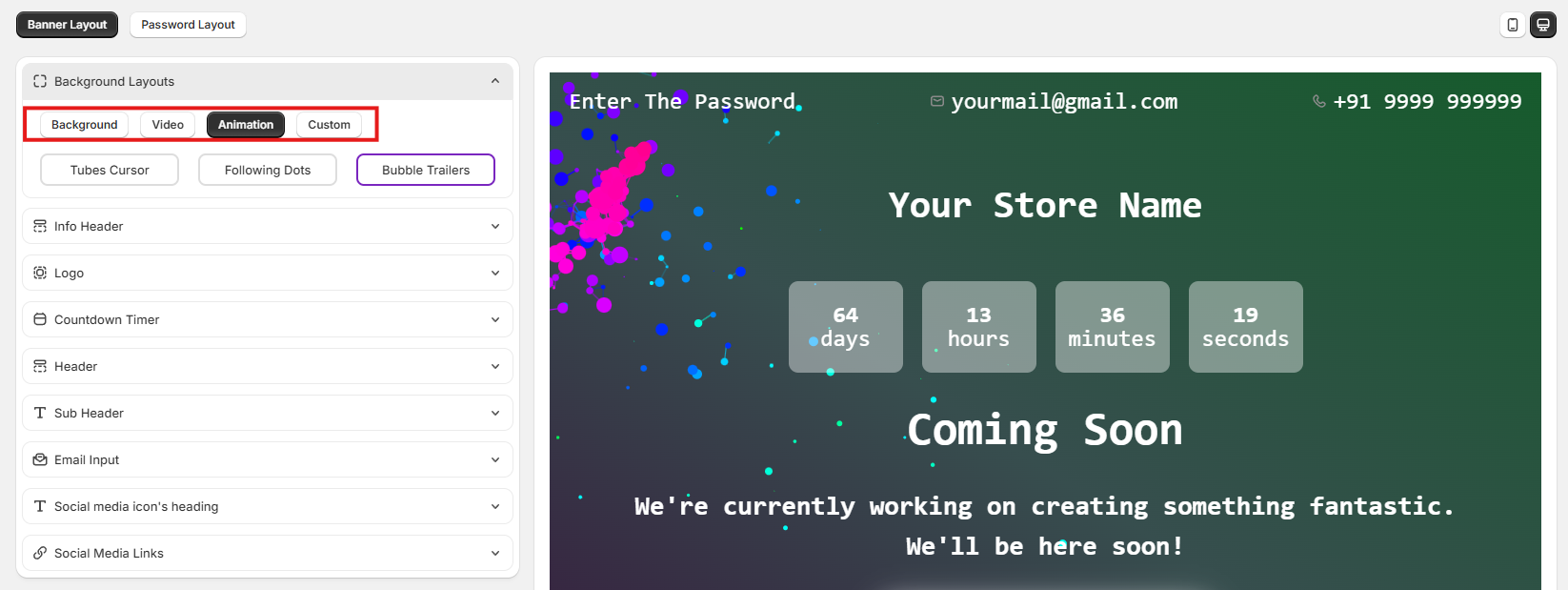
1. Background Layouts
The Background option lets you control the background style of the banner page
Image: To set the Banner background as selected image
Video: To set the Banner background as selected video
Custom: To set the Banner background as your uploaded image
2. Info Header
The Info header option lets you control the text and appearance of the info header on banner page
Switch: To show or hide the info header
Textbox: To customize and change the text of Password, Email and Phone
Fonts: Changes the font family of the text
Text size: Adjust the size of the text for better readability
Text color: Choose the color of the info header to match your store's theme

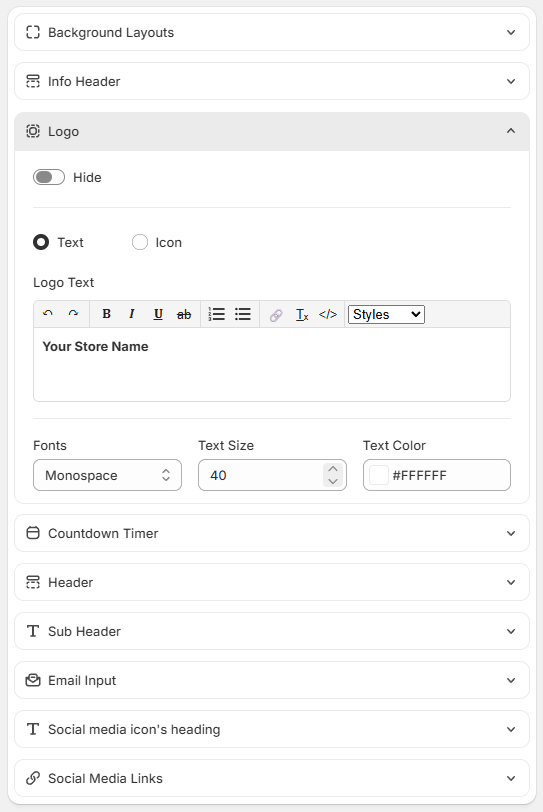
3. Logo
The Logo option lets you control the logo text and logo icon of the banner
Switch: To show or hide the logo
Options: to select the logo type as text or icon
Textbox: To customize and change the text of Logo
Fonts: Changes the font family of the text
Text size: Adjust the size of the text for better readability
Text color: Choose the color of the logo to match your store's theme
4. Countdown Timer
The Countdown Timer lets you control the timer of the banner
Fonts: Changes the font family of the text
Text size: Adjust the size of the text for better readability
Text color: Choose the color of the timer to match your store's theme

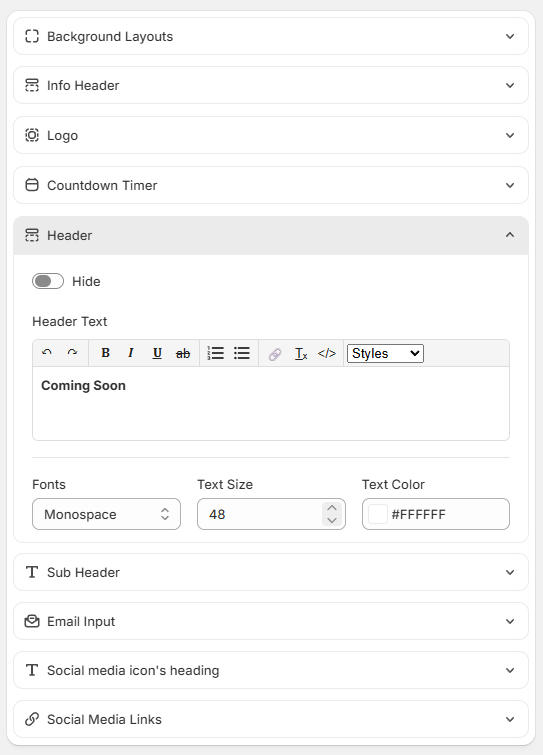
5. Header
The Header option lets you control the text and appearance of the header on banner page
Switch: To show or hide the header
Textbox: To customize and change the text of Header
Fonts: Changes the font family of the text
Text size: Adjust the size of the text for better readability
Text color: Choose the color of the header to match your store's theme
6. Sub Header
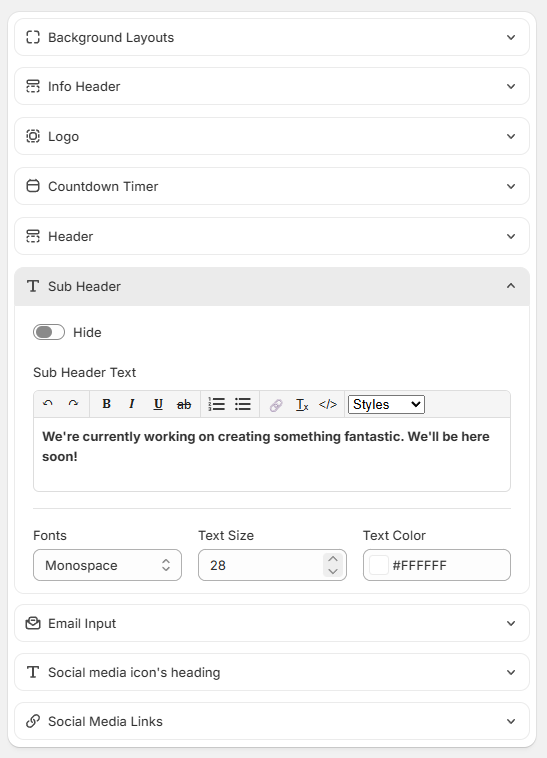
The Sub Header option lets you control the text and appearance of the sub header on banner page
Switch: To show or hide the sub header
Textbox: To customize and change the text of Sub Header
Fonts: Changes the font family of the text
Text size: Adjust the size of the text for better readability
Text color: Choose the color of the sub header to match your store's theme
7. Email Input
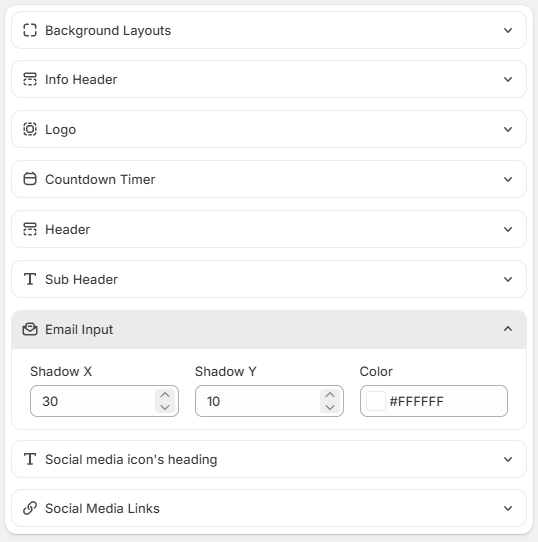
The Email Input option lets you control the appearance of the Input field for email
Shadow X: To change the box shadow of X axis
Shadow Y: To change the box shadow of Y axis
Color: Choose the color of the box shadow to match your store's theme
8. Social media icon's heading
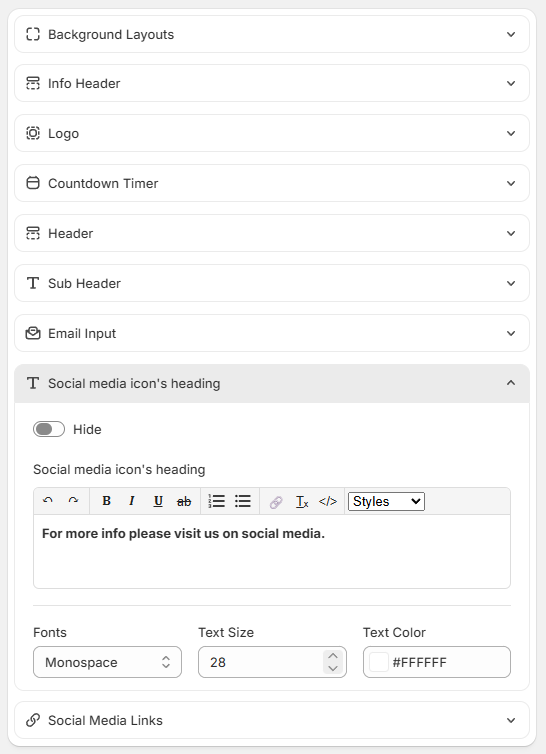
The Social media icon's heading option lets you control the text and appearance of the sub header on banner page
Switch: To show or hide the Social media icon's heading
Textbox: To customize and change the text of Social media icon's heading
Fonts: Changes the font family of the text
Text size: Adjust the size of the text for better readability
Text color: Choose the color of the Social media icon's heading to match your store's theme
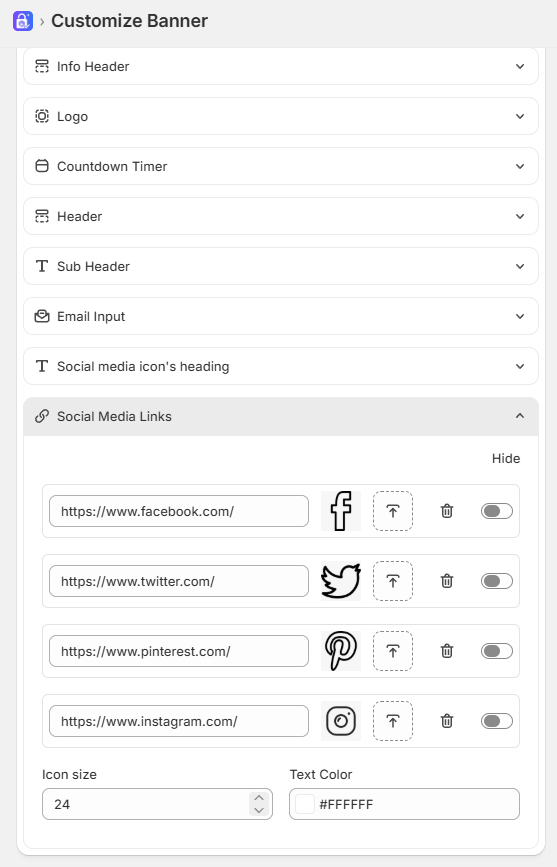
9. Social Media Links
The Social Media Links option lets you control the appearance of the social media links
Add Link: To add new link
Links: To add a link text or link icon, to upload an icon image, to delete the link, to hide the link
Icon size: Adjust the size of the icon for better visibility
Text color: Choose the color of the Social media links text to match your store's theme