App Settings
App Settings
App Settings Overview
Customize how your Lock Manager behave and display on your store using the available settings. Here's a breakdown of each option :
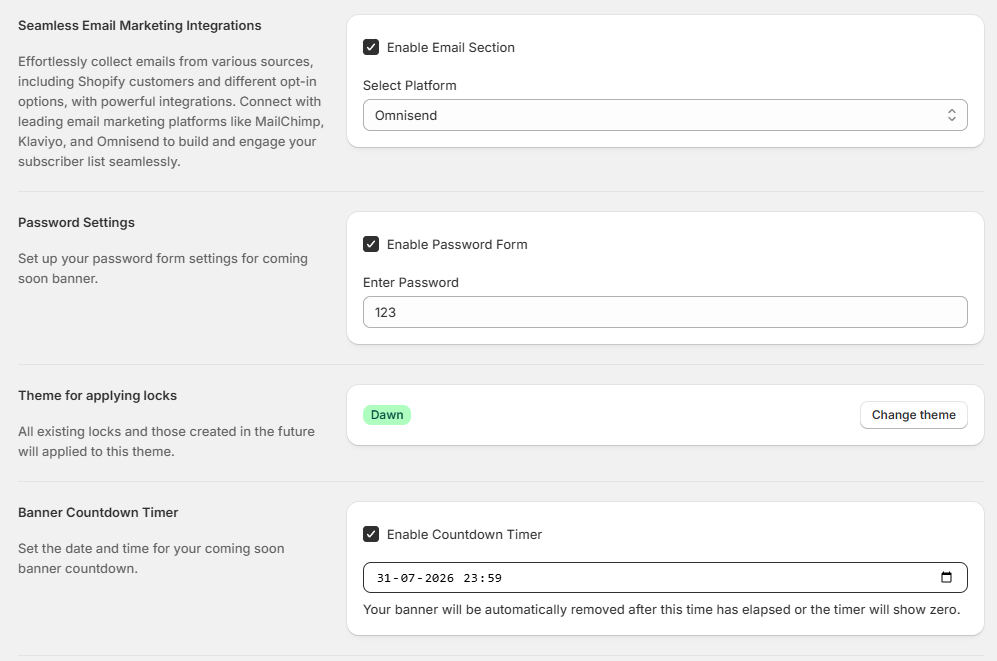
1) Seamless Email Marketing Integrations
Control how the app collects email from subscribers and keep them updated with by sending mail when store is live
- Enable Email Section - It will show and hide email input field on coming soon banner to collect email from subscribers
- Shopify Customer - Shopify customer will handle the customers and send the app store live email to them.
- Mailchimp - Mailchimp API key will connect app to mailchimp and it will send mail to subscribed customers when store gets live.
- Klaviyo - Klaviyo API key will connect app to klaviyo and it will send mail to subscribed customers when store gets live.
- Omnisend - Omnisend API key will connect app to omnisend and it will send mail to subscribed customers when store gets live.
2) Password Settings
Opens password popup for coming soon banner
- Enable Password Form - It will enable the password authentication in coming soon banner.
- Enter Password - It will set password input for coming soon banner password popup.
3) Theme for applying locks
All active locks in lock manager will be applied when store's current theme is selected theme of this app's settings.
- Theme - Select the theme you want to lock content using lock manager, change selected theme.
4) Banner Countdown Timer
Set the timer for upcoming live store
- Enable Countdown Timer - It will show or hide the timer in coming soon banner page.
- Date & Time - It will end the timer at selected date & time.